



Boot Camp works better with Parallels Desktop

Discover a better way to run Windows on a Mac

Take your ‘Windows on a Mac’ experience to the next level! The following information and resources explain how you can use Boot Camp with Parallels Desktop for greater enhancements and more possibilities for running Windows on a Mac.

Eliminating the Confusion

Many people aren’t aware of the differences between Boot Camp and Parallels Desktop. Although both allow you to run Windows on a Mac, that’s where the similarities end.

Boot Camp is Apple’s partitioning software that allows you to re-partition your Intel-Mac’s hard drive to dual-boot Windows and Mac OS X. This enables you to run a separate installation of Windows natively on your Mac – just like a PC. There are limitations in Boot Camp, however, as you’re unable to run both OSes at the same time. That means if there’s a Windows program you want to use, you’d need to boot out of Mac OS X and switch into Windows.

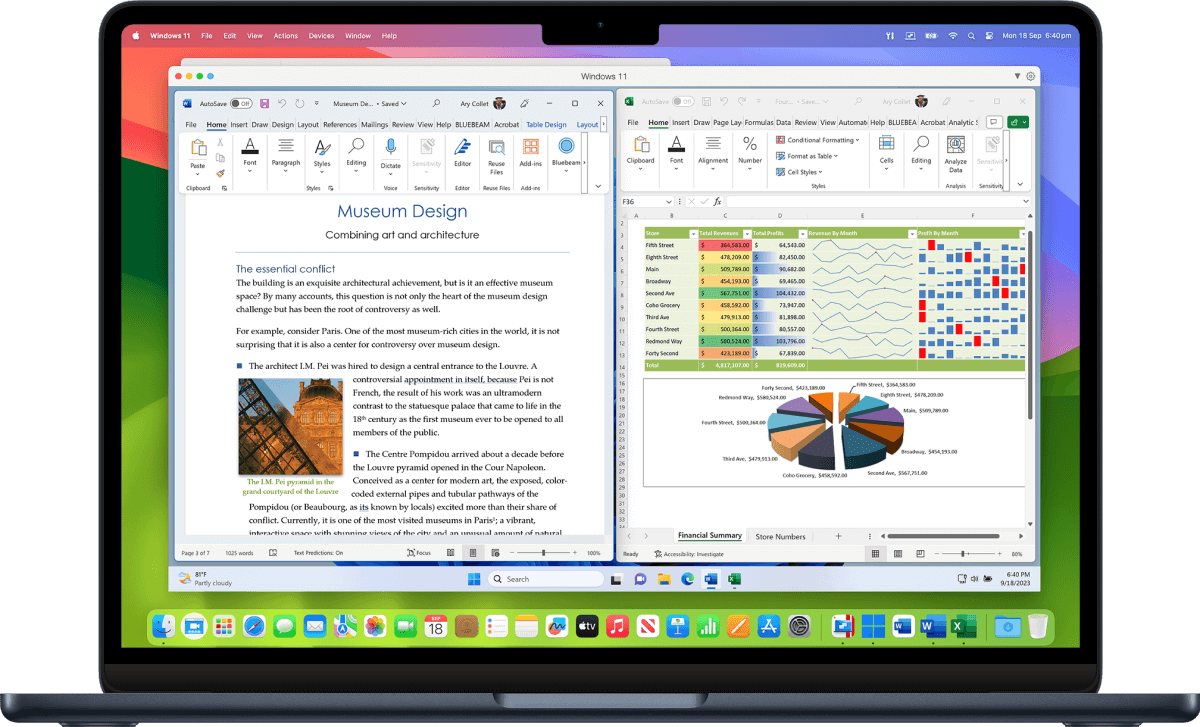
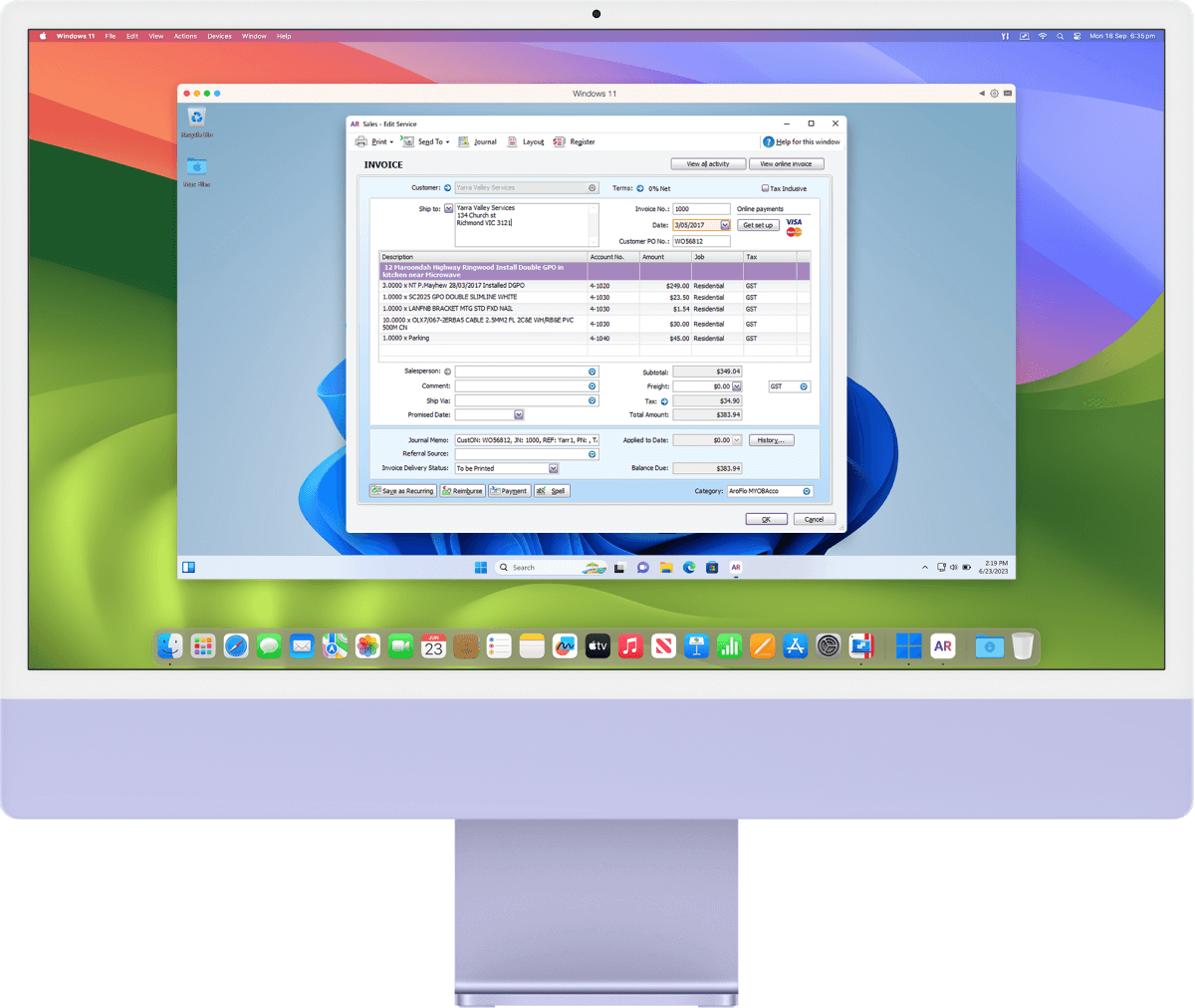
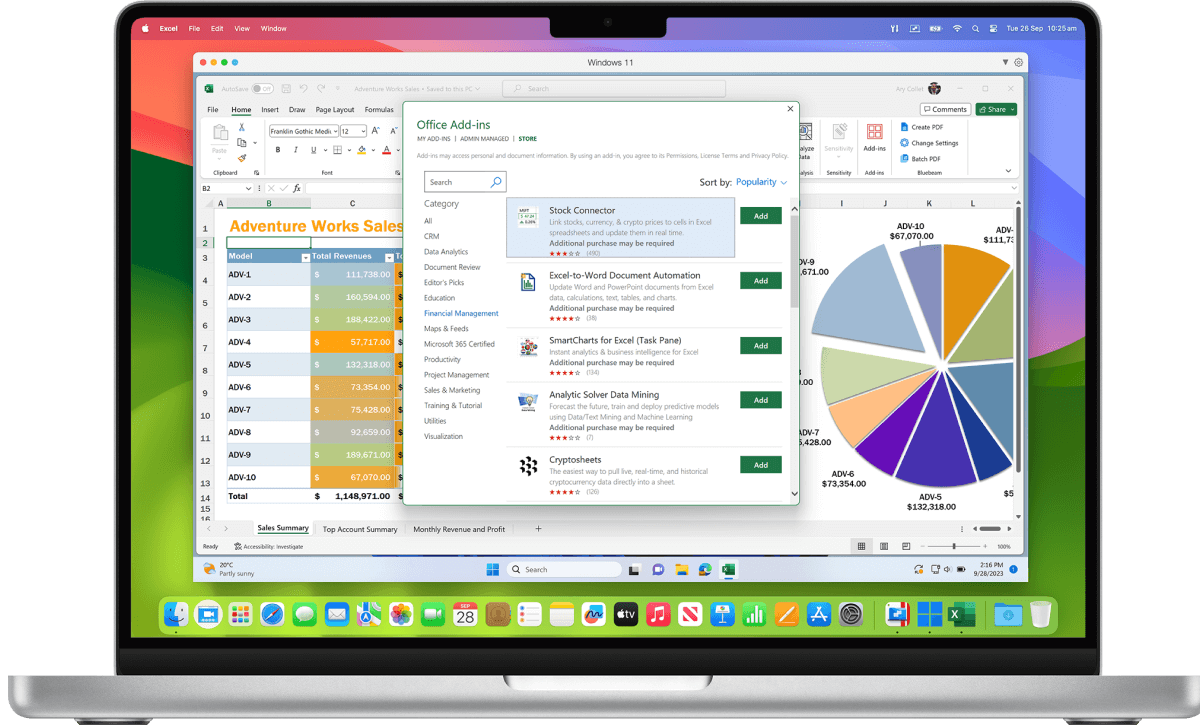
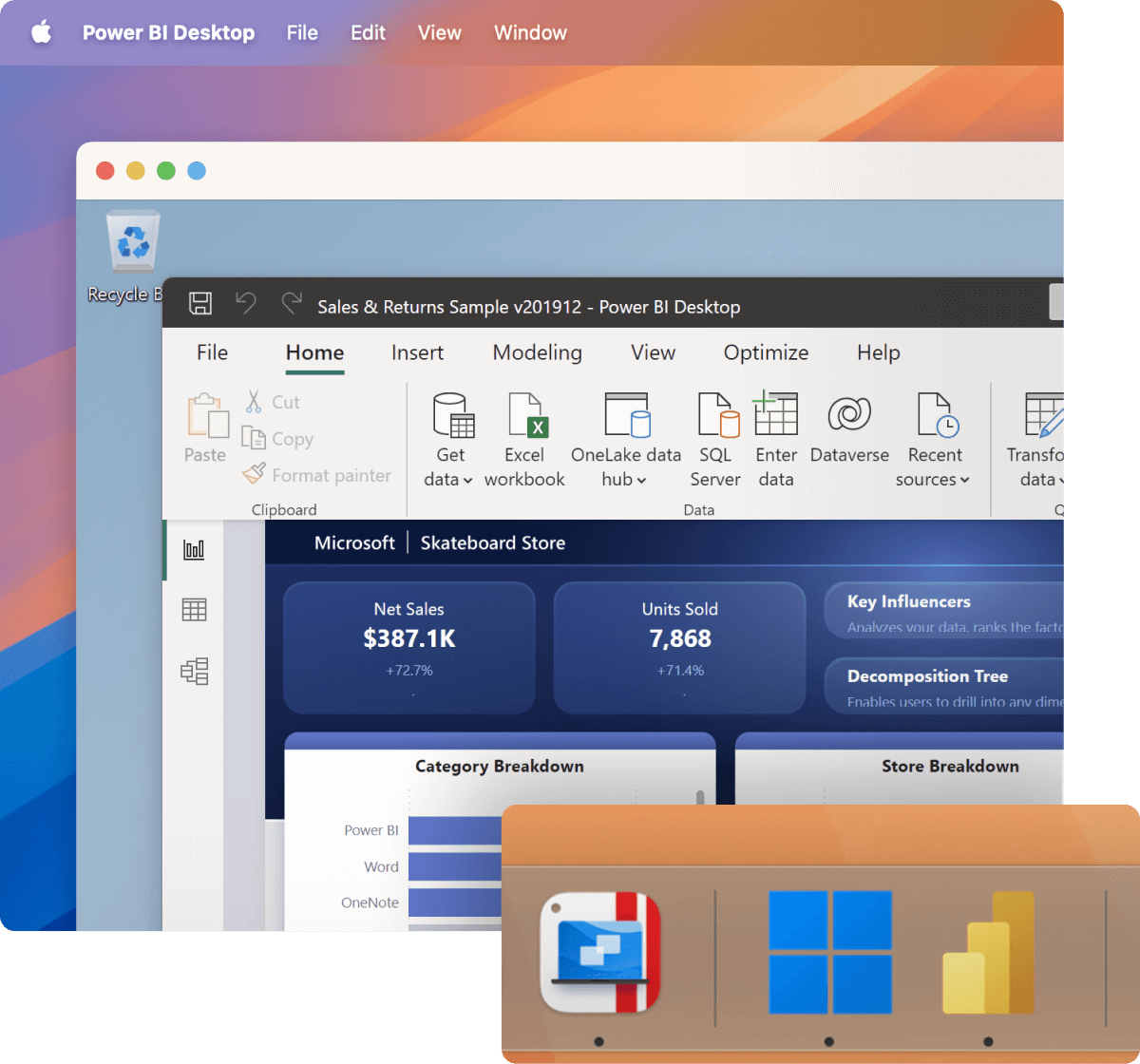
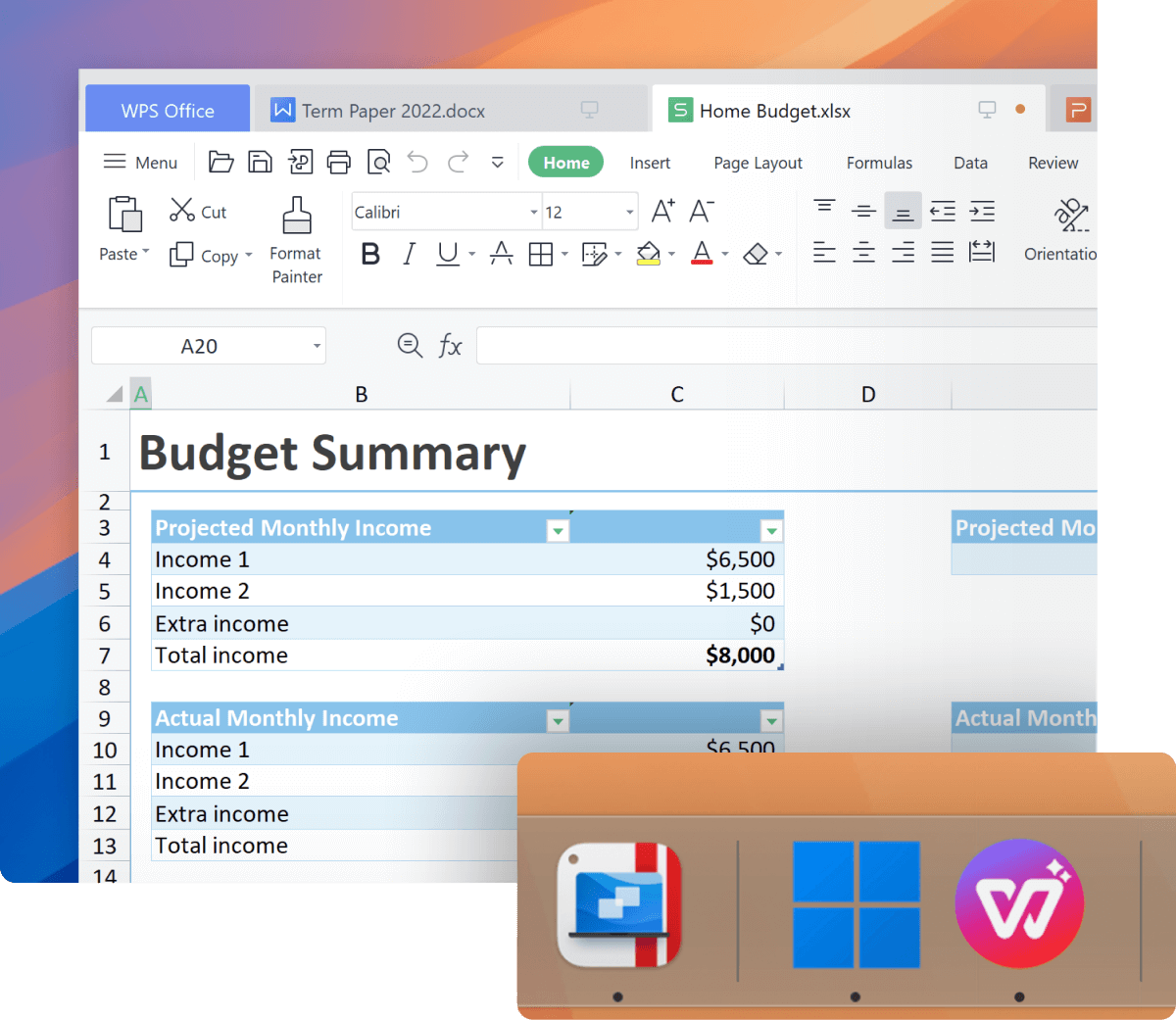
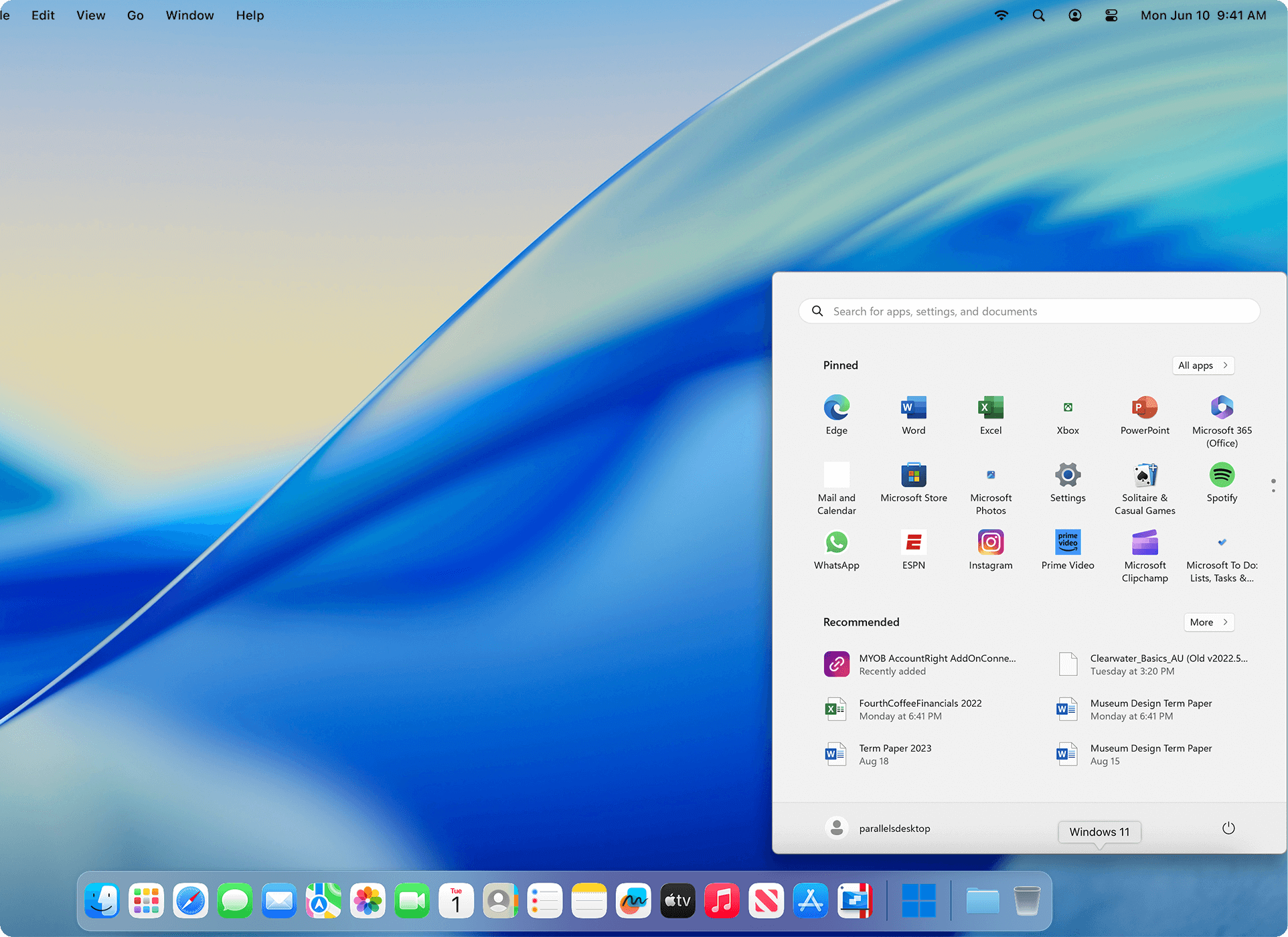
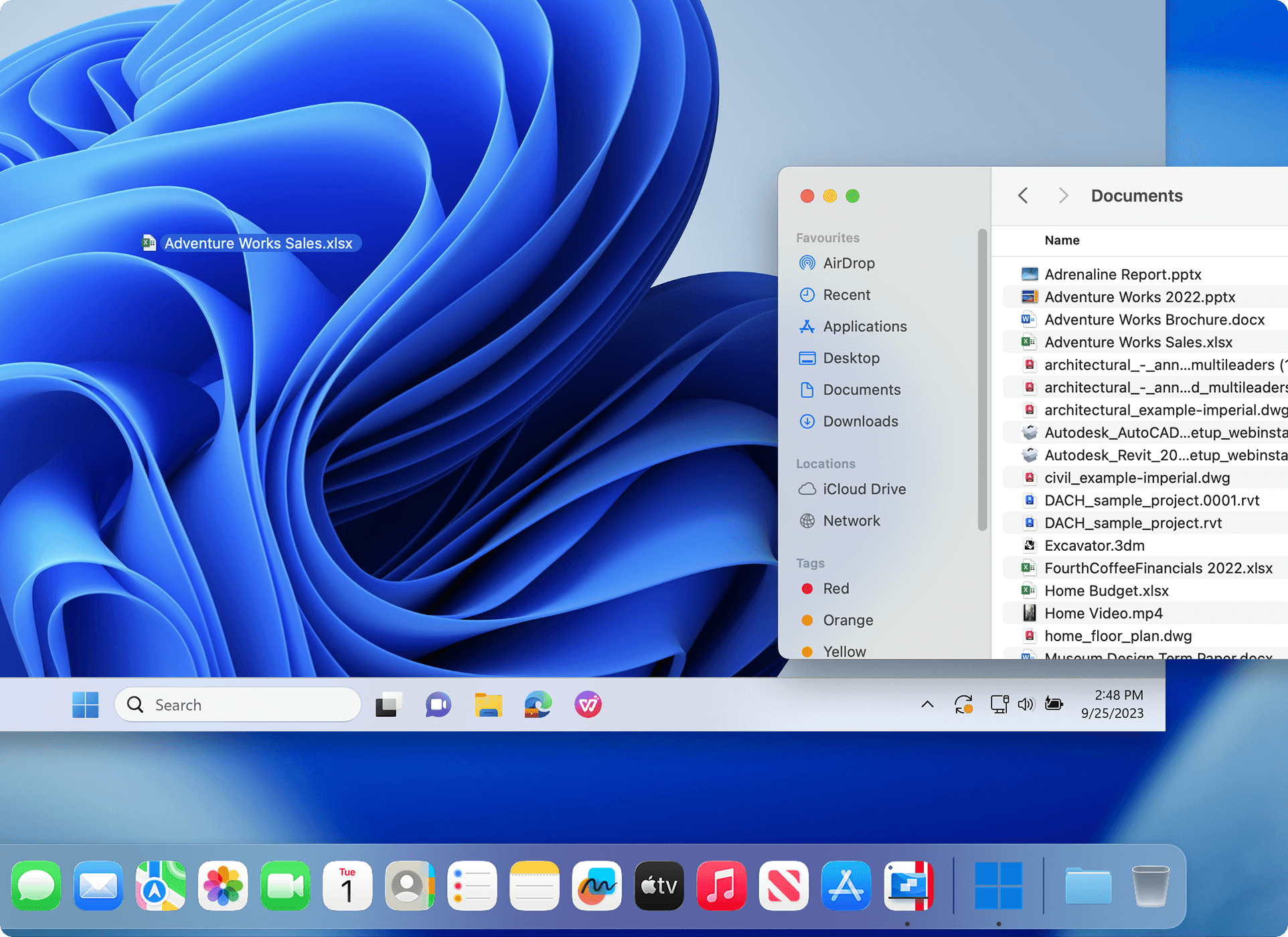
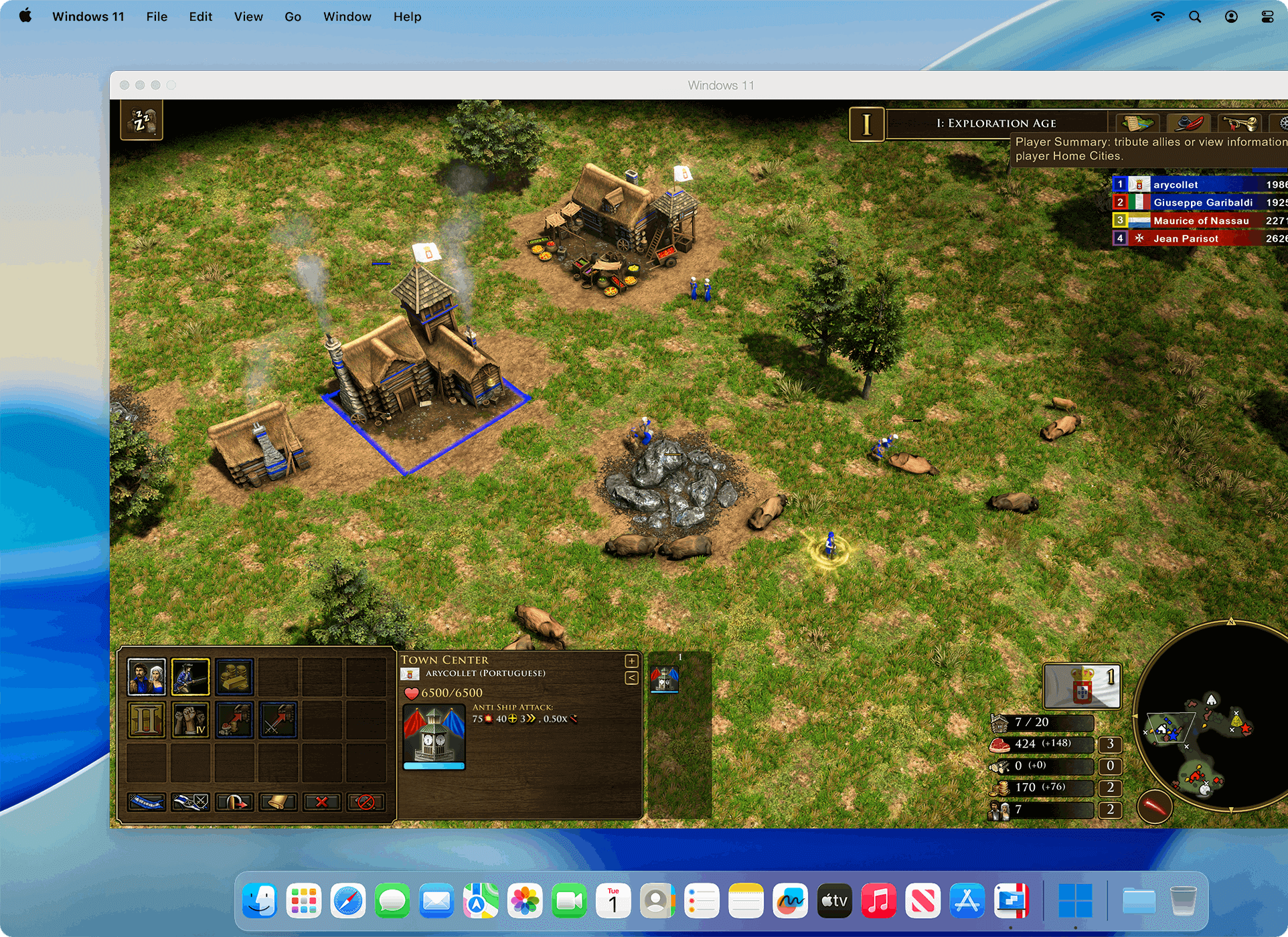
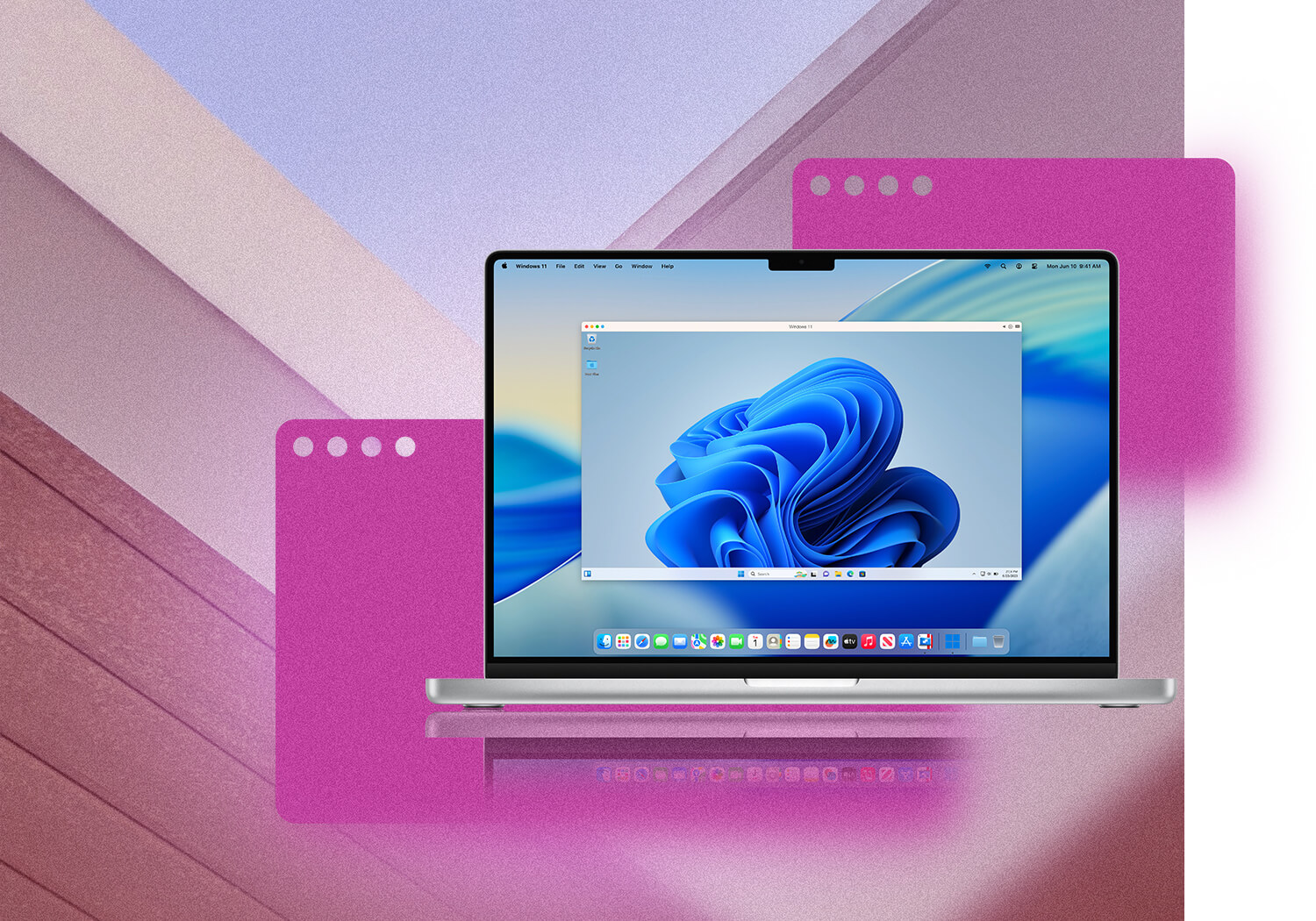
On the other hand, Parallels Desktop, the award-winning virtualization software from Parallels, allows you to run Windows and Mac OS X side-by-side on any Intel-Mac – without rebooting. In addition, you can launch Windows programs like native Mac apps from the Mac Dock right on the Mac OS X desktop for a more seamless user experience.

Windows XP running natively on a
Mac in Boot Camp

Windows XP running on a Parallels
Desktop virtual machine on a Mac

Boot Camp with Parallels Desktop make a Mac the only computer you’ll ever need!

Parallels Desktop gives Boot Camp users greater flexibility and more possibilities for running Windows on a Mac. For instance, Boot Camp users can switch from Mac OS X to Windows to run high-performance PC-only software at full speed in a Mac’s native hardware environment or use a wider range of peripheral devices.

Using that same Windows partition, Boot Camp users can take their Windows + Mac environment further by utilizing the integration features in Parallels Desktop. Coherence, the innovative view mode that lets you run Windows and Mac software side-by-side, SmartSelect, the ability to open Windows files with Mac apps and Mac files with Windows apps and Complete Shared Folders, the ability to share files between Windows and Mac OS X, are all fully-supported Parallels Desktop features in both Mac OS X Tiger and Leopard.


Parallels Desktop running Windows and Mac apps
side-by-side in the Coherence View Mode

With Parallels Desktop, Boot Camp users can:

  • Use Windows and Mac OS X at the same time - without rebooting!

  • Run Windows programs like native Mac apps right on the Mac desktop. Now with Exposé and transparent windows support!

  • Drag-and-drop files and copy-and-paste data between Windows and Mac OS X

  • Open Windows files with Mac apps and Mac files with Windows apps

  • Share files and folders between Windows and Mac OS X

  • Use your favorite USB and other peripheral devices

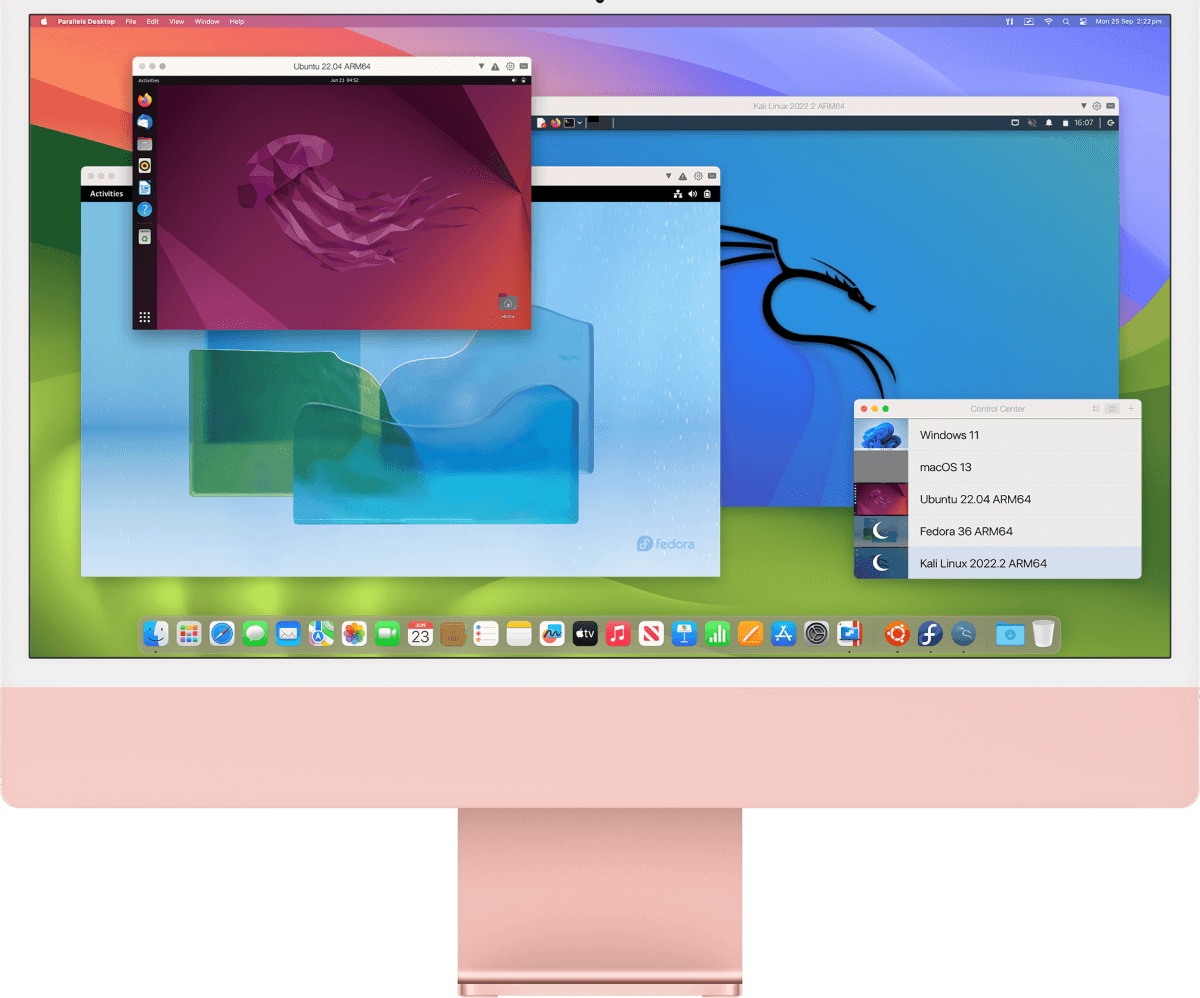
  • Create and manage multiple virtual machines supporting Windows, Linux and most 32-bit OSes

  • Achieve maximum performance by leveraging Intel® Virtualization Technology

Boot Camp Support

Boot Camp Beta Users

Boot Camp Support in Mac OS X

If you’re already using Boot Camp, you don't have to re-install Windows to benefit from Parallels Desktop. Now you can use your previous Boot Camp installation of Windows XP or Windows Vista via a Parallels Desktop virtual machine.

The Boot Camp partition can act as a bootable volume disk in Parallels Desktop, giving you complete access to all of your Windows software, system settings, files and folders in a virtual machine. Alternatively, you can add the Boot Camp partition as a data disk to any Parallels Desktop Virtual Machine.

Before using Boot Camp with Parallels Desktop, it is recommended that you review the Boot Camp section of the Parallels Desktop User Guide (Chapter 14 – ‘Using Boot Camp Windows Partition’.)

Boot Camp Support for Beta Users

Already using Boot Camp but are not ready to upgrade to Mac OS X Leopard? Parallels Desktop makes life easy by giving beta users access to their pre-existing Windows Boot Camp partition.

End-of-Life Info

According to the Apple website, in lieu of the general availability of Leopard, the beta release of Boot Camp expired on September 30, 2007. While your Windows installation will still work, utilities such as the Boot Camp Assistant - used for setting up and managing the Windows partition on a Mac – will no longer open. (This means that beta users cannot change their Boot Camp partition size or burn a device driver CD.)

Discover how Parallels Desktop can greatly enhance your ‘Windows on a Mac’ experience!

Please:
Call +1 (425) 282-6400
Submit a volume licensing request


Desktop Virtualization
- Parallels Desktop for Mac
- Parallels Desktop for Mac Premium
- Parallels Workstation
Server Virtualization
- Parallels Server
- Parallels Server for Mac
- Parallels Virtuozzo Containers
Automation and Management
- Parallels Infrastructure Manager
- Parallels Automation
- Parallels Plesk Products
More Parallels Products