




Try Parallels Desktop free for 14 days
Run the Windows apps and games you actually use on your M-series Mac, from everyday software to engineering and CAD tools. Try your real workflow free for 14 days before you decide.
Enter your email address to download your trial and get started.
Ready to buy Parallels Desktop? Buy now
What to test during your free Parallels Desktop Pro trial

Try the Windows apps you use every day
Use the trial for the everyday tasks that matter to you. Open a Windows-only work or school app, use Microsoft Office, access a website that requires Windows, connect a printer or USB device, or open files you already have. The goal is simple: see how Windows fits into the way you normally use your Mac.

Test the Windows games you own
Install Steam, the Xbox app, or another Windows game launcher and try the titles you care about. Parallels Desktop supports DirectX 11, but compatibility varies by game. DirectX 12 requirements, anti-cheat software, and Windows on Arm compatibility can affect whether a title runs.

Check performance on your actual Mac
Every Mac and workload is different. Test what matters to you, whether that's everyday Windows apps, a large SolidWorks assembly, a complex Revit model, a long build, or a game that pushes the GPU. Using your own apps and files gives you a better sense of how Parallels Desktop will perform for you.

Test SolidWorks, AutoCAD, Revit, and other Windows apps
Install the engineering or design software you rely on in Windows 11 on your Mac. Open your own SolidWorks assemblies, AutoCAD drawings, Revit models, or other project files and work the way you normally would.
Who the Parallels Desktop trial is for
The free trial helps you test real use cases before choosing a plan.
For general users and hobbyists
Need a Windows app that isn’t available on Mac? Use the trial to test the software you actually need, whether it’s a work or school app, a specialized hobby program, a utility, or an older Windows application you still rely on. Open your own files, connect the devices you normally use, and see how Windows fits into your everyday Mac setup.
For engineers and developers
If you rely on SolidWorks, the Windows version of AutoCAD, Revit, or another Windows engineering or design application, use the 14-day trial to test it on your own M-series Mac. Open the assemblies, drawings, models, and project files you normally work with, and check the plug-ins, external displays, and peripherals you need. Because compatibility and performance can vary by application, version, and workload, testing your own setup gives you the most useful answer.
For Windows gamers on Mac
Want to know if the Windows games you own will run on your Mac? Install Steam or the launcher you normally use and test your own library. Parallels Desktop can run many games that use DirectX 11 or earlier, but compatibility varies. Games that require DirectX 12, certain anti-cheat systems, or components incompatible with Windows 11 on Arm may not run.
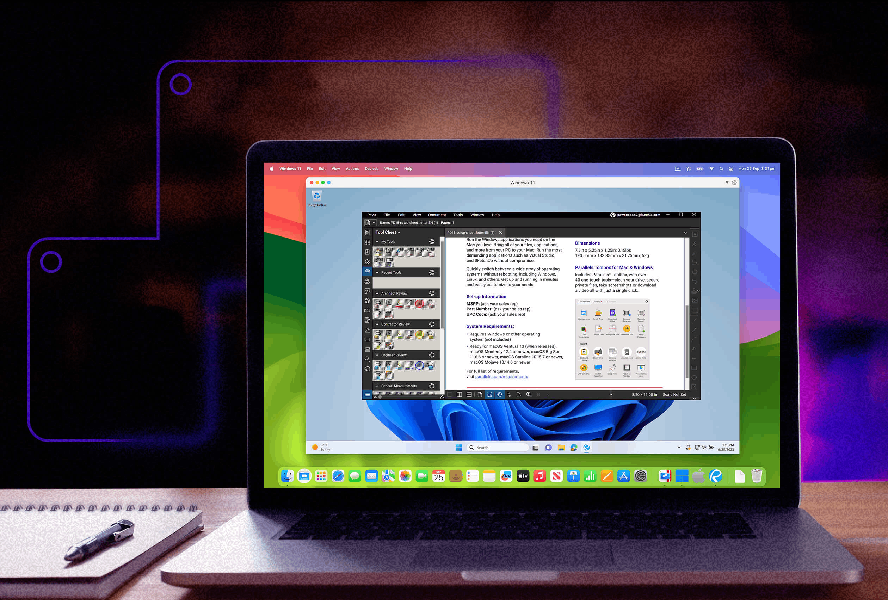
For developers and students
Run Windows or Linux environments on your Mac for development, testing, coursework, labs, or specialized software. Developers can create separate virtual machines for builds and OS-specific tools, while students can test the Windows applications required for classes or internships without keeping a separate Windows PC.
How to get a clear answer from the 14-day trial
Start with the application that brought you to the page. If that's SolidWorks, open one of your larger assemblies rather than a tutorial model. For AutoCAD, use a DWG with the xrefs, fonts, plot styles, and plug-ins you normally need. For Revit, open a project that reflects the size and complexity of your actual work.
Then test the parts of the workflow that are easy to miss in a basic compatibility check. Activate your license. Connect a second display or 3D mouse. Open files from your normal network or cloud location. Try printing, exporting, rendering, or using the add-ins your team depends on.
Before the 14 days are up, complete one normal work session from beginning to end. That will tell you far more than a generic compatibility list or benchmark.
How Parallels Desktop compares to other options
There are several ways to run Windows software on a Mac, but the differences matter more when the application is part of a professional engineering or design workflow.
VMware Fusion is another virtualization option for running Windows on Apple silicon. If you're comparing it with Parallels Desktop, look beyond whether Windows starts. Check the Windows application you need, graphics behavior, macOS integration, VM controls, external devices, and how the product fits into your daily workflow.
UTM is free and useful for running virtual machines and experimenting with operating systems. Its graphics limitations make it less suitable for many GPU-dependent CAD, 3D engineering, visualization, and Windows gaming workloads. See the full UTM comparison for more detail.
CrossOver uses a compatibility layer instead of running a complete Windows virtual machine. That means it can run supported Windows applications without installing Windows, but compatibility is application-specific. If your workflow depends on SolidWorks, Revit, a particular AutoCAD configuration, or specialized plug-ins, check that exact software before choosing an approach.
Boot Camp is not available on Apple silicon Macs. On an M-series Mac, you cannot use Boot Camp to reboot natively into Windows.
Parallels Desktop Pro trial FAQs
No. Parallels Desktop is paid software. The free trial gives you access to Parallels Desktop Pro for 14 days so you can test your engineering, design, development, or gaming setup before buying. No purchase is required to start the trial.
The free Parallels Desktop Pro trial gives you 14 days to run Windows on your Mac and test the apps and workflows that matter to you. You can install compatible Windows applications, create Windows and Linux virtual machines, and test performance on your own Mac. Use the trial with your everyday apps, specialized hobby software, games, or professional tools such as SolidWorks, AutoCAD, and Revit to see how they work with your files, devices, and setup.
Yes. SolidWorks can run in Windows 11 on an Apple silicon Mac with Parallels Desktop, but performance and compatibility depend on the work you do in SolidWorks. Assembly size, model complexity, your Mac's available memory, SolidWorks version, add-ins, graphics workload, and connected hardware can all affect the experience. During the trial, open one of your normal assemblies and test the operations you use most, such as editing parts, rebuilding assemblies, creating drawings, and working with the add-ins your team relies on.
See the SOLIDWORKS on Mac performance guide for additional guidance
License behavior can depend on the Autodesk product, license type, account, and your organization's setup. During the trial, sign in with the Autodesk account or license you plan to use. Confirm activation and access to any network, identity, or license services your organization requires. Autodesk's current licensing documentation should be treated as the source of record for licensing terms.
Many Windows games can run with Parallels Desktop, particularly titles that use DirectX 11 or earlier, but compatibility varies from game to game. Install Steam, the Xbox app, or the launcher you normally use and test your own library. A game may fail because it requires DirectX 12, uses anti-cheat technology that does not work in a virtual machine, depends on components that are incompatible with Windows on Arm, or needs more GPU performance than the VM can provide.
No. Parallels Desktop currently supports DirectX up to version 11. Applications and games that depend on DirectX 12 may not run or may have limited functionality. Check the requirements for the specific engineering application, visualization tool, or game you want to use.
Yes. Parallels Desktop is the Microsoft-authorized solution for running Windows 11 on Apple silicon Macs. Windows is licensed separately from Parallels Desktop.
The trial lasts 14 days from activation. For an engineering evaluation, don't leave the important tests until the end. Install SolidWorks, AutoCAD, Revit, or the Windows application you need early enough to work through a realistic project before the trial expires.
If Parallels Desktop fits your workflow, you can buy a subscription and continue using it. If it doesn't, you can let the trial expire. Parallels Desktop is available in Standard, Pro, and Business editions. Engineering, development, and other resource-intensive workflows may benefit from features available in Parallels Desktop Pro, so compare the editions based on the VM resources and management features you need.
No. Parallels Desktop guides you through creating a Windows virtual machine when you first launch it, including downloading and installing Windows 11. A basic Windows setup does not require virtualization expertise. More specialized engineering environments may require additional configuration if they depend on network licenses, company VPNs, custom drivers, USB hardware, plug-ins, or IT-managed resources.
Yes. Parallels Desktop runs on both Intel and Apple silicon Macs.


