




UTM on Mac: What to Know and When to Consider Parallels Desktop
Researching UTM for Windows on Mac?
If you're comparing ways to run Windows on your Mac, you've probably come across UTM. It is a free, open-source virtualization application built on QEMU that lets you run Windows, Linux, or other operating systems on macOS. UTM is an independent open-source project and is not affiliated with or endorsed by Parallels Desktop. UTM is one option for running virtual machines on macOS, particularly for users looking for an open-source solution.
If your goal is to install Windows 11 quickly, run Windows applications alongside macOS, or use graphics-intensive software with commercial support, Parallels Desktop offers a guided, fully supported experience designed specifically for Mac users.
Many people researching UTM are looking for a way to run Windows on a Mac because they need access to a Windows-only business application, engineering program, classroom requirement, development tool, or game. Parallels Desktop helps meet that need by running Windows 11 and Windows applications on Intel and Apple silicon Macs without rebooting.
14-day fully functional free trial
Compare the key virtualization features
Both UTM and Parallels Desktop allow you to run additional operating systems on your Mac, but they differ significantly in setup experience, Windows integration, graphics support, productivity features, and commercial support.
The comparison below summarizes the major differences while preserving each product's intended use cases.
What is UTM on Mac?
UTM is a free, open-source virtualization application for macOS built on QEMU. It lets Mac users create virtual machines for Windows, Linux, and other operating systems.
On Apple silicon Macs, UTM can virtualize Arm-based operating systems for better performance and emulate Intel (x86/x64) operating systems when needed. That distinction is important because virtualization runs software designed for the same processor architecture as your Mac, while emulation translates instructions between architectures, which typically reduces performance.
UTM is commonly used for virtual machine experimentation, operating system learning, and software testing in isolated environments.
If your goal is to use Windows every day for work, school, or business, however, ease of setup, graphics support, and macOS integration often become more important than flexibility alone.
Many Windows applications work best when they have access to features that go beyond simply booting the operating system. Graphics acceleration, file sharing, clipboard integration, peripheral support, and streamlined installation all contribute to a smoother experience.
This is particularly true for:
- Windows-only business software
- Engineering and CAD applications
- Development and testing environments
- Accounting and finance software
- Educational applications
- Games and other graphics-intensive workloads
Boot Camp is only available on Intel-based Macs and cannot be used on Apple silicon models. For Macs powered by Apple silicon, virtualization has become the primary way to run Windows.
Parallels Desktop is designed specifically for this workflow. It helps users install Windows 11, run Windows applications alongside macOS, share files between operating systems, and switch between Mac and Windows apps without restarting the computer.
Does UTM support DirectX or GPU graphics on Mac?
Graphics support is one of the biggest differences between UTM and Parallels Desktop.
UTM does not currently provide DirectX or OpenGL 3D acceleration for Windows virtual machines on macOS. As a result, Windows applications that depend on GPU acceleration—including many games, CAD programs, 3D modeling tools, visualization software, and creative applications—may have limited functionality or reduced performance.
Parallels Desktop supports DirectX 11 and OpenGL 4.1 for supported Windows virtual machines, making it a stronger choice for graphics-dependent Windows workflows.
If your goal is to play Windows games on Mac, use professional engineering software such as SOLIDWORKS on Mac, or work with applications that rely on hardware-accelerated graphics, this graphics layer is one of the primary reasons many Mac users choose Parallels Desktop.
UTM can also be used for Linux virtual machines, software testing, and other workloads that don't require GPU acceleration.
Can UTM run x86 Windows on Apple silicon?
Yes. UTM can emulate x86 and x64 versions of Windows on Apple silicon Macs through QEMU. Because Apple silicon processors use the Arm architecture, running an Intel version of Windows requires instruction translation during execution. While this expands compatibility, it also introduces additional overhead that can make the virtual machine feel slower than running an Arm-native operating system.
For most day-to-day Windows productivity on Apple silicon, Windows 11 on Arm is typically the better starting point.
Parallels Desktop runs Windows 11 on Arm through virtualization on Apple silicon Macs, allowing Windows to use its built-in compatibility technologies for many x86 and x64 applications. This generally provides a more responsive experience for common productivity, business, and development workloads.
If you specifically need an Intel version of Windows for software testing or compatibility validation, UTM supports x86 and x64 emulation through QEMU. If your priority is running Windows applications as part of your daily workflow, virtualization with Windows 11 on Arm for Apple silicon Macs is often the more practical choice.
How hard is UTM to set up?
UTM requires more manual configuration during virtual machine setup, which typically results in a more hands-on setup process.
Depending on your operating system and Mac model, you may need to:
- Select the appropriate processor architecture.
- Obtain a compatible Windows installation image.
- Configure CPU, memory, storage, networking, and display settings.
- Install guest tools for improved functionality.
- Adjust virtual machine settings after installation.
For experienced users, those steps may be part of the appeal. For users who simply want to begin using Windows, they can add time and complexity.
Parallels Desktop streamlines much of this process with its Installation Assistant, which can download and install Windows 11 automatically on supported Macs. Windows licensing and activation remain separate through Microsoft, but creating the virtual machine itself requires significantly less manual configuration.
How Windows apps feel once they are running
Installing Windows is only part of the experience. How well Windows applications integrate with macOS can make a significant difference if you use them every day.
UTM runs Windows inside a traditional virtual machine window, keeping the Windows desktop and macOS environment separate.
Parallels Desktop is designed to make Windows feel more integrated with macOS. Features such as Coherence mode let supported Windows applications appear alongside your Mac apps without displaying the full Windows desktop. Shared folders, copy and paste, drag-and-drop, and keyboard shortcut mapping help reduce the friction of moving between operating systems.
This can be especially helpful if you rely on one or two Windows-only applications throughout the day, such as accounting software, line-of-business applications, development tools, or engineering programs.
How UTM compares with other ways to run Windows apps on Mac
UTM is an option available to Mac users who need Windows software, and each approach has different strengths.
Boot Camp installs Windows directly on Intel-based Macs but is not available on Apple silicon models.
CrossOver runs many Windows applications without installing Windows itself by translating Windows API calls. This can work well for some applications, but compatibility varies depending on the software.
VMware Fusion is another virtualization platform for macOS. Users comparing virtualization software often consider factors such as setup complexity, graphics capabilities, Windows compatibility, integration with macOS, licensing, and commercial support.
UTM is a free, open-source virtualization application that provides manual virtual machine configuration and supports a variety of operating systems.
Parallels Desktop is designed for users who want a streamlined Windows experience on Mac, combining guided setup, Windows 11 support, graphics acceleration, productivity features, and commercial support in a single solution.
What Parallels Desktop adds for daily Windows work
Parallels Desktop is built for Mac users who need Windows as part of a normal day, not only as an experiment.
Parallels Desktop is built to make running Windows on Mac as straightforward as possible. It helps users install Windows 11, launch Windows applications without rebooting, and move between Windows and macOS with familiar Mac workflows.
Key capabilities include:
- Guided Windows 11 installation
- Shared folders and file synchronization
- Copy and paste between macOS and Windows
- Drag-and-drop support
- Coherence mode for running Windows applications alongside Mac apps
- DirectX 11 and OpenGL 4.1 support for many graphics-dependent workloads
- Automatic installation of Parallels Tools
- Commercial support and ongoing product updates
These features can be especially valuable for professionals who rely on Windows throughout the workday, including developers, engineers, students, designers, analysts, and business users.
If you're building or testing software across platforms, Parallels Desktop also makes it easier to maintain isolated Windows and Linux virtual machines while continuing to work primarily in macOS.
Switching from UTM to Parallels Desktop
Many users begin with UTM because it is free and open source, then decide to switch once Windows becomes part of their everyday workflow.
Common reasons for moving to Parallels Desktop include:
- Faster, guided Windows 11 installation
- Better integration with macOS
- DirectX 11 and OpenGL 4.1 graphics support
- Shared folders and drag-and-drop
- Coherence mode
- Commercial support
- Easier ongoing virtual machine management
Because UTM and Parallels Desktop use different virtualization technologies, you'll generally create a new virtual machine rather than migrate an existing UTM installation directly. A typical migration looks like this:
- Install Parallels Desktop on your Mac.
- Create a new Windows 11 virtual machine using the Installation Assistant.
- Copy documents and other personal files from your existing UTM virtual machine using shared folders, cloud storage, or another transfer method.
- Move those files into your new Windows virtual machine in Parallels Desktop.
- Reinstall your Windows applications and sign in or reactivate them as required.
- Adjust CPU, memory, storage, and sharing settings to match your workflow.
If you're unsure whether switching is worthwhile, the easiest way to evaluate the difference is to test your actual workload—open the Windows applications you use most often, work with your own files, and see how they fit into your everyday Mac workflow.
Start your 14-day free trial and experience the full Windows-on-Mac workflow before deciding whether it's the right fit for your needs.
UTM on Mac: Common questions
Does UTM support DirectX or GPU graphics acceleration on Mac?
No. UTM does not currently provide DirectX or OpenGL 3D acceleration for Windows virtual machines on Mac. This can limit compatibility or performance for applications that rely on GPU acceleration, including many Windows games, CAD programs, 3D modeling tools, and other graphics-intensive software. Parallels Desktop supports DirectX 11 and OpenGL 4.1 for supported Windows virtual machines, making it a better fit for many users who need graphics acceleration for work, study, or to play Windows games on Mac.
Can UTM run x86 Windows on Apple silicon?
Yes. UTM can emulate x86 or x64 versions of Windows on Apple silicon Macs using QEMU.
Because Intel instructions must be translated to run on Arm-based processors, emulation generally introduces additional overhead compared to virtualization. It can be useful for testing legacy software or specific compatibility scenarios, but it may not deliver the responsiveness many users expect for everyday productivity.
Parallels Desktop virtualizes Windows 11 on Arm on Apple silicon Macs, allowing Windows to run many compatible x86 and x64 applications using Microsoft's built-in compatibility technologies.
Is UTM difficult to set up?
That depends on your experience with virtual machines.
Setting up UTM typically involves selecting the correct processor architecture, obtaining an operating system image, configuring virtual hardware, and installing guest tools manually.
Parallels Desktop simplifies much of this process with an Installation Assistant that can download and install Windows 11 on supported Macs, helping users get started with fewer manual steps.
Is UTM free? How much does Parallels Desktop cost?
UTM is an open-source project that can be downloaded free of charge from the official UTM website. Some third-party distribution channels may offer paid versions, but the software itself is open source.
Parallels Desktop is commercial software available by annual subscription and includes features such as guided Windows installation, productivity tools, ongoing updates, and commercial support. A fully functional 14-day free trial is available for users who want to evaluate the software before purchasing.
Is UTM safe to use on Mac?
UTM can be safe to use when downloaded from trusted sources and used with legitimate operating system images.
As with any virtualization platform, overall security depends on how the virtual machine is configured and maintained. Keeping guest operating systems updated, using trusted software sources, and limiting shared resources when testing unfamiliar software are all recommended best practices.
Parallels Desktop also provides security-focused features such as virtual TPM support, virtual machine encryption, and administrative controls that can be valuable for business users and managed environments.
Does UTM work on Apple silicon with Windows 11 on Arm?
Yes. UTM supports Apple silicon Macs and can virtualize Arm-based operating systems, including Windows 11 on Arm, Linux, and other compatible operating systems. It can also emulate Intel operating systems when needed, although emulation generally results in lower performance than native virtualization.
For users planning to run Windows regularly on Apple silicon, Parallels Desktop provides a guided Windows 11 on Arm for Apple silicon Macs installation experience along with deeper integration between Windows and macOS.
Can I migrate an existing UTM virtual machine to Parallels Desktop?
In most cases, you'll create a new virtual machine rather than migrate an existing UTM virtual machine directly into Parallels Desktop.
Before switching, export or copy your documents and other important files from your UTM virtual machine. After creating a new Windows virtual machine in Parallels Desktop, you can move those files into the new environment and reinstall your Windows applications as needed.
Where UTM falls short on Apple silicon Macs
No DirectX or OpenGL support
UTM doesn't support 3D graphics acceleration. This means any Windows application that uses your GPU to render visuals, including games, CAD tools like AutoCAD or SOLIDWORKS, video editing software, or anything with a 3D interface, will either run at a lower performance level or not run at all. If you need any of those tools to run on your Mac, UTM will likely affect performance. Parallels Desktop supports DirectX 11 and OpenGL 4.1, so graphics-dependent apps run as they would on a native Windows machine.
Emulating Intel apps on an M-series Mac comes at a cost
Apple silicon Macs run on ARM architecture. When UTM runs x86 (Intel) Windows software on an M-series Mac, it has to emulate, translating Intel instructions into ARM in real time. That translation adds overhead. Apps that rely on it will feel sluggish compared to running the same software on a native Intel machine. Parallels Desktop runs the ARM version of Windows 11 natively on Apple silicon, which removes that overhead for the operating system itself and most modern Windows apps.
All Windows apps live in a separate window
UTM runs Windows inside its own window. Your Mac desktop and your Windows apps are always visually separated. There’s no way to open a Windows app on your Mac desktop alongside native Mac apps. Parallels Desktop's Coherence mode removes that barrier. Windows apps appear in your dock and your Cmd-Tab switcher. They resize and behave like any other Mac app, without a separate Windows window framing them.
UTM requires more configuration to get running
Getting a Windows virtual machine running in UTM requires downloading a Windows ISO separately, locating the correct ARM build for Apple silicon, configuring network and display settings manually, and installing drivers yourself. It’s doable for someone with a technical background, but for everyone else, it means at least an afternoon of troubleshooting. Parallels Desktop automatically downloads and installs Windows 11, so there’s nothing to configure manually. Most people can use Windows within 15 minutes of installing Parallels Desktop.
You cannot save and resume a Windows 11 session
UTM cannot suspend a Windows 11 virtual machine. Every time you need Windows, it boots from scratch. Parallels Desktop saves the state of your Windows session so you can resume where you left off in seconds, the same way your Mac wakes from sleep.
Why choose Parallels Desktop over UTM on Apple silicon
The only Microsoft-authorized solution for Windows 11 on M-series Macs
Parallels Desktop is the only virtualization tool Microsoft has authorized to run Windows 11 on Apple silicon Macs. That authorization covers license compliance and access to Windows updates on M-series hardware. UTM does not hold this authorization. If license compliance matters to you, for work, an organization, or a commercial environment, Parallels Desktop is the right tool.
Learn moreWindows apps that feel like Mac apps
Coherence mode puts Windows applications directly on your Mac desktop. They appear in your dock. They show up in Cmd-Tab. They resize and behave exactly like native Mac apps. UTM has no equivalent feature. You’re always working inside a separate Windows window, with a separate taskbar, on a separate desktop.
One-click Windows 11 setup
Parallels Desktop downloads and installs Windows 11 automatically. You don’t need to find an ISO, figure out which ARM build works for your chip, or manually configure drivers. UTM requires each of those steps, so getting UTM to a working Windows 11 installation can take considerably longer.
See why real-world users prefer Parallels Desktop to UTM
Many individual users, teams, businesses, and organizations prefer Parallels Desktop over UTM and you don’t have to take our word for it! Discover how real users benefit from using Parallels Desktop.
"Easy to install — always being updated and works with latest releases of Mac"
See review"I'm using Parallels Desktop to have multiple operating systems all in one device. I can set the CPU, RAM, and hard disk according to how many sources I need. Also, this app is really stable and supports almost all operating systems. Also, it’s possible to sync files between the local device and the virtual machine."
See review"Parallels Desktop has been a game-changer for me. Setting it up was a breeze, and even for someone like me who isn't the most tech-savvy, the whole process was surprisingly easy."
See review14-day fully functional free trial
The verdict: Parallels Desktop vs UTM
Choose Parallels Desktop if you need Windows to work every day
Parallels Desktop is the right choice if you need Windows for work, school, or any regular task on a Mac. It supports DirectX 11 and OpenGL 4.1 for graphics-intensive software, installs Windows 11 automatically, runs Windows apps directly on your Mac desktop via Coherence Mode, and holds Microsoft's authorization for Windows 11 on Apple silicon. It also comes with 24/7 support. Best for professionals, students, developers, and anyone moving from a Windows PC to a Mac who needs their existing software to keep working.
Choose UTM if you’re comfortable with manual setup and only need basic VM access
UTM is free and open source. It runs Linux well on Apple silicon and handles basic virtualization tasks. If you’re a developer who needs a lightweight Linux environment, is comfortable sourcing your own ISO and configuring drivers, and has no need for 3D graphics or Mac desktop integration, UTM is a workable choice, but it may not cover everything you need to do on a daily basis.
On Apple silicon, the gap is widest
Without 3D graphics support, Coherence mode, the ability to suspend Windows 11 sessions, or Microsoft authorization, UTM's limitations are most apparent on M-series Macs. Parallels Desktop was built for M-series hardware from the start. It’s the only tool that Microsoft has authorized to deliver Windows 11 on M-series chips, and the only one where Windows apps run directly on your Mac desktop without a separate window.
Learn moreHow to switch from UTM to Parallels Desktop
Takes under five minutes on Apple silicon and Intel Macs. No configuration required before moving to the next step.
Parallels Desktop downloads and installs Windows 11 automatically on Apple silicon Macs. No ISO required. No manual driver setup.
Copy your files from your UTM shared folder into the Parallels Desktop shared folder. You’ll need to reinstall Windows apps—they don’t transfer from one VM to another. If you have a Windows license, you can reactivate it in the new environment.
Parallels Desktop is the solution of choice for a variety of use cases
A seamless experience
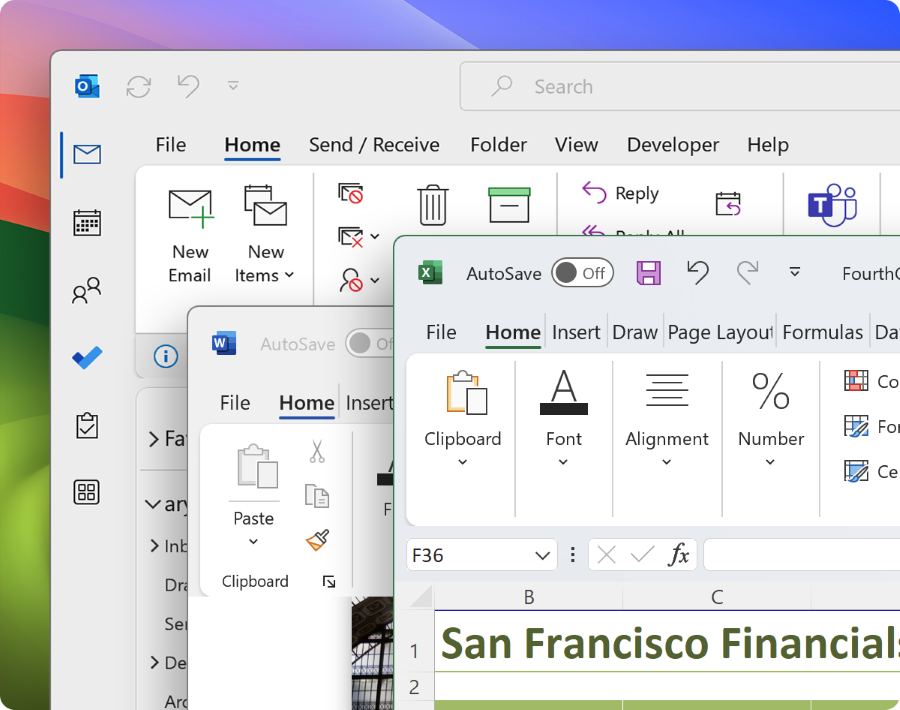
Run the full-featured version of Windows applications on your Mac, including the most popular Windows apps like Excel, PowerPoint, and Outlook. Plus accounting software, trading software, AutoCAD, SolidWorks, and even PC-exclusive games!
Effortlessly run the professional, educational, and entertainment applications you need on your hardware of choice with just one new piece of software — Parallels Desktop.
Run your favorite PC games on a Mac
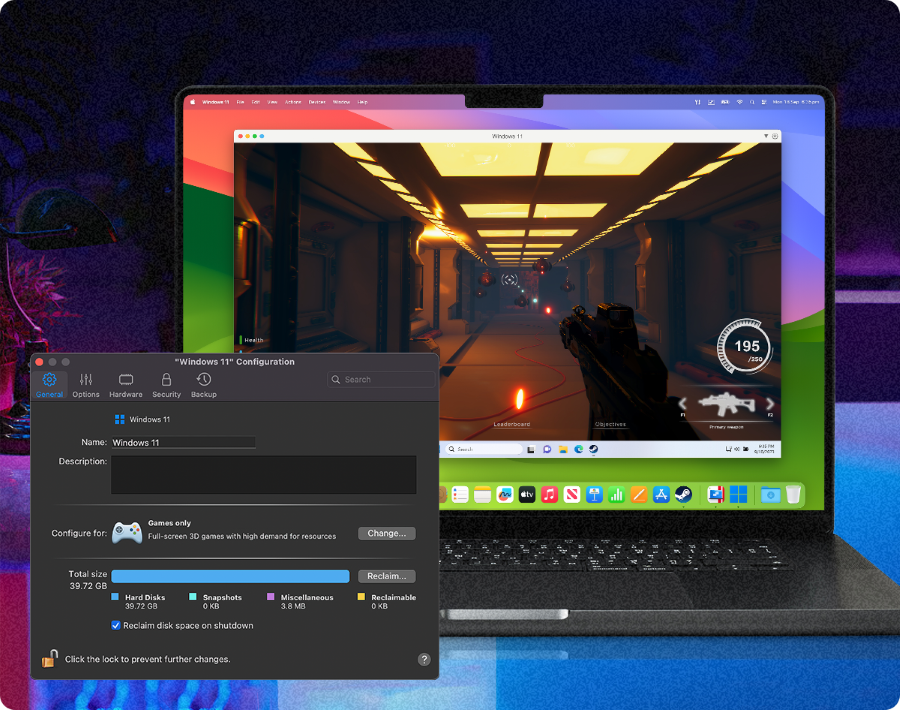
Play hundreds of Windows-exclusive games on Mac with Parallels Desktop, from first person to multiplayer games. Parallels Desktop transforms your Mac into a gaming machine.
World-class technical support
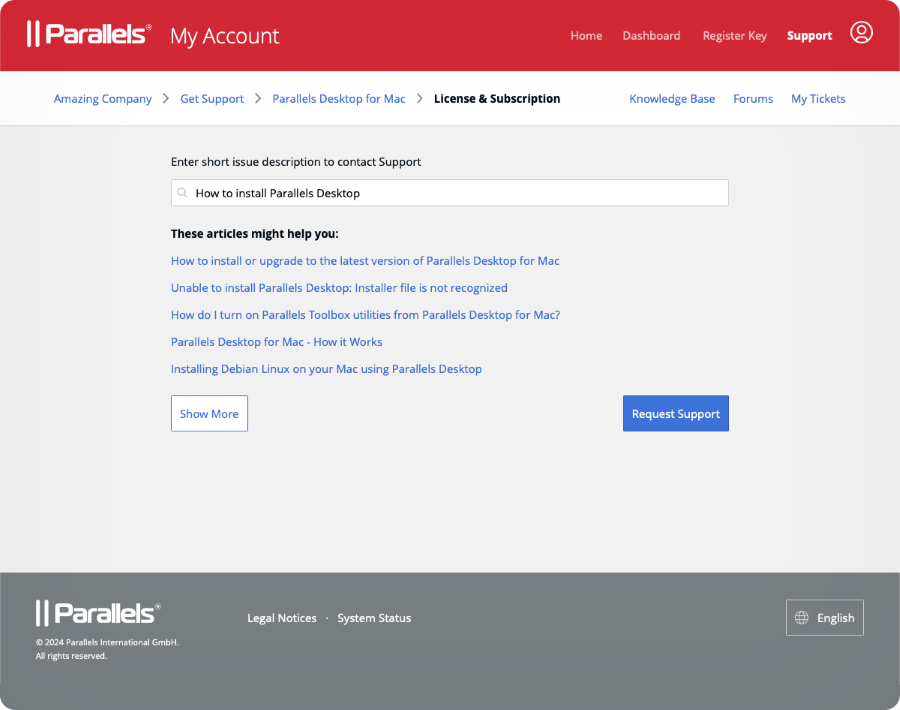
Need assistance? Parallels Desktop subscribers get access to online customer support, detailed documentation, and an active community contributing to a rich knowledge base. Find answers to all your questions and become a Parallels Desktop power user.
Parallels Desktop is the solution of choice for a variety of use cases
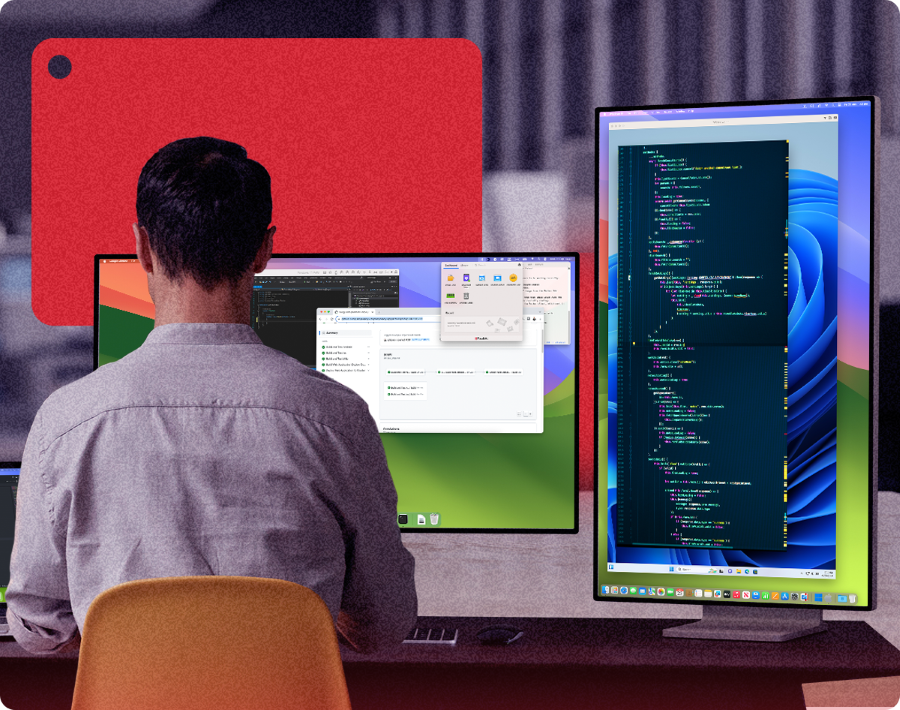
Cross-platform development and testing
Build, test, and QA your code in all necessary platforms seamlessly in a virtual environment. Developers and testers, switch between operating systems and browsers effortlessly, maintaining high performance, isolation, and security. Streamline the development process and reduce risk with Rollback mode, a Microsoft Visual Studio plug-in, and more.
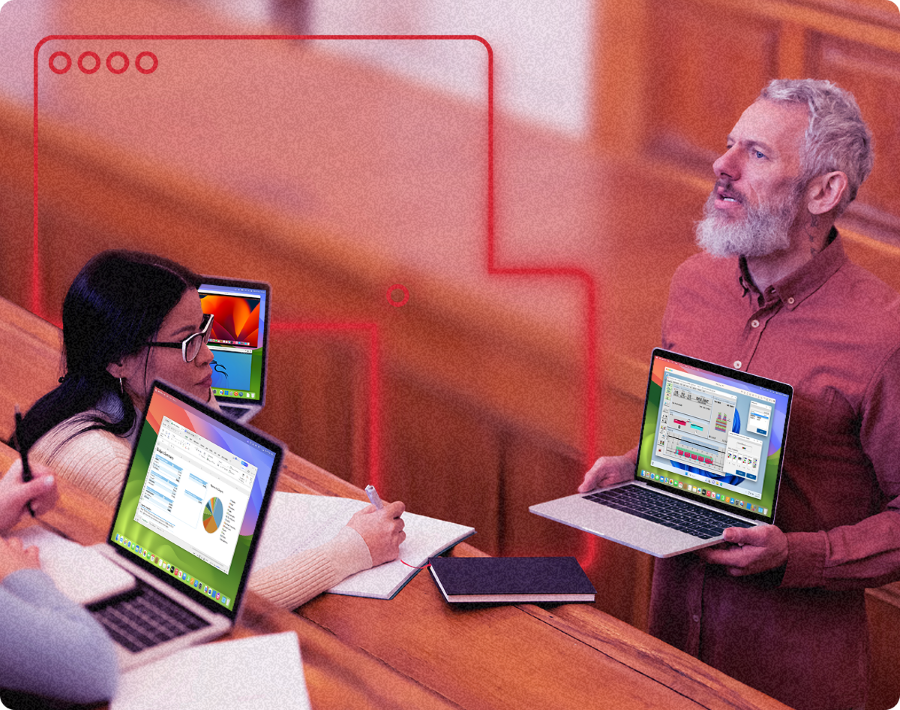
Fulfill educational demands
Educators and students need cross-platform compatibility to learn. Meet academic requirements and access the essential tools for your studies or career, including the full-featured Windows version of Microsoft Office 365, Windows-based CAD tools, common statistics and accounting software, and more.
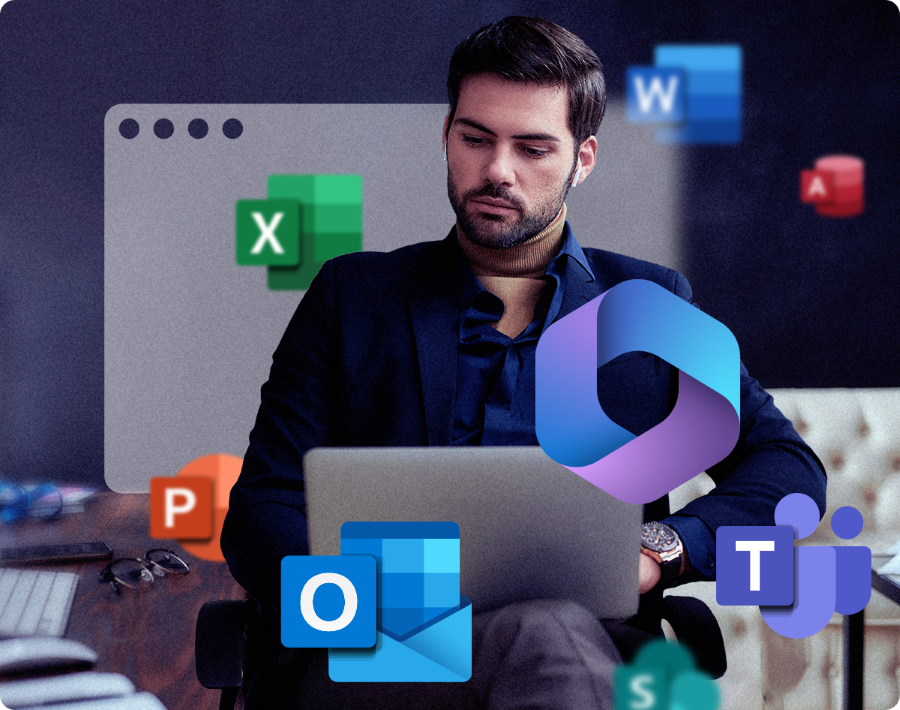
Compatible with Office 365 applications
Experience a Windows OS environment on your Mac. Use a virtual machine to run the full-featured versions of the most used Office 365 applications, including Microsoft Excel, PowerPoint, and Outlook.
14-day fully functional free trial
Get started with Parallels Desktop and start maximizing your Mac’s potential
Find the right fit for you or your business
| Standard | |
| Best for Light home use | |
| Core components |
|
|
Maximum virtual RAM and CPUs
|
8 GB vRAM, 4 vCPUs |
|
Supports latest versions of macOS, Windows, and Linux
|
Subscription only |
|
Authorized by Microsoft and SOC 2-certified
|
|
|
3D acceleration—DirectX and OpenGL
|
|
|
Run thousands of Windows apps on your Mac
|
|
| Buy now | |
| Pro All the Standard features PLUS: |
|
| Best for Power users and developers | |
| Core components |
|
|
Maximum virtual RAM and CPUs
|
128 GB vRAM, 32 vCPUs |
|
Supports latest versions of macOS, Windows, and Linux
|
|
|
Authorized by Microsoft and SOC 2-certified
|
|
|
3D acceleration—DirectX and OpenGL
|
|
|
Run thousands of Windows apps on your Mac
|
|
| Advanced capabilities |
|
|
Run Windows apps with intensive graphics and processing needs
|
|
|
Command line interface
|
|
|
Built-in developer tools
|
|
| System tools |
|
|
Disk cleanup and memory cleaner
|
|
|
System and performance monitoring
|
|
|
Multimedia download and conversion
|
|
|
Productivity and privacy boosters
|
|
|
Screen capture and recording
|
|
| Buy nowTry now | |
| Business All the Standard and Pro features PLUS: |
|
| Best for Teams and small businesses | |
| Teams and small business |
|
|
Centralized administration and license management
|
|
|
Automation of CI/CD workflows
|
|
|
Advanced provisioning tools
|
|
|
Volume licensing
|
|
|
Jamf and Intune integration for automated deployment and updates
|
|
| Buy nowTry now | |
| Enterprise All the Standard, Pro and Business features PLUS: |
|
| Best for IT-managed deployments | |
| Enterprise |
|
|
Management portal for policy enforcement and compliance visibility
|
|
|
Golden image creation and deployment
|
|
|
Encrypted VMs locked to organizational control
|
|
|
Granular control of VM settings, network, USB, clipboard, and shared folders
|
|
|
SSO/SAML with SCIM provisioning and per-user/device licensing
|
|
| Contact salesTry now | |
Parallels Desktop vs. UTM FAQs
Yes, for most Mac users. Parallels Desktop supports DirectX 11 and OpenGL 4.1, installs Windows 11 automatically, and runs Windows apps on Mac desktops through Coherence mode. UTM works for basic Linux environments but does not support 3D graphics or Coherence mode on Apple silicon. Parallels Desktop is the only solution Microsoft has authorized to run Windows 11 on M-series Macs.
No. UTM does not support 3D graphics acceleration, DirectX, or OpenGL for Windows VMs. That means games, CAD applications, video editing software, and any other graphics-intensive Windows apps will not run efficiently in UTM on a Mac. Parallels Desktop supports DirectX 11 and OpenGL 4.1, so those applications run as they would on a native Windows machine.
UTM can run Windows 11 on Apple Silicon, but it requires manual setup: Downloading a Windows ARM ISO, configuring the VM, and installing drivers yourself. UTM is not authorized by Microsoft for Windows 11 on Apple silicon. Parallels Desktop handles the download and installation automatically and holds Microsoft's authorization for Windows 11 on M-series Macs, including M1 through M5 and MacBook Neo.
No. UTM does not have Coherence mode or an equivalent. Windows apps in UTM run inside a separate window. They cannot appear on your Mac desktop alongside your native Mac apps. Parallels Desktop's Coherence mode lets Windows apps run directly on your Mac desktop, appear in the dock, and behave like native Mac applications.
Download and install Parallels Desktop, then let it guide you through Windows 11 setup automatically. Copy files from your UTM shared folder into the new environment. You’ll need to reinstall Windows apps—they don’t transfer between virtual machines. If you have a Windows license, you can reactivate it in the new environment.
Parallels Desktop offers customer support across various channels, including phone, email, and live chat, for the lifetime of your subscription. Because UTM is an open-source product, its users must seek community support, forums, and community documentation for any troubleshooting.
Parallels Desktop supports DirectX 11 and OpenGL 4.1, which means games and graphics-intensive Windows applications run as they would on a native Windows machine. UTM does not support 3D graphics acceleration for Windows VMs. If you need to run Windows games, CAD tools, or any software that uses GPU rendering, Parallels Desktop is a better option on Mac.
QEMU is an open-source emulator and virtualizer that UTM is built on top of. When you run UTM, QEMU is handling the actual virtualization or emulation work underneath — UTM adds a graphical interface that makes it possible to create and manage virtual machines on Mac without using the command line.
For most Mac users, UTM is the more accessible of the two. QEMU alone requires manual configuration through terminal commands, raw disk images, and network setup that assumes a technical background. UTM removes most of that friction while keeping access to QEMU's underlying capabilities.
That said, because UTM is a wrapper around QEMU, it inherits QEMU's core limitations on Mac: no DirectX or OpenGL acceleration for Windows VMs, and slower performance when emulating x86 software on Apple Silicon. Parallels Desktop is purpose-built for macOS and Apple Silicon, which means better performance, deeper macOS integration, and features like one-click Windows installation that neither UTM nor QEMU provide.
UTM does not enable file sharing between macOS and Windows automatically. The most common approach is to configure a shared directory through UTM's VM settings using SPICE WebDAV, which requires mounting the share manually inside Windows and may need additional guest tool installation depending on your setup. An SMB network share between macOS and the VM is another option, though it adds configuration steps and can require troubleshooting to keep working reliably across sessions.
In Parallels Desktop, shared folders are set up by default. Your Mac Desktop, Documents, and Downloads folders appear directly inside Windows without any configuration, and drag-and-drop between macOS and Windows works out of the box. For users who regularly move files between systems, this is one of the more noticeable differences in day-to-day use.
The core virtualization functionality is the same in both, but they differ on JIT (just-in-time) compilation. JIT speeds up emulation by compiling instructions in real time rather than interpreting them one at a time — it makes a meaningful difference when running x86 software on Apple Silicon, where emulation is already doing significant translation work.
The direct download from getutm.app supports JIT. The Mac App Store version runs inside Apple's sandbox, which restricts JIT by default, making x86 emulation noticeably slower as a result. For users who need to run legacy Intel Windows software on an M-series Mac, the direct download is generally the better choice.
It is worth noting that both versions are slower at x86 emulation than running ARM-native Windows through Parallels Desktop. Parallels virtualizes Windows 11 on ARM rather than emulating x86, which avoids the emulation overhead entirely on Apple Silicon.
Is UTM not the solution you’ve been hoping for? Choose the right Parallels Desktop version for your needs and enjoy a better UTM alternative
Standard Edition
Limited version for those that need to run Windows applications on base model Mac computers.
Supports future operating systems.
Current version only. Full compatibility with future versions not guaranteed.
Pro Edition
Versatile, fully loaded version for developers, individual business users, and gamers seeking the best performance and productivity.
Supports future operating systems.