





Run the Full Windows Version of Microsoft Outlook on Your Mac

Run the Full Windows Version of Microsoft Outlook on Your Mac

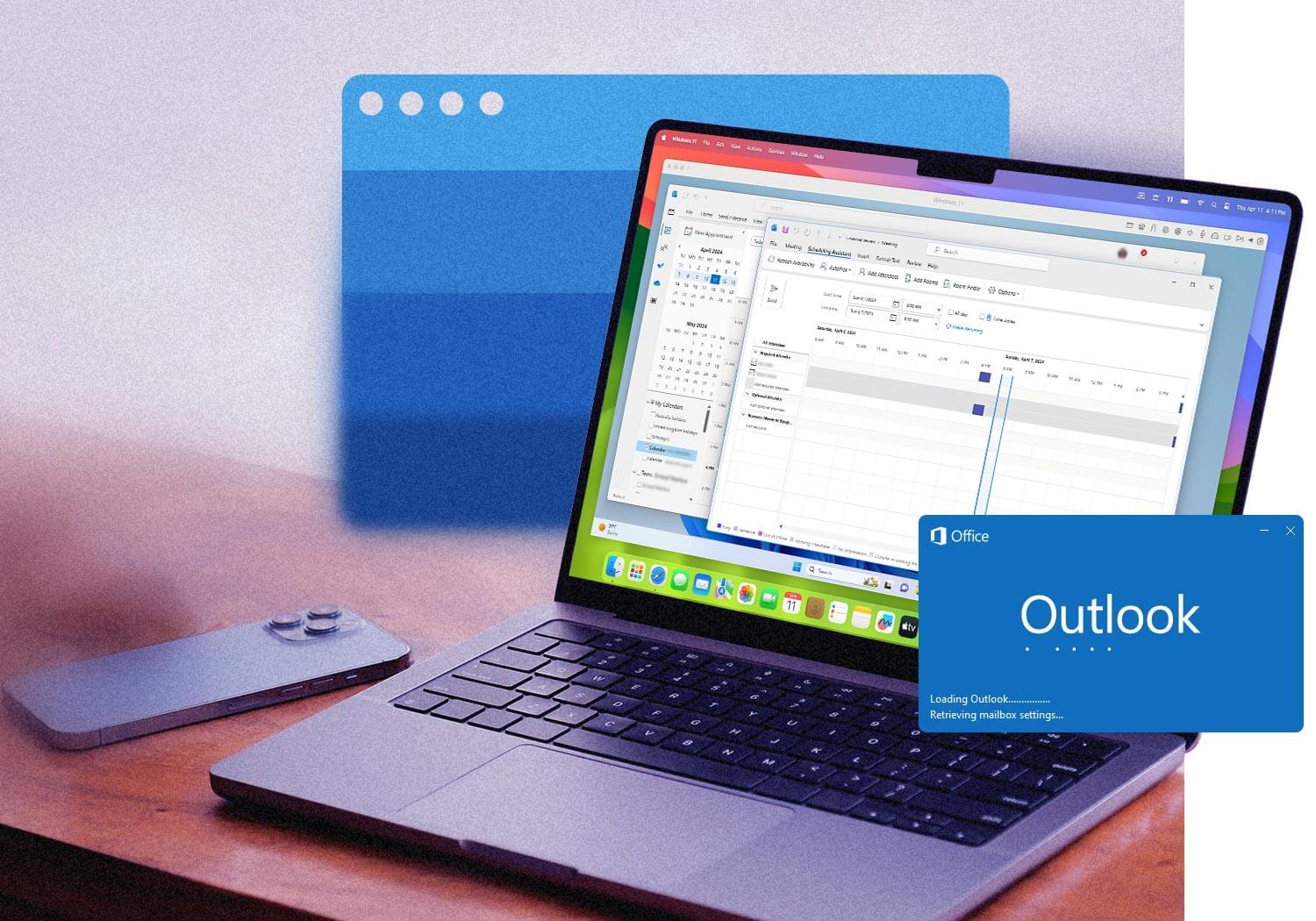
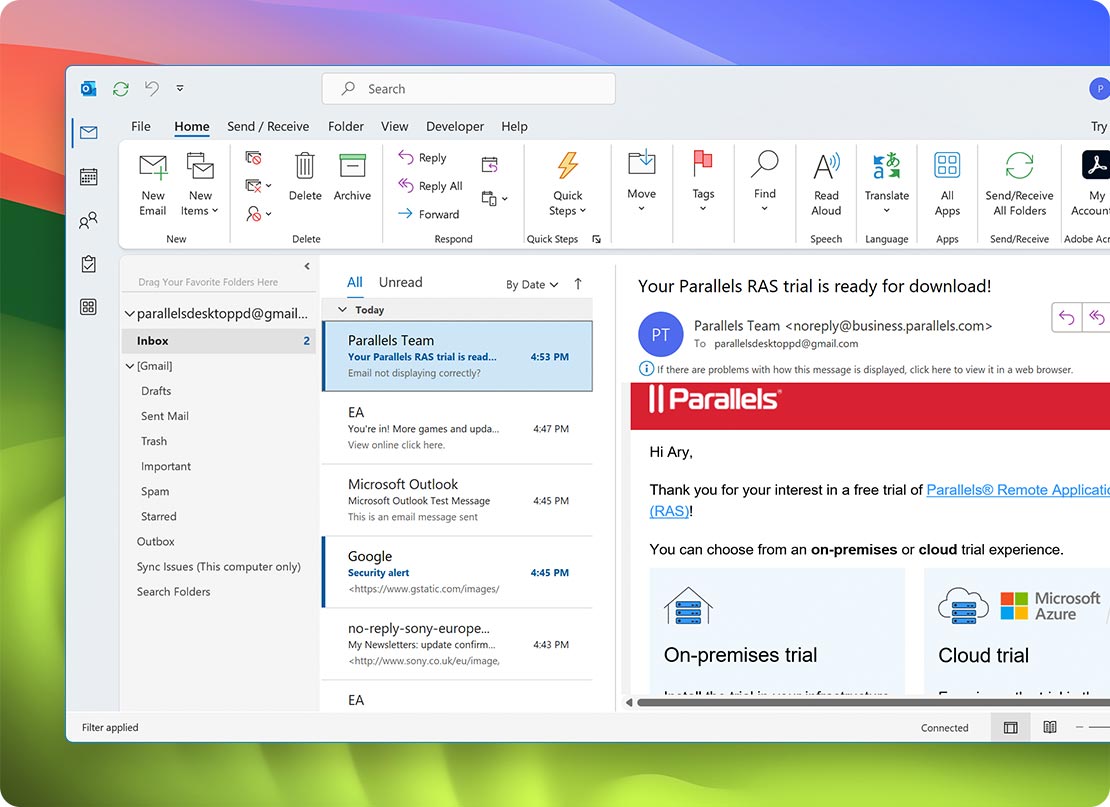
Need features that Outlook for Mac doesn’t support? Run the full Windows version of Microsoft Outlook on your Mac with Parallels Desktop, no reboot required.

Whether you’re working with PST files, COM add-ins, Exchange via MAPI, shared mailboxes, VBA macros, or advanced calendar features, Parallels Desktop lets you use the same Outlook experience available on a Windows PC while continuing to use macOS.

Perfect for IT professionals, consultants, finance teams, legal users, administrators, and anyone who relies on Windows-only Outlook features.

Outlook for Windows vs. New Outlook for Mac

Although they share the same name, Outlook for Mac and Outlook for Windows are different applications with different capabilities.

Microsoft has brought many features to the new Outlook for Mac, but several advanced tools used in enterprise environments remain exclusive to the Windows desktop version. If your organization depends on Exchange administration, compliance workflows, legacy integrations, or Outlook automation, the Windows version continues to offer the most complete experience.

Running Windows with Parallels Desktop gives you access to these features directly on your Mac without giving up macOS.

icon-lifecycle

Exchange via MAPI

Outlook for Windows connects to Microsoft Exchange using MAPI, giving organizations access to Exchange functionality and management capabilities that aren’t available through the Exchange Web Services (EWS) or REST connections used by Outlook for Mac.

icon-light-rest-api

Message recall

Recall an email before it’s opened by the recipient using Outlook for Windows. This feature isn’t available in Outlook for Mac.

icon-download-parallels

PST import and export

Manage Outlook PST files for email archiving, migration, compliance, and backup. Many businesses still rely on PST files, making Outlook for Windows the preferred choice for long-term mailbox management.

icon-light-easy

Exchange ActiveSync support

Organizations that require Exchange ActiveSync (EAS) workflows and legacy Exchange connectivity can continue using those capabilities through Outlook for Windows.

icon-light-ux-native-gestures

Send as distribution lists

Send email on behalf of distribution lists, manage moderator approval, and access additional Exchange distribution group features available only in the Windows version.

icon-light-golden-image-catalog

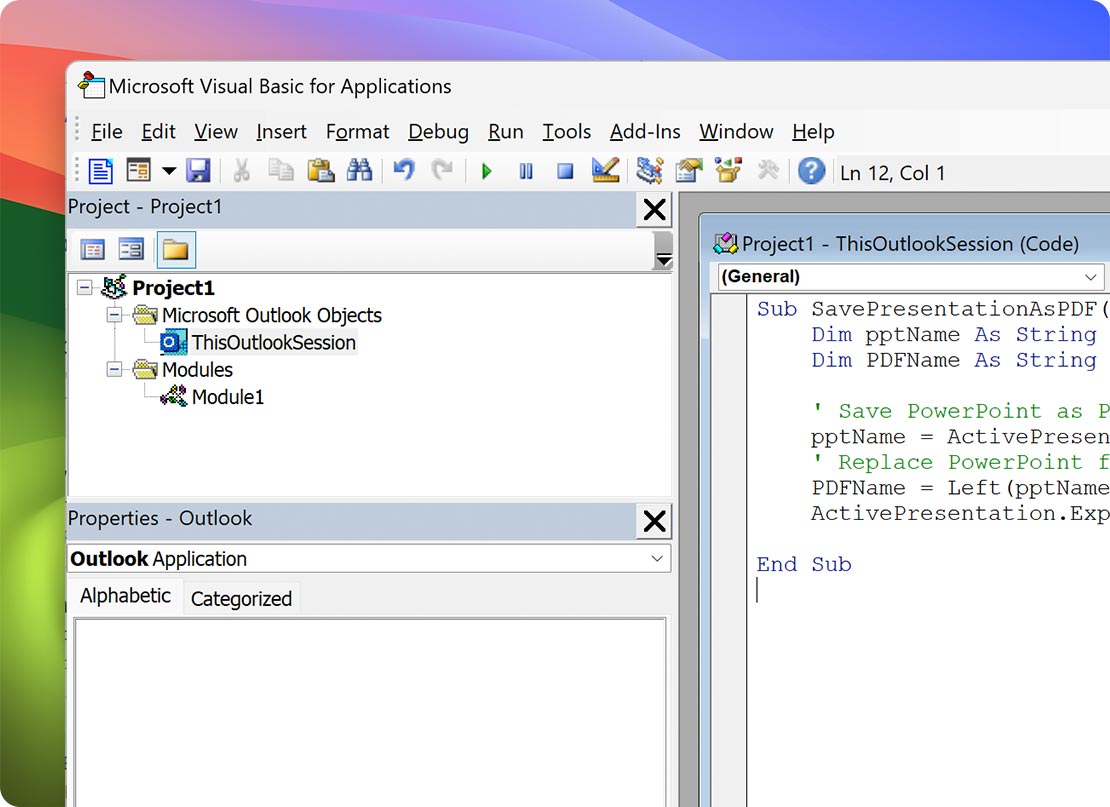
VBA macros

Automate repetitive Outlook tasks with Visual Basic for Applications (VBA). Create custom workflows, reporting tools, templates, and automation scripts that aren't supported in Outlook for Mac.

icon-light-real-time-visibility

COM add-ins

Many business-critical Outlook integrations—including CRM software, document management systems, compliance tools, and industry-specific applications—depend on COM add-ins. These integrations work with Outlook for Windows but aren't supported in Outlook for Mac.

icon-light-wizard-deployment

Shared mailboxes and advanced Exchange administration

Organizations using shared mailboxes, delegate access, mailbox permissions, retention policies, and advanced Exchange management often require Outlook for Windows to access the full administrative feature set.

Why Run Outlook for Windows with Parallels Desktop?

Instead of switching between computers or maintaining a dedicated Windows PC, Parallels Desktop lets you run Windows 11 alongside macOS on the same Mac.

You can launch Outlook for Windows just like any Mac application while continuing to use your favorite macOS apps, files, and workflows.

With Parallels Desktop, you can:

  • Run the full Windows version of Microsoft Outlook
  • Use Windows and macOS simultaneously
  • Open Outlook without restarting your Mac
  • Switch instantly between Mac and Windows applications
  • Copy and paste between operating systems
  • Share folders automatically between macOS and Windows
  • Enjoy optimized performance on Apple silicon and Intel Macs

For professionals who rely on Outlook every day, Parallels Desktop removes the compromises of Outlook for Mac.

Trusted by over 7 million Mac users worldwide

"It works so well, it’s easy to go from MAC to windows. I need to work in Microsoft Office and Outlook and am not able to do it without Parallels Desktop."

Medical Practice Manager

"It’s amazing to be able to fully use Windows on my Mac! I am a legal counsel, so I mostly use the Window's Word, Excel, Outlook, and Teams."

Senior Legal Counsel

"My goodness! It has transformed how I use my Mac. First up, I am not happy with Microsoft's version of Outlook for Mac. Parallels Desktop allows me to get to the Windows version. Same thing with OneNote (which doesn't link to the Mac version of Outlook). Secondly, it allows me to have the elegance of a Mac coupled with the utility of Windows."

Professor

Work Seamlessly Between macOS and Outlook for Windows

Parallels Desktop makes Outlook for Windows feel like part of macOS.

Open email links from Safari, Chrome, or Mac applications directly in Outlook for Windows by setting it as your default email client. Copy text, images, and attachments between macOS and Outlook using the shared clipboard, or drag and drop files into new messages without interruption.

Your Windows environment continues to support the Outlook features businesses depend on, including:

  • PST files
  • COM add-ins
  • Shared mailboxes
  • VBA macros
  • Exchange via MAPI
  • Enterprise Outlook integrations

Everything works together while you continue using the Mac applications you already rely on.

Need the full Microsoft Office experience? Learn how to run the Windows version of Microsoft Office on Mac, including Word, Excel, Access, and Outlook.

Many professionals also run Excel and Outlook side by side with Parallels Desktop for reporting, financial analysis, CRM workflows, and business productivity.

Learn more about Parallels Desktop and how it runs Windows applications seamlessly on Mac.

Why Parallels Works Best for Outlook on Mac

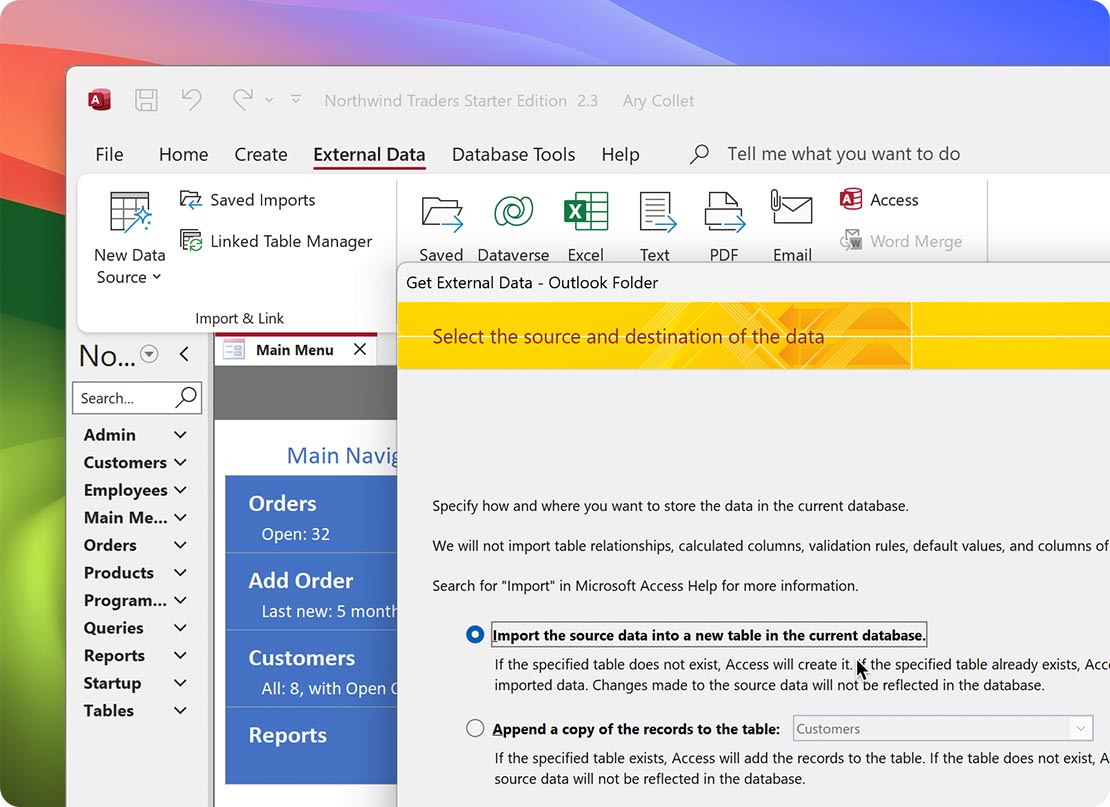
Missing your favorite tools and third-party plugins in the Mac version of Outlook? Or would you simply prefer the Windows Outlook interface and integration with Microsoft Access?

Integration with Microsoft Access
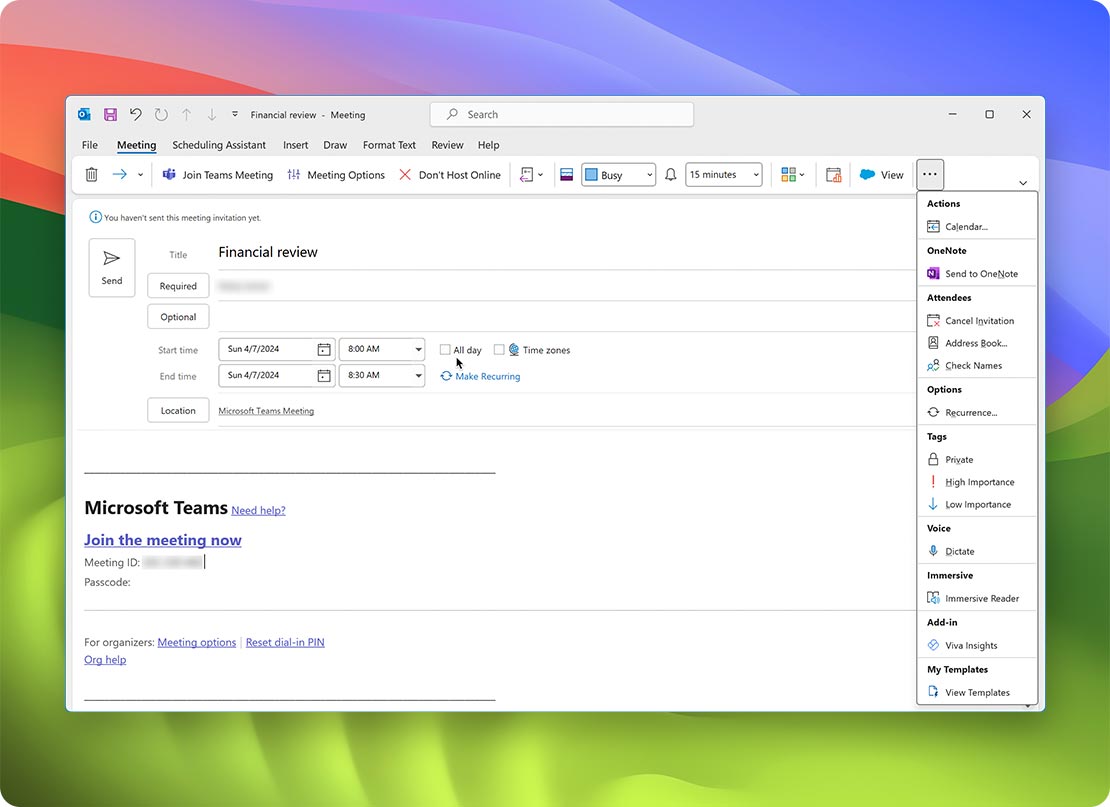
Advanced Calendar features
VBA Support
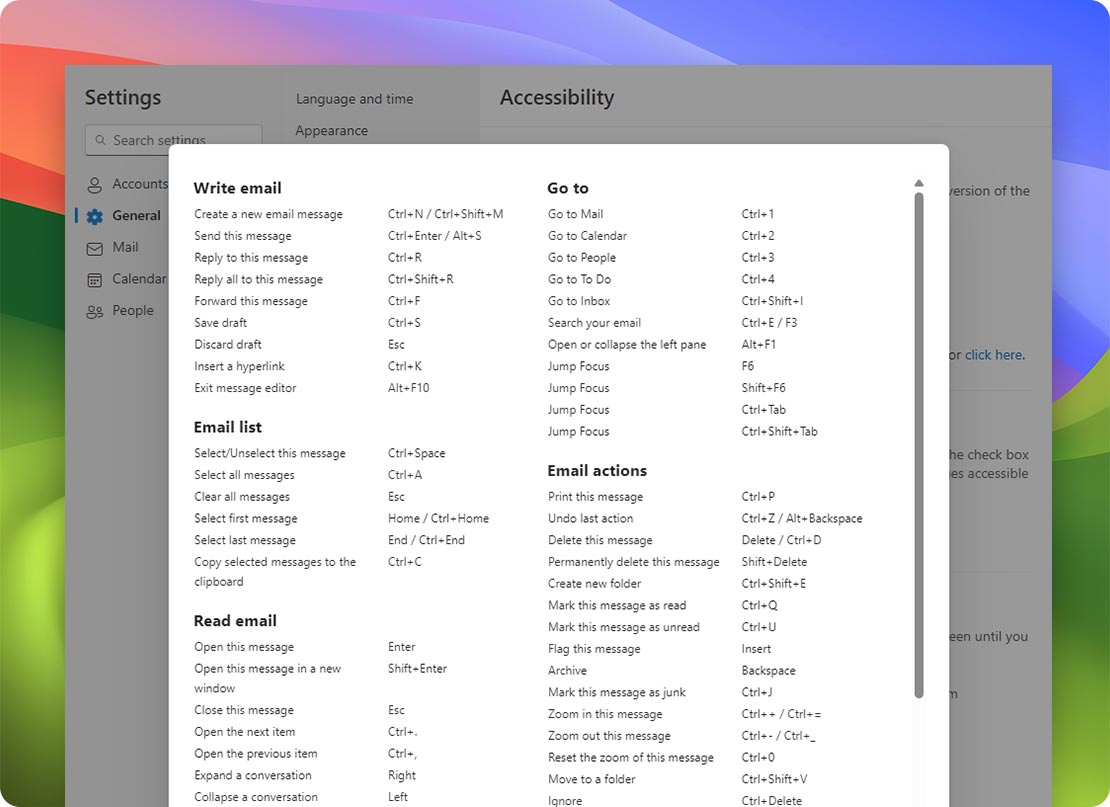
Keyboard shortcuts and navigation options
Integration with Windows-specific services
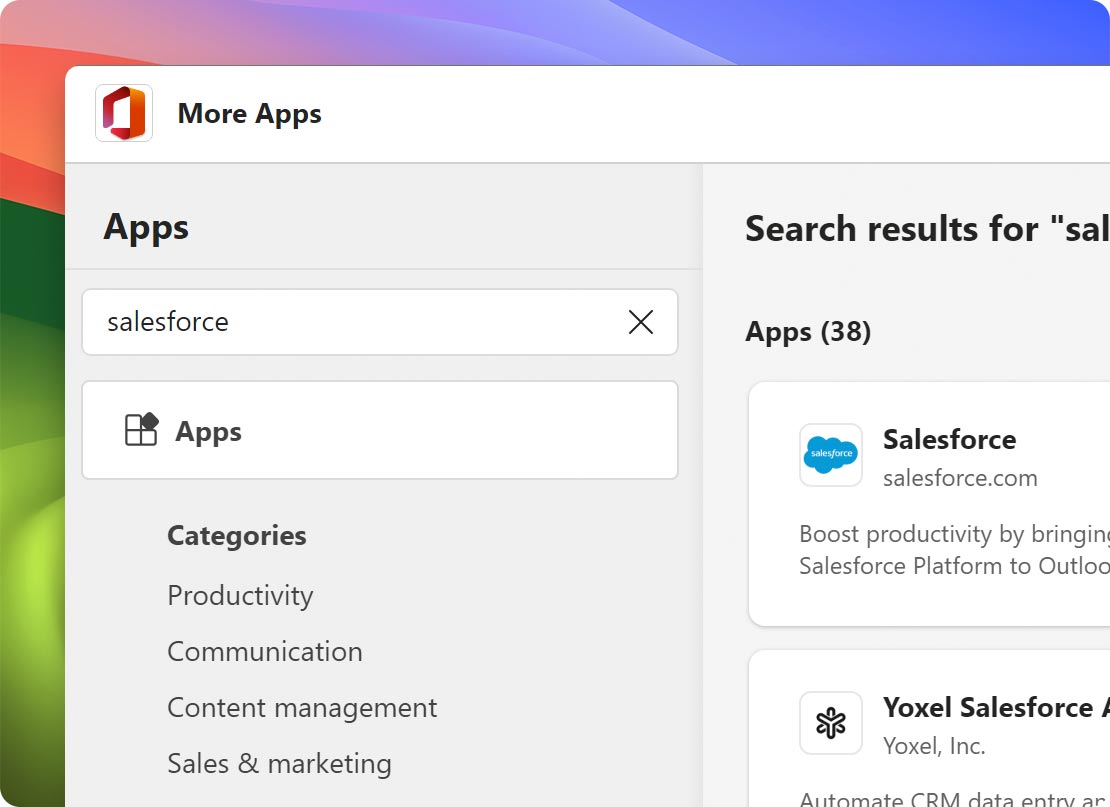
Third-party plugin support
Interface design

Access Mail, Calendar, Tasks & More

Features Outlook on Mac Outlook on Windows
Share availability (free/busy) information, calendar, or contacts with an external user No Yes
Manage Exchange Server distribution lists No Yes
Synchronizes contact groups with Exchange No Yes
Synchronized, collaborative To-Do lists No Yes
Exchange Yes (via EWS & REST) Yes (via MAPI)
EAS No Yes
Connect to Exchange over HTTP No Yes
Conversation view Yes (Showing messages from other folders for a given conversation is not supported.) Yes
Exports into .pst No Yes
Voting buttons No Yes
Message recall No Yes
Ignore and Clean Up actions No Yes
Preview attachments in mail messages (in cloud) No No
Online Archive Yes Yes
Archive Yes (for Exchange 2016 and later) Yes
Auto-archive for folders No Yes
Save as other (HTML/TXT) No Yes
Show/hide message header No Yes
Customize folder order No Yes
Sync filters No Yes
Send message defaults No Yes
Set folder retention policy No Yes
Online images No Yes
Add posts No Yes
Find related messages No Yes
Send mail as distribution list No Yes
Moderator approval or rejection of incoming messages to a distribution list No Yes
Parallels Desktop icon

Parallels Desktop Standard Edition

Authorized by Microsoft icon Authorized by Microsoft

Optimized for Mac M-series icon Optimized for Mac M-series

/year
Billed annually
  • Use 200,000+ Windows apps
  • Access the full range of Microsoft Outlook features
  • No need for a second Windows machine
  • Switch between macOS and Windows effortlessly

Setup Guide for Outlook on macOS

Download Parallels Desktop icon

Download Parallels Desktop

Download and install Parallels Desktop on your Mac.

Install Windows icon

Install Windows

Once installed, set up a new virtual machine and install Windows.*

*Windows license required

Launch Microsoft Outlook

Launch Microsoft Outlook

After installing Windows, you can run your favorite Windows apps and software, play PC games, and more right from your Mac.

Using Microsoft Outlook on Mac FAQs

See what you are capable of with Parallels

Outlook icon

200,000+ apps and integrations

Run all your favorite Windows apps on Mac.

See all our apps
Excel icon

Run Excel on Mac

Run the Windows version of Excel with Parallels Desktop.

Learn more about Excel
Office icon

Run Office365 on Mac

Experience the full capability of Office 365 with Parallels Desktop.

Learn more about Office365

Learn more about Microsoft Outlook and Parallels Desktop

What’s the difference between Microsoft Outlook on Mac vs. Windows?

Learn more

How to share files using “Send with Windows Email App”

Learn more

How to open Web links and emails in macOS or Windows

Learn more

Access the full power and capability of Microsoft Outlook on your Mac starting at a year with Parallels Desktop

Enjoy Microsoft Outlook on Mac, plus other key Windows applications without the need for a PC.