

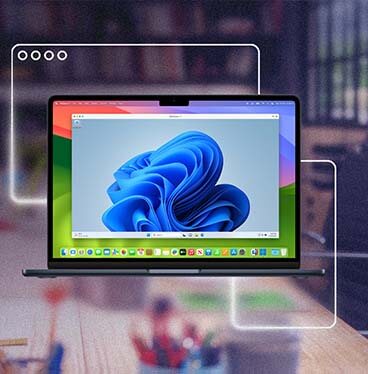





Mac virtualization for developers: run Windows, Linux, and macOS on one Mac
Parallels Desktop Pro is the only Microsoft-authorized solution for running Windows 11 on Apple M-series Macs—M1 through M5. For developers, that means a fully licensed Windows development environment alongside Linux virtual machines (VMs) and macOS, all on one machine. No second device. No rebooting. No QEMU overhead.
Run Windows-only tools like Visual Studio and .NET, spin up Linux distributions for server-side testing, and run Docker and Kubernetes locally—all from your Mac.
Set up a Windows development environment on your Mac
If you develop software that runs on Windows, or need to build and test in a Windows environment from your Mac, Parallels Desktop Pro gives you a complete Windows development environment without a second machine.
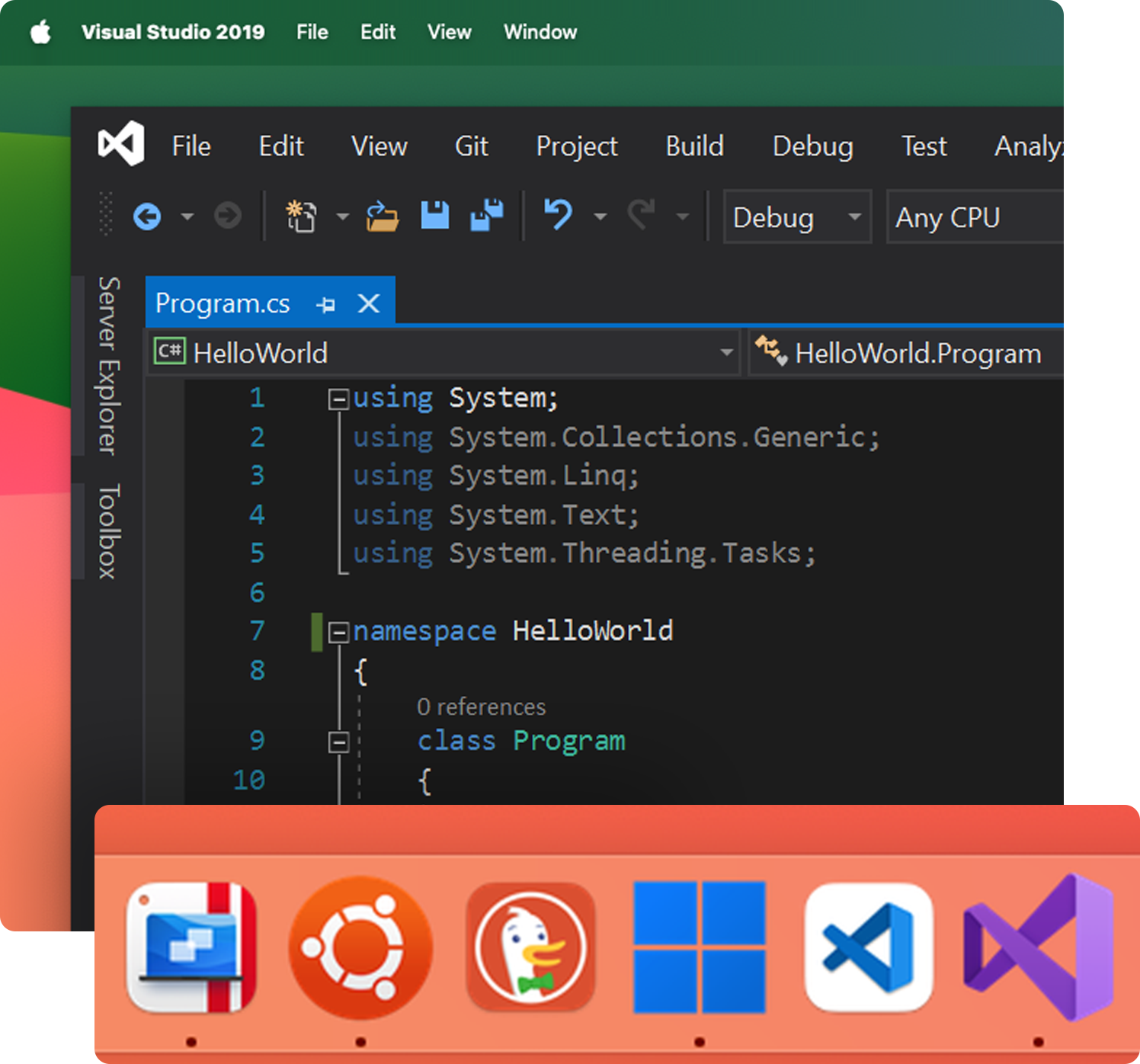
Install Windows 11 quickly through the Parallels Desktop client. From there, your Windows VM has access to the same tools a native Windows development machine would: Visual Studio, .NET SDK, Windows-specific build tools, IIS, PowerShell, Windows Terminal, and the full Windows file system. Your Mac files are accessible from inside the VM automatically, so you can edit code in your Mac IDE and build or test it in Windows without copying files.
Common Windows environments developers run on Mac with Parallels Desktop Pro include:
- .NET and C# development: run Visual Studio and the full .NET SDK in a Windows VM
- Windows-native UI development: build and test WPF, WinForms, and UWP applications
- PowerShell and Windows Server scripting: develop and test against Windows Server environments
- Windows-specific SDKs and drivers: work with hardware SDKs, Windows Driver Kit, and tools that have no Mac equivalent
- Legacy application maintenance: Run and maintain Windows XP, Vista, or Windows 7-era applications in a controlled VM environment
Because Parallels Desktop Pro is authorized by Microsoft to run Windows 11 on Apple silicon Macs, your Windows environment is fully licensed and fully supported—not a workaround.
Use Windows and Mac tools at the same time
With Coherence mode, your Windows development tools appear on your Mac desktop alongside your native Mac apps. You can open a solution file from Mac Finder directly in Visual Studio running in your Windows VM. Build output, test results, and generated files go directly to your Mac filesystem. It doesn’t feel like you’re managing two machines—it feels like you’re using one.
Build, test, and debug across Windows, Linux, and macOS on one Mac
With Parallels Desktop, you get the best of all worlds without compromises when it comes to performance and security. Develop and test for all other popular platforms. Take the next step towards cross-platform development success with the first solution authorized by Microsoft.

Integrate with legacy Windows apps
Run Windows and Linux VMs alongside your Mac apps without switching desktops or rebooting. Parallels Desktop gives you shared folders, shared clipboard functions, and drag-and-drop capabilities between all environments—so your source code is accessible from every VM at the same time.

Performance optimized
Parallels Desktop Pro is built on Apple's native hypervisor framework, which runs Windows and Linux on M-series chips without the x86 emulation overhead that QEMU-based tools like UTM require. For developer workloads, that means faster compile times, more responsive build agents, and lower CPU overhead with multiple active VMs.

Simplified workflow
Parallels Desktop Pro includes the VS Code extension (50,000+ downloads), GitHub Actions integration, and the Vagrant plugin so your VM workflow connects directly to the tools you already use. Manage VMs from inside VS Code or trigger VM provisioning automatically from your GitHub pipeline.

Front-end testing and compatibility
Run multiple browser versions in separate VMs simultaneously on one Mac. Because Parallels Desktop lets you run incompatible software side by side in isolated VMs, you can test across Chrome, Firefox, Edge, and Internet Explorer at the same time without reinstalling or using cloud testing services.

Comprehensive stress testing
Spin up clean VMs to simulate specific testing conditions like network throttling, connection loss, isolated networks, and incompatible dependency versions. Parallels Desktop lets you orchestrate test environments on your Mac that would otherwise require a dedicated test rack or cloud instances.

System snapshots for ultimate flexibility
Snapshots save the exact state of a virtual machine, including OS, applications, data, and network config, so you can roll back to a clean environment in seconds. For development workflows, that means you can save a clean state before a breaking change, test the change, and restore quickly if something goes wrong. No reimaging. No lost time.

Network throttling made easy
Set specific network conditions inside a VM to replicate slow connections, packet loss, or network isolation. Test how your application behaves before you ship without affecting your Mac's real network connection or other VMs running alongside it.

Isolated network
Achieve complete isolation between your testing environments.
Parallels Desktop allows you to run multiple virtual machines with their dedicated networks, ensuring your tests remain focused and secure.

Optimal resources management
Parallels Desktop Pro supports up to 32 vCPUs and 128 GB of vRAM per VM. For developer teams running build agents, Kubernetes clusters, or multiple Linux distributions concurrently, that headroom is what separates a viable local dev environment from one that bottlenecks your pipeline.
Cross-platform testing on Mac with Parallels Desktop Pro
Parallels Desktop Pro lets you run Windows, Linux, and additional macOS versions simultaneously on a single Mac without rebooting and without a second machine. That makes it a flexible tool for Mac developers doing cross-platform testing.
What you can test from a single Mac:
- Browser compatibility: Run IE11, Edge (Windows), Chrome on Windows, and Firefox on Linux alongside Safari on macOS at the same time
- OS behavior: Test how your application handles Windows-specific file paths, registry access, Windows notification APIs, and system permissions
- Network conditions: Use Parallels Desktop Pro's network throttling to simulate slow or unreliable connections and test how your application degrades
- Isolated environments: Each VM runs its own network stack and can be configured with host-only, bridged, or shared networking, so you can test the same application under different network topologies
- Snapshot-driven regression testing: Take a snapshot of a clean OS state, run your tests, then roll back in seconds for a repeatable baseline
Because Parallels Desktop Pro is authorized by Microsoft to run Windows 11 on Apple silicon, the Windows testing environment is the same one your Windows users run—not an emulation or an approximation.
Manage virtual machines from VS Code and GitHub Actions
The Parallels Desktop VS Code extension
The Parallels Desktop VS Code extension is a free, open-source tool with over 50,000 downloads. It lets you create, manage, and control VMs directly from the VS Code interface without switching to a separate app.
The extension includes Microsoft Copilot integration, which means you can control your VMs using natural language from inside your editor. Start a Windows VM, snapshot a Linux environment, or switch between OS configurations without leaving VS Code.
The extension is hosted on GitHub. Contributions from the developer community are welcomed and actively reviewed.
GitHub Actions integration for CI/CD pipelines
Parallels Desktop Pro integrates with GitHub Actions so you can trigger VM provisioning, testing, and teardown automatically from your GitHub repository. This removes manual steps from your CI/CD pipeline and lets development teams run multi-OS test jobs on Apple silicon Mac build agents without spinning up cloud instances for every iteration.
For teams with Mac-first development environments, this is a native path to automated cross-platform testing that cloud CI providers cannot replicate on Apple hardware.
Run Docker and Kubernetes locally on your Mac
Parallels Desktop Pro supports Docker and Kubernetes workflows on Mac. You can run containerized environments, manage container-based images, and replicate cloud production systems locally in Linux VMs all on your Mac.
Running Kubernetes locally on an M-series Mac with Parallels Desktop Pro means you get fast startup, offline access, snapshots for rollback, and no latency from a remote cloud instance. Parallels Desktop Pro lets you run a Kubernetes cluster, a Windows build agent, and your macOS development environment simultaneously on one machine.
For DevOps engineers working on MacBook Pros with M4 or M5 chips, the CPU headroom and memory ceiling (up to 128 GB vRAM in Parallels Desktop Pro) mean you can keep multiple complex environments active at once without thermal throttling or memory pressure.
The only authorized Windows 11 environment for Mac development teams
Parallels Desktop is the only solution authorized by Microsoft to run Windows 11 on Apple M-series Macs. For development teams that have standardized on Mac hardware, that means your Windows VMs are fully licensed and supported—no workarounds or unsupported configurations involved.
By comparison, UTM and VMware Fusion are not Microsoft-authorized for Windows 11 ARM. If your team’s IT policy, security review, or enterprise procurement requires a Microsoft-compliant Windows environment, Parallels Desktop Pro is the only option.
Parallels Desktop Pro also ships updates for every new macOS release, with 24/7 live support for subscribers. For development teams that cannot afford compatibility breaks at macOS upgrade time, that update cadence is a direct operational benefit.
Isolated sandboxes for security testing
Security professionals use Parallels Desktop Pro digital forensics, penetration testing, environment simulation, and defensive security training. Run potentially harmful code inside a fully isolated VM so if something goes wrong, the VM contains the problem. Your host Mac remains intact.
Snapshots let you save a clean state before each testing session and restore it in seconds. Isolated network modes prevent test traffic from touching your real network. For security engineers on Mac-issued hardware, Parallels Desktop Pro provides the sandboxing capabilities that this work requires.
Open-source tools and GitHub integrations for developers
Parallels Desktop maintains several open-source developer tools, including the VS Code extension, Vagrant plugin, Packer templates, and GitHub Actions runner.
If you build on these tools or want to contribute, you can find the repositories on GitHub, and the Parallels team reviews all contributions.
Examples include:
- Parallels Desktop Visual Studio Code extension
- Packer Templates and examples
- Parallels Desktop Command Line scripts
- AWS Terraform automation
- Vagrant plugin
- Parallels Desktop Driver for Docker Machine
- Parallels Desktop GitHub Actions runner: Automate VM provisioning and testing from your GitHub CI/CD pipeline
Streamline Your DevOps and CI/CD Workflow
Why do software developers love Parallels Desktops on their Macs?
With Parallels Desktop you get the best of all worlds, without compromising performance and security.
Develop Windows client software on your Mac, perform smooth and fast cross-platform testing, effortlessly conduct front-end testing for websites, and perform legacy Windows application maintenance.
You can concentrate on your code without worrying about your setup.
-
VM templates
Quickly set up virtual machines with pre-configured operating systems and software. No more time creep caused by the need to create new virtual machines from scratch.
-
Automated snapshots and backups
Easily roll back to previous states and secure your Mac development environment.
-
Custom virtual networks
Simulate complex network environments and set up specific configurations for testing and debugging your deployment projects.
-
Up to 32vCPU and 128 GB vRAM per virtual machine
Ensure your development projects have the necessary resources to handle demanding workloads efficiently.
-
Optimize remote debugging
Develop software in one virtual machine and test it in other virtual machines with just one click.
-
Generate a core dump
Start a virtual machine memory dump right from the macOS menu bar.
-
Start a debugging session
Launch a debugging session with Parallels Desktop using the Develop menu in the macOS menu bar.
-
Establish a serial connection over TCP
Open a serial port connection on the host machine that does not depend on the guest VM’s network settings (both Arm and x86 versions allow a serial port connection over TCP).
-
Integration with Chef/Ohai
Use Chef to provision your Parallels VM or host system that’s running Parallels Desktop by ensuring the type of system virtualization being used is virtualization from Parallels. This attribute is set by Ohai during the Chef-Client run.
-
Use virtual machines as DNS names
Start a virtual machine in shared or host-only networking mode and get an IP address via DHCP, and its name will be registered in the macOS etc/hosts file. From there you can use that name to connect from the host operating system or other virtual machine operating in the shared or host-only networking mode.
-
Resolve guest OS DNS requests using etc/hosts
If a virtual machine operating in the shared networking mode sends a DNS request, the request is now resolved using the macOS etc/hosts file.
-
Quickly change the screen resolution
Easily switch your virtual machine screen resolution via the View menu in the macOS menu bar.
See what other software developers say about Parallels Desktop
"Parallels are used to run VMs locally on MacBook developer machines - most commonly to run Windows applications or to check bugs and code pertaining to Windows from the standard-issued MacBooks. This is important as, while development productivity is highest using MacBooks, our customers are more often using the UI tools on Windows for authoring tasks."
Learn more"Parallels has been my go to virtual platform for testing new versions of macOS and for setting up my PC desktop engineer environment. It is so powerful that I can easily use the virtual PC and avoid needing a physical PC laptop in addition to my Mac laptop"
Learn more"I use Parallels because I am a software developer. I have Windows and Linux VMs and develop for both platforms. Android Studio uses QEMU to emulate a single device. One thing that would significantly enhance my development workflow for Android is if I was able to compile my app to a desktop-like Android VM where I can resize the app window to make sure breakpoints and UI layout are consistent on many different screen sizes without launching many different device emulators. Also Parallels virtualization is so much faster than QEMU by its very nature, making iterative development easier."
Learn moreSee how IoT Software developer Aaltra maximizes cross-platform efficiency with Parallels Desktop
Why developers trust Parallels Desktop Pro
Parallels Desktop Pro is the only virtualization solution authorized by Microsoft to run Windows 11 on Apple Silicon Macs. That authorization means you get a fully licensed, fully supported Windows 11 environment—not a workaround, not an unsupported configuration.
Parallels Desktop is used by over 7 million Mac users worldwide, including individual developers, development teams, and enterprise IT environments.
Developer tools like the VS Code extension, Vagrant provider, Packer templates, and the Docker Machine driver are open source and hosted publicly on GitHub, so you can inspect, audit, and contribute to them.
All Parallels Desktop Pro subscriptions include 24/7 live support by phone, chat, and email. Initial purchases include a 30-day money-back guarantee.
Parallels Desktop is constantly updating to support new macOS releases. When Apple ships a new macOS version, Parallels Desktop compatibility follows—developers don't have to wait for their VM environment to catch up.
Frequently asked questions from developers
Yes. Visual Studio runs inside a Windows VM on Parallels Desktop Pro on your Mac. If you use Visual Studio Code, the Parallels Desktop VS Code extension (open source, 50,000+ downloads) lets you create and manage VMs directly from the VS Code interface, with Microsoft Copilot integration for natural language VM control.
Yes. Parallels Desktop Pro supports multiple Linux distributions (Ubuntu, Debian, Fedora) and Windows simultaneously, with shared folder access between your Mac and all VMs. You can share source code directories across VMs, as well as use the Visual Studio plugin to develop in one VM and test in another.
Yes. You can test specific scenarios including network throttling, connection loss, isolated networks, and incompatible software versions running in separate VMs simultaneously. Snapshots save and restore VM states instantly, so you can roll back to a clean environment between tests without reimaging.
Yes. Parallels Desktop Pro supports Docker and Kubernetes workflows on Mac. You can run containerized environments inside Linux VMs, manage container-based images, and replicate cloud production systems locally. Parallels Desktop Pro gives you the performance and automation tools needed for modern DevOps toolchains, including local Kubernetes clusters and headless Linux VMs acting as CI runners.
Yes. Parallels Desktop Pro includes a GitHub Actions integration that lets you trigger VM provisioning, testing, and configuration automatically from your GitHub repository as part of a CI/CD pipeline. This removes manual steps and lets development teams automate multi-OS testing on Apple silicon Mac build agents.
The Parallels Desktop VS Code extension is a free, open-source tool with over 50,000 downloads. It lets you create and manage VMs directly from Visual Studio Code. It includes Microsoft Copilot integration so you can control VMs using natural language commands from inside your editor.
Yes. Parallels Desktop Pro supports Ubuntu, Debian, Fedora, and other Linux distributions on Mac, including Apple silicon M-series Macs. Linux VMs integrate with your Mac through shared folders, clipboards, and drag-and-drop functionality. You can run multiple Linux VMs simultaneously alongside Windows and macOS VMs.
Yes, for most developer workflows. UTM uses QEMU emulation for x86 software on Apple silicon, which adds translation overhead for every instruction. Parallels Desktop Pro runs Windows and Linux natively on Apple silicon using Apple's hypervisor framework, removing that overhead. Parallels also includes developer integrations, like the VS Code extension, GitHub Actions, and Vagrant plugin, that UTM does not provide.
Parallels Desktop Pro supports up to 32 vCPUs and 128 GB of vRAM per VM. This gives developer VMs the headroom to handle demanding workloads including compilers, build agents, multiple simultaneous browser environments, and local Kubernetes clusters on Apple silicon Macs.
Yes. Parallels Desktop is the only virtualization solution authorized by Microsoft to run Windows 11 on Apple M-series Macs. For developer teams that need a Microsoft-compliant Windows environment for IT policy or enterprise procurement, Parallels Desktop Pro is the only option. UTM and VMware Fusion are not Microsoft-authorized for Windows 11 ARM.
Yes. Parallels Desktop lets you run multiple browser versions in separate VMs simultaneously on one Mac. You can test web applications across Chrome, Firefox, Edge, and older browser versions running in isolated VMs at the same time without reinstalling or relying on cloud testing services.
Yes. Parallels Desktop Pro is used by security professionals for digital forensics, penetration testing, environment simulation, and defensive security training. Isolated network modes and VM snapshots let you run and contain potentially harmful code without risk to your host Mac.
Install Parallels Desktop Pro on your Mac and click to install Windows 11. Once Windows is running, install your development tools—Visual Studio, .NET SDK, PowerShell, IIS, or any Windows-specific SDK—exactly as you would on a native Windows machine. Your Mac files are accessible from inside the Windows VM automatically, so you can edit code on your Mac and build or test it in Windows without copying files. Parallels Desktop Pro is authorized by Microsoft to run Windows 11 on Apple silicon Macs (M1 through M5).
Parallels Desktop Pro is the most widely used VM solution for Mac developers. It is the only option authorized by Microsoft to run Windows 11 on Apple silicon Macs, as well as the only one with an official Vagrant provider plugin, a free VS Code extension, and a Jenkins CI/CD plugin. It supports Windows 11, multiple Linux distributions, and x86 Docker containers on any M-series Mac from M1 through M5.
The most commonly evaluated VM solutions for Mac developers are Parallels Desktop Pro, UTM, VMware Fusion, and Lima or Colima. Parallels Desktop Pro is the only option that runs a full Windows 11 environment authorized by Microsoft, supports the official Vagrant provider, includes a VS Code extension, and provides 24/7 live support. UTM and VMware Fusion are free but lack developer toolchain integrations and in VMware's case have dropped official support. Lima and Colima handle Linux containers but cannot run Windows.
Yes. Parallels Desktop Pro is authorized by Microsoft to run Windows 11 on Apple silicon Macs, so developers know they have a supported and updated version of Windows. It is used by over 7 million Mac users.
Parallels Desktop Pro lets you run Windows, Linux, and additional macOS versions simultaneously on a single Mac by booting up multiple VMs. For cross-platform testing, you can run Windows-only browsers like IE11 and Edge in your Windows VM alongside Safari on macOS, simulate network conditions using built-in throttling, create isolated network environments for each VM, and take snapshots of clean OS states for repeatable regression testing—all without a second machine or rebooting.