

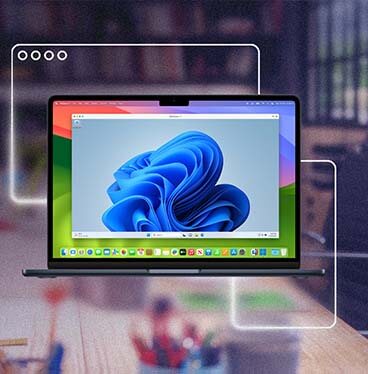




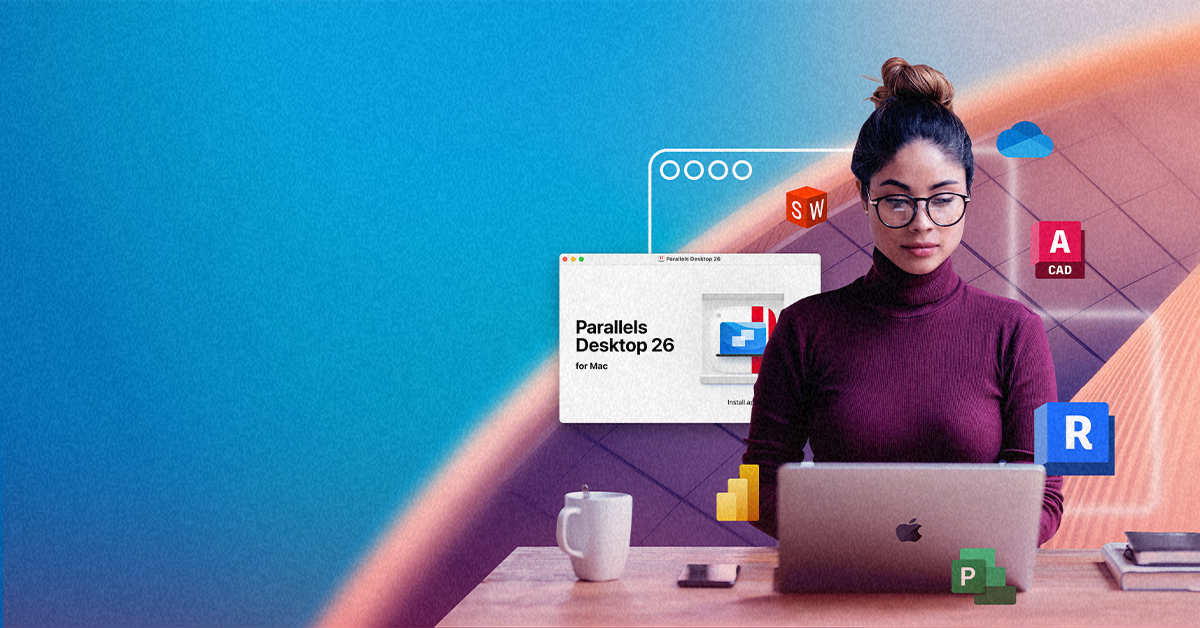
Run Windows on Your Mac, No Workflow Changes Required
Get the Windows desktop environment you need, right on your Mac. With a virtual PC for Mac powered by Parallels Desktop, you can run Windows and macOS side by side, without rebooting or carrying a second device.
Why Mac users choose Parallels Desktop virtual PC
Most people searching for a “virtual PC for Mac” are not looking for novelty. They’re trying to keep their Mac workflow intact while meeting a Windows requirement that’s tied to school, work, or a specific app. Parallels Desktop is built for that moment when Windows needs to feel like part of your day, not a separate project.
Work without friction
Keep your Mac as your primary device while using Mac and Windows apps in one flow, without context switching.
Performance you can trust
A responsive Windows experience with features like hardware acceleration, so everyday apps feel predictable.
Confidence and control
A stable environment you can reset, duplicate, and manage, whether you are running one VM or multiple virtual machines.
That’s the real value of a virtual PC for Mac: you keep your Mac workflow, and add Windows where it actually helps.
Why do you need a virtual PC for Mac?
A virtual PC becomes useful the moment a Windows-only requirement shows up, and you want to meet it without changing how you work. Here are the most common job-level reasons people adopt a Windows VM on Mac, and what that choice unlocks.

Who it helps
- Professionals and prosumers
- Students
- Developers and technical professionals
- Anyone collaborating across OS boundaries
When it matters
- You need a Windows-only tool for work, finance, engineering, reporting, or client deliverables
- Your course software, testing tools, or exam requirements are Windows first
- You need a dependable Windows environment for testing, debugging, or customer reproduction
- A project uses Windows-specific formats, workflows, or dependencies
What you can do with a virtual PC
- Run Windows apps on your Mac, keep your files and workflow consistent
- Install Windows without replacing your Mac, then use the required apps as needed
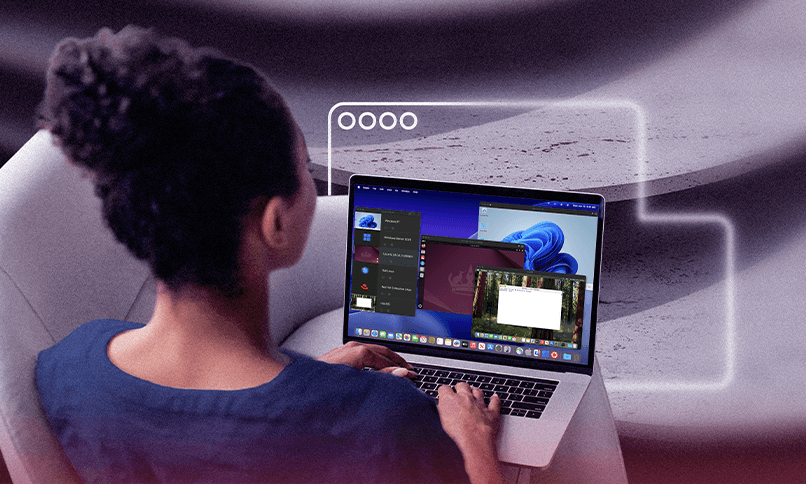
- Create repeatable Windows setups, including multiple virtual machines for parallel validation
- Open, edit, and share files without “it doesn’t work on Mac” friction
Different roles have different reasons, but the outcome is the same: you keep your Mac as your daily driver and use Windows when it earns its keep.
Say hello to Parallels Desktop
Parallels Desktop is built for Mac users who need a real Windows experience, without leaving macOS. It runs a complete Windows environment alongside your Mac apps, so you can open the Windows desktop when you need it and get back to macOS without friction.
It’s also designed with modern Macs in mind. On Apple silicon Macs, Parallels Desktop is optimized for performance and day-to-day responsiveness, which is a big reason it’s become the default choice for many users moving beyond older approaches like Boot Camp (which is not available on Apple silicon).
Some alternatives, including VMware Fusion, may fit certain needs, but they often follow a different release cadence and workflow model than Parallels Desktop.
As a virtual PC for Mac, Parallels Desktop is designed around the basics that matter most in real workflows:
Quick Windows setup
You can install Windows and get to a usable environment fast, without turning setup into a weekend project.
Native like workflow
Use coherence mode when you want Windows apps to feel at home in macOS, not trapped behind a separate desktop.
Flexible environments
Spin up test, work, and personal setups side by side with multiple virtual machines.
Broad compatibility
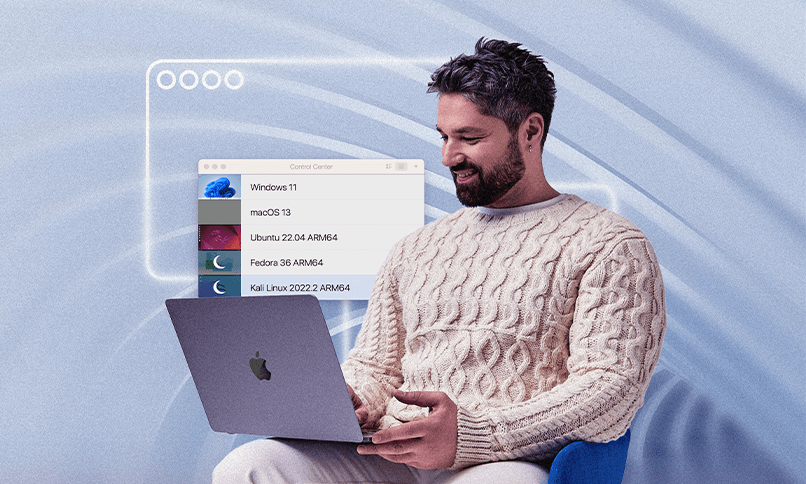
Support for a range of supported operating systems, so you can match your setup to the Windows version your workflow requires.
If you want Windows on Mac without turning your day into a series of restarts, this is the practical middle ground.
Value pillars
When people talk about a “virtual PC for Mac,” they’re usually describing outcomes, not features. Our value pillars map what matters most in real-day-to-day use, from getting set up quickly to staying productive, compatible, and in control once Windows is part of your workflow.
Intuitive
Getting started should feel straightforward, even if you have never used virtualization before.
A clean setup path
Fewer steps between download and your first working Windows session.
Windows apps that blend into macOS
Coherence mode helps Windows apps feel like part of your Mac workflow, not a separate world you have to manage.
Less tinkering, more doing
Presets and repeatable VM creation reduce trial-and-error when building or rebuilding an environment.
The point is fewer steps between “I need Windows” and “I’m working.”
Productive
A virtual PC is only useful if it supports real work for long stretches, not just quick one-offs.
One workflow, not two devices
Move between macOS and the Windows environment without rebooting.
Predictable performance
Features like hardware acceleration help keep everyday workloads responsive.
Parallel work when you need it
Use multiple virtual machines for testing, separation, or role-based environments.
Productivity is less about flashy features and more about consistency you can rely on.
Compatible
A virtual PC needs to run the apps you actually depend on, not just a demo workload.
Run what you need for work or school
Launch and use run windows apps that are not available on macOS.
Keep files moving between environments
Share project assets, downloads, and documents across macOS and Windows without constant exporting.
Match the right Windows setup to the job
Choose from supported operating systems so your Windows environment meets the app’s requirements.
Compatibility here is practical; it’s about fewer blockers and fewer surprises.
Controlled
Windows on Mac should feel contained and manageable, especially when it’s tied to work.
Clear separation between environments
Windows runs inside the VM, which helps keep system changes and app behavior contained.
Easy reset and repeatability
Snapshots and VM copies let you recover quickly if something breaks or you need a clean start.
Local, reliable access
Your Windows environment runs locally on your Mac, including offline, when that matters most.
This is not about promising perfection. It’s about reducing risk and friction through a setup you can control.
Solution components and where each fits
The right fit depends on how you use Windows and what level of control you need.
| Need | Parallels Desktop edition | What it delivers |
| Personal use and everyday Windows apps | Parallels Desktop | A local Windows VM with tight Mac integration for running Windows apps and the Windows desktop on demand. |
| Power users, creators, and developers | Parallels Desktop Pro Edition | More tuning options for performance and workflows are helpful when you run heavier apps or keep multiple virtual machines. |
| Small business and managed Mac fleets | Parallels Desktop Business Edition | Centralized licensing and admin capabilities for teams who want consistency across devices. |
If you’re mainly solving “I need Windows on my Mac,” start with Parallels Desktop. If you’re managing a group, Business Edition adds the structure most teams want.
Use cases
Different people arrive here for different reasons, but the pattern remains consistent: keep macOS as the home base, then add Windows only where required.
| Students | Run Windows-only course or exam software on a Mac | Install Windows in Parallels Desktop, launch required apps as needed | Finish required work without switching devices |
| Professionals | Use Windows-only tools tied to reporting, finance, client systems, or specialized apps | Run Windows apps locally while keeping Mac tools and files close | Fewer workarounds, faster turnaround on deliverables |
| Developers | Validate behavior across OS environments | Fewer workarounds, faster turnaround on deliverables | Faster testing and clearer bug reproduction |
| Prosumer workflows | Keep Windows available without changing your primary setup | Use the Windows desktop when needed, or coherence mode for app-by-app use | Windows fits your day instead of interrupting it |
Across these roles, the common thread is control: you decide when Windows shows up and how it’s used.
How it works
Getting started with a virtual PC for Mac is usually simpler than people expect, especially when you separate setup from day-to-day use.
| Step | What you do | What you get |
| 1 | Install Parallels Desktop | The platform on which your Windows environment runs. |
| 2 | Create your Windows environment and complete install windows | A working Windows system that opens like any other app. |
| 3 | Launch and run Windows apps alongside macOS, with coherence mode if you prefer | A single workflow that includes both Mac and Windows tools. |
| 4 | Add more environments when needed | The ability to create multiple virtual machines for testing, separation, or different roles. |
| 5 | Keep licensing straight | Parallels Desktop provides a virtual PC; Windows requires its own Microsoft license. |
Once your first VM is set up, repeating the process for additional environments becomes routine.
Try Windows on Mac without rewriting your routine
Set up your first virtual PC for Mac using the apps and workflows you already rely on. That gives you a real way to evaluate fit, on your own Mac, without committing to a second device or a reboot-heavy setup.
Frequently Asked Questions (FAQ)
Yes, Parallels Desktop runs a complete Windows environment on your Mac, so running Windows apps behaves as expected inside the VM.
Yes, Parallels Desktop provides the virtualization software, and Windows is licensed separately through Microsoft.
On modern hardware, especially Apple silicon Macs, performance is typically predictable for everyday business, professional, and development workloads. The experience depends on your Mac resources and what you run, but the goal is consistency, not novelty.
No, Windows and macOS can run side by side, so you can move between Mac apps and the Windows environment without rebooting.
Yes, you can create multiple virtual machines for testing, separation, or different workflows, and switch between them as needed.