





Run the Full Windows Version of Microsoft Access on Mac

Run the Full Windows Version of Microsoft Access on Mac

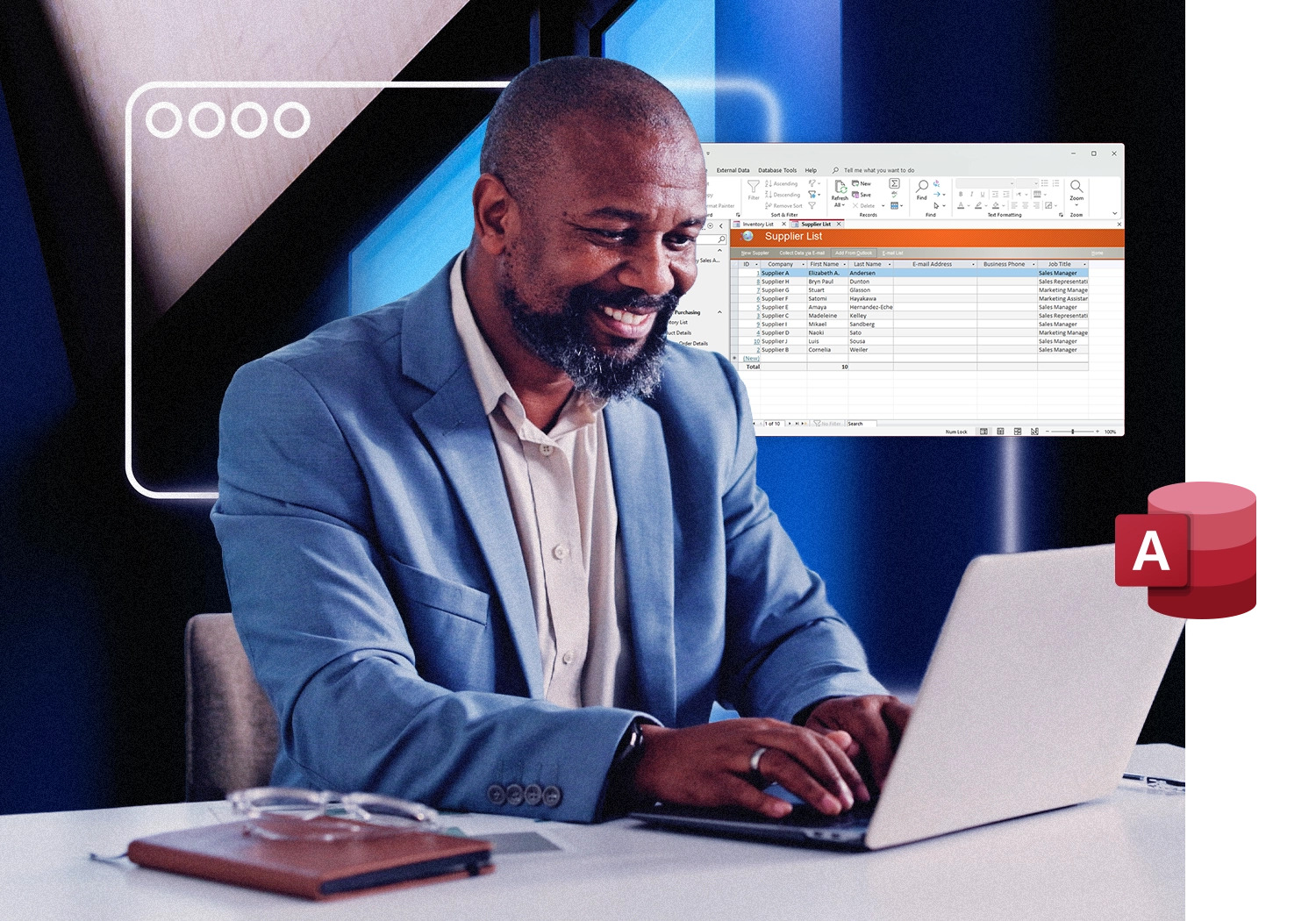
Microsoft Access has no Mac version. Microsoft lists Access as a Windows-only application, and Boot Camp is not available on Apple silicon Macs. Whether you need to open an inherited .accdb file, maintain a legacy departmental database, support a customer workflow built in Access, or continue using business-critical forms and reports, Parallels Desktop lets you run the full Windows version of Microsoft Access on your Mac.

Trusted by over 7 million Mac users worldwide

"First Mac I have owned. Primary reason was to run Microsoft Access application. I have and maintain a number of Access databases and am more comfortable to keep using Access"

"Bought a mac but still needed to use MS Access... I manage a MS Access database and Access isn't available in a mac version, so I have no choice but to run it through windows."

"Teaching foundation computing. I need access to MS Access to teach the kids about databases... It also opens their minds to the possibility of hypervisors."

Why Microsoft Access on Mac is harder than it looks

Microsoft Access has no Mac version

Unlike Word, Excel, PowerPoint, Outlook, and OneNote, Microsoft Access has never been released for macOS. Microsoft’s Access product page lists the application as available for PC only, and Access is not included in Microsoft 365 for Mac. For organizations that depend on Access databases, that creates an immediate challenge when employees move to Mac hardware.

.accdb and .mdb files cannot be opened in any native Mac app

Most Access databases are stored as .accdb or .mdb files. Modern macOS does not include any application capable of opening these files directly. While some database tools and workarounds can import exported data or provide limited compatibility, they generally do not preserve the forms, reports, queries, relationships, macros, VBA code, and workflow logic that make an Access application work. Options such as FileMaker, Airtable, and other database platforms typically require rebuilding the application, while compatibility layers such as CrossOver may struggle with VBA, ODBC connections, and Office integrations. For organizations that depend on an existing Access application—not just the underlying data—full compatibility usually requires the Windows version of Microsoft Access.

Boot Camp is not available on Apple silicon Macs

Many older guides recommend Boot Camp as a way to run Windows software on a Mac. That advice only applies to Intel-based Macs. Apple does not support Boot Camp on Macs powered by Apple silicon, including M1, M2, M3, M4, and M5 Macs. For most modern Mac users who need Microsoft Access, virtualization has become the practical path forward.

Mac alternatives to Microsoft Access require rebuilding the database

FileMaker, Airtable, Ninox, LibreOffice Base, and Knack can all serve as database platforms. What they cannot do is open a production Access application and preserve its functionality automatically. In most cases, organizations must export data, recreate forms and reports, rewrite automation, and rebuild integrations. For databases that have evolved over years, that effort can become a significant project.

Linked tables and external connections add complexity

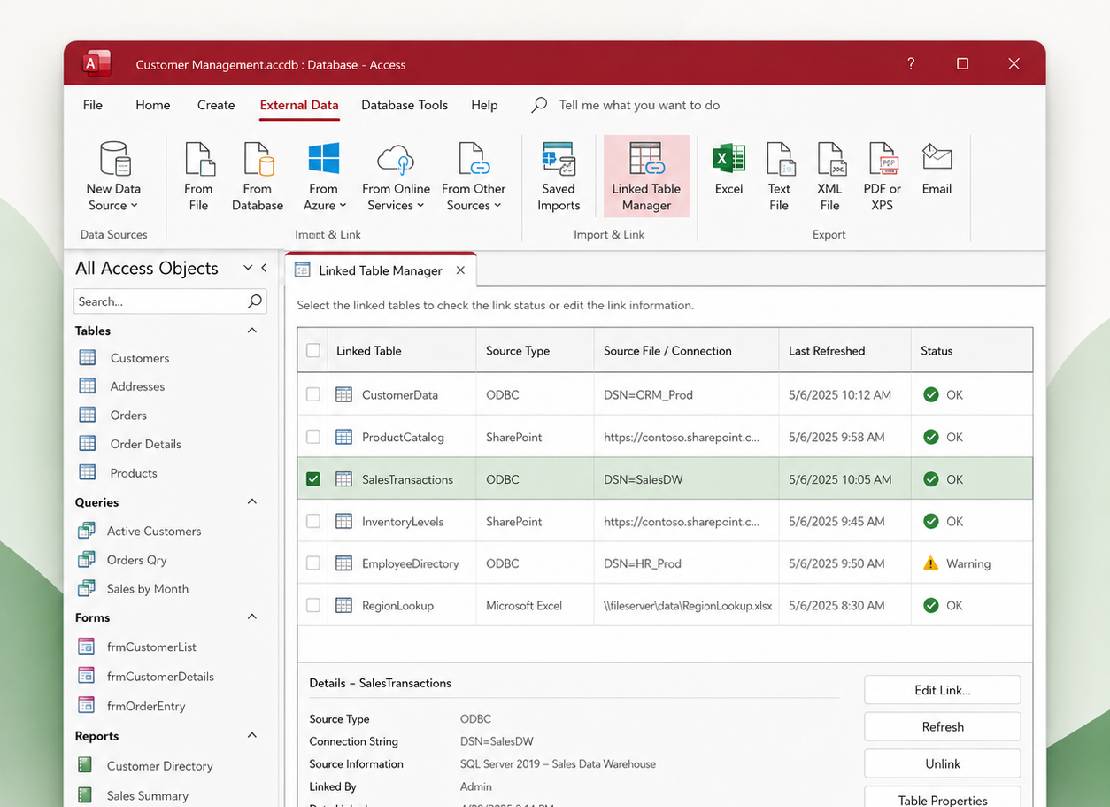
Access is frequently used as a front end for SQL Server, SharePoint, Excel workbooks, ODBC data sources, and other databases. In many organizations, SQL Server already serves as the database backend while Access provides the forms, reports, queries, macros, and VBA code employees use every day. Because of this, replacing Access often involves more than migrating data. It may also require rebuilding application functionality, recreating connection logic, and testing business workflows that have evolved over years. For teams running mature database applications, preserving those workflows is often more important than preserving the data itself.

Mac alternatives to Microsoft Access (and what they miss)

Mac alternative What it is and what it misses Who tries it
FileMaker Pro (Claris) FileMaker Pro is often considered the closest Mac equivalent of Microsoft Access and is widely used for custom business applications. It offers powerful forms, layouts, and automation tools, but it cannot run an existing Access application. Access databases must be migrated, forms and reports recreated, and VBA automation replaced with FileMaker scripts. FileMaker is best suited for organizations willing to invest in a long-term platform transition rather than preserve an existing Access workflow. Mac-first small businesses, creative agencies
Airtable Airtable combines spreadsheet-style simplicity with cloud database functionality and is popular for project tracking, marketing operations, and collaborative workflows. While it can import exported table data, it cannot run Access forms, reports, queries, macros, or VBA code. Organizations typically redesign workflows using Airtable interfaces and automations instead of migrating them directly. Marketing teams, operations teams, project managers
Ninox Ninox is a Mac-native low-code database platform designed for small businesses and independent professionals. It works well for creating new database applications but does not support direct .accdb imports or existing Access functionality. Forms, reports, automations, and workflows generally need to be recreated manually. Small businesses, consultants, freelancers
LibreOffice Base LibreOffice Base is the free, open-source database application. It may be able to read certain older .mdb databases through drivers or import tools, but compatibility with modern .accdb files is limited. Forms, reports, macros, and VBA-based functionality do not transfer reliably, making it better suited for simple databases than production Access applications. Hobbyists, students, budget-conscious users
Knack Knack is a cloud-based no-code database platform aimed at non-technical users. It can be useful for building new workflows through a visual interface, but existing Access databases cannot be imported as working applications. Forms, reports, automation, and integrations typically need to be recreated from the ground up. Small business owners, operations managers
Microsoft Access Runtime Microsoft Access Runtime is Microsoft's free deployment environment for running Access databases without purchasing a full Access license. Runtime users can open forms, run reports, execute VBA code, and interact with existing databases, but they cannot modify database design. Runtime remains a Windows-only application, which means Mac users still need Windows to use it. Running Access Runtime inside Windows through Parallels Desktop can be a practical option for users who only need to open and use shared databases. Users who receive Access databases from clients, vendors, or colleagues

Even a moderately customized Access application may contain dozens of forms, reports, queries, macros, and integrations. Migrating these elements to a new platform can range from several days for a simple database to several months for a mature departmental application.

Unlock Advanced Microsoft Access capabilities on Mac

Most Access databases are more than collections of tables. They include forms, reports, queries, automation, and external data connections that work together as a complete business application. These are the five Microsoft Access capabilities most likely to break during a migration to another platform—and the reason many organizations continue using Access even after moving to Mac hardware.

In many organizations, employees never interact directly with tables. They use forms, reports, buttons, menus, and workflows built on top of the database. That's why preserving an Access application is often more complicated than moving the underlying data.

Forms and data entry
Reports
Queries and SQL
VBA and macros
External data and linked tables
Parallels Desktop icon

Parallels Desktop for Mac

Authorized by Microsoft icon Authorized by Microsoft

Optimized for Mac M-series icon Optimized for Mac M-series

/year
Billed annually
  • Run the full Windows version of Microsoft Access on Mac.
  • Open existing .accdb and .mdb databases without switching to a PC.
  • Preserve forms, reports, queries, VBA code, and linked tables.
  • Use Microsoft Access alongside your Mac apps with Coherence mode.

Microsoft Access alternatives on Mac vs. Microsoft Access via Parallels Desktop

The biggest difference between Mac database alternatives and Microsoft Access is whether they can preserve an existing Access application. Many organizations rely on databases built over years of forms, reports, VBA automation, linked tables, and custom workflows. The comparison below shows which capabilities transfer and which typically require rebuilding.

Capability Mac alternatives Microsoft Access via Parallels Desktop
Open existing .accdb files No direct support; migration or export typically required. Yes
Open existing .mdb natively Limited (LibreOffice Base via ODBC); results vary Yes
Preserve Access forms Rebuild required Yes
Preserve Access reports Rebuild required Yes
Preserve Access queries Rebuild required Yes
Run existing VBA code No Yes
Run AutoExec macros No Yes
Linked tables to SQL Server Rebuild required Yes
Linked tables to SharePoint Limited support; rebuild required Yes
ODBC pass-through queries Possible but requires redesign Yes
Microsoft Access Runtime support No (Windows-only runtime) Yes
Modern Monaco SQL editor (Access 2024) No Yes
Use an existing Microsoft 365 license No Yes
Apple silicon support (M1 – M5 Macs) Varies by platform Yes

The verdict: Mac alternatives vs. Microsoft Access via Parallels Desktop

Use a Mac alternative if you are building a new database from scratch

If you’re starting a new database project and don’t need to preserve an existing Access application, a Mac-native platform may be a good choice. FileMaker offers a powerful customization and business application development tools. Airtable works well for lightweight collaborative workflows, while Ninox provides a Mac-friendly low-code environment. These platforms are strongest when building something new rather than migrating a mature Access database with forms, reports, VBA automation, linked tables, and external data connections.

Run Microsoft Access for Windows through Parallels Desktop if you need to keep an existing database working

If you already have an Access database, preserving it is usually faster and less disruptive than rebuilding it. Runing Microsoft Access through Parallels Desktop lets you open existing .accdb and .mdb files, Maintain forms and reports, preserve VBA automation, and continue using linked SQL Server, SharePoint, and ODBC data sources.

This approach is especially valuable for:

  • Small and medium-sized businesses running operational databases
  • Government and public-sector teams maintaining legacy applications
  • Healthcare administrators managing reporting and scheduling workflows
  • Consultants and contractors receiving Access databases from clients
  • Mac users inheriting Access workflows from Windows-based teams

With Microsoft Access running in Windows through Parallels Desktop, your database behaves the same way it does on a Window PC—without requiring a separate computer or a full migration project.

Learn more

How to Set Up Microsoft Access on your Mac with Parallels Desktop

Microsoft Access has no Mac version, but you can run the full Windows version on your Mac in just a few steps. Once configured, Access can work alongside your Mac applications while preserving compatibility with existing databases, forms, reports, VBA code, and linked data sources.

Download Parallels Desktop icon

Download and install Parallels Desktop

Download Parallels Desktop and run the installer. Setup takes only a few minutes on both Apple silicon and Intel Macs, and no advanced configuration is required. Once installation is complete, you’re ready to install Windows and Microsoft Access.

Install Windows icon

Install Windows 11

Parallels Desktop can download and install Windows automatically, eliminating the need to locate installation media or configure drivers manually. On Apple silicon Macs, Windows runs through Microsoft’s ARM version of Windows 11. A Windows license is required for activation, but installation can begin immediately.

Install Microsoft 365 and Microsoft Access

Install Microsoft 365 and Microsoft Access

Inside Windows, sign in with the Microsoft 365 account associated with your Access license and installed Microsoft 365 or Microsoft Access. If your organization uses Microsoft 365 Apps for Business or Microsoft 365 Apps for Enterprise, Access may already be included. Users without an Access entitlement can purchase a standalone Microsoft Access license separately.

If you’re opening databases shared by clients, coworkers, or vendors, verify that your license includes Access before installation.

Turn on Coherence mode

Turn on Coherence mode

Switch your Windows virtual machine to Coherence mode to make Microsoft Access feel like part of macOS. Access appears in the Dock, supports Cmd-Tab app switching, works with Mission Control, and can sit alongside your Mac applications without displaying the Windows desktop. This makes it easy to move between Access, Excel, Outlook, Safari, and other Mac apps throughout the day.

Open your Access database

Open your Access database

Store your .accdb and .mdb files in your Mac Documents folder and open them directly from Microsoft Access. Shared folders make files available in both macOS and Windows, eliminating the need to move databases back and forth between environments. Existing linked tables, SQL Server connections, SharePoint integrations, and ODBC data sources continue working as they do on a Windows PC.

Your database files remain accessible from the Mac side and can continue to be included in your normal backup workflow.

Who runs Microsoft Access on Mac with Parallels Desktop

Small business owners and operators

Many small and medium-sized businesses run Microsoft Access for inventory management, customer databases, order tracking, accounting ledgers, asset tracking, project billing, equipment tracking, and operational reporting. In many cases, the database was built years ago and has become part of how the business runs every day. When owners and employees move from Windows PCs to Macs, replacing that database is often more disruptive than keeping it. Running Microsoft Access through Parallels Desktop allows teams to continue using the workflows they already depend on while adopting Mac hardware.

Government and public-sector workers

Government agencies at the federal, state, and local levels maintain thousands of legacy Access databases for case tracking, asset management, inspections, permitting, internal reporting, and citizen service records. Many of these applications have evolved over years—or even decades—and are maintained by teams that no longer have the time or resources for a full migration project. Running Microsoft Access on a Mac provides continued access to those systems while supporting agency transitions to modern hardware.

Healthcare administration and clinical operations

Healthcare organizations frequently use Access for patient scheduling, billing reconciliation, internal reporting, operational dashboards, departmental data management, and quality measure tracking. These databases often connect to Excel workbooks, SQL Server databases, and other reporting systems that support day-to-day operations. For healthcare administrators and operations teams, preserving existing workflows can be more practical than replacing them. Running Microsoft Access through Parallels Desktop allows staff to continue working with familiar tools while using Mac devices.

Mac switchers, consultants, and contractors

One of the most common scenarios starts with a simple problem: someone receives an .accdb file and needs to open it on a Mac. New Mac users often inherit Access databases from a predecessor, coworker, or client. Consultants, contractors, developers, and accountants regularly receive Access databases that need to be reviewed, updated, or maintained. Instead of exporting data or rebuilding the application, they can open the database directly in Microsoft Access and continue working with the original forms, reports, queries, and automation.

Using Microsoft Access on Mac FAQs

See what Parallels enables you to accomplish

Outlook icon

200,000+ apps and integrations

Run Microsoft Access and thousands of other Windows applications on your Mac—from business software and accounting tools to industry-specific applications that don't have Mac versions.

See all the apps
Excel icon

Excel

Use Microsoft Excel for Windows on your Mac, including linked workbooks, exports, VBA automation, and reporting workflows connected to Microsoft Access.

Learn more about Excel
Office icon

Office365

Use Microsoft Word for Windows on your Mac, including document generation, reporting workflows, and Mail Merge projects powered by Access data.

Learn more about Office365

Learn more about using Parallels Desktop to run Microsoft Access on Mac

Microsoft Office on Mac vs. Windows: What's the difference?

Learn more

How to share files between Mac and Windows with Parallels Desktop

Learn more

How to run Microsoft Access on an M1, M2, M3, M4, or M5 Mac

Learn more

Run the full Windows version of Microsoft Access on your Mac

Open existing .accdb files, preserve forms, reports, VBA automation, and linked data sources, and keep your Microsoft Access workflows running on Mac without rebuilding your database.