




Parallels Desktop vs VMware Fusion:
The 2026 Comparison Guide
Trying to decide between Parallels Desktop and VMware Fusion on Mac? With VMware Fusion now free, the question is simple: is Parallels Desktop still worth it on Apple Silicon Macs? Both run Windows without rebooting. But that’s where the similarities end.
Parallels Desktop vs VMware Fusion: Feature-by-Feature Breakdown
UI, Licensing, and Ease of Use Differences


Why Parallels Desktop over VMware Fusion on Apple Silicon

Earlier, deeper Apple Silicon support
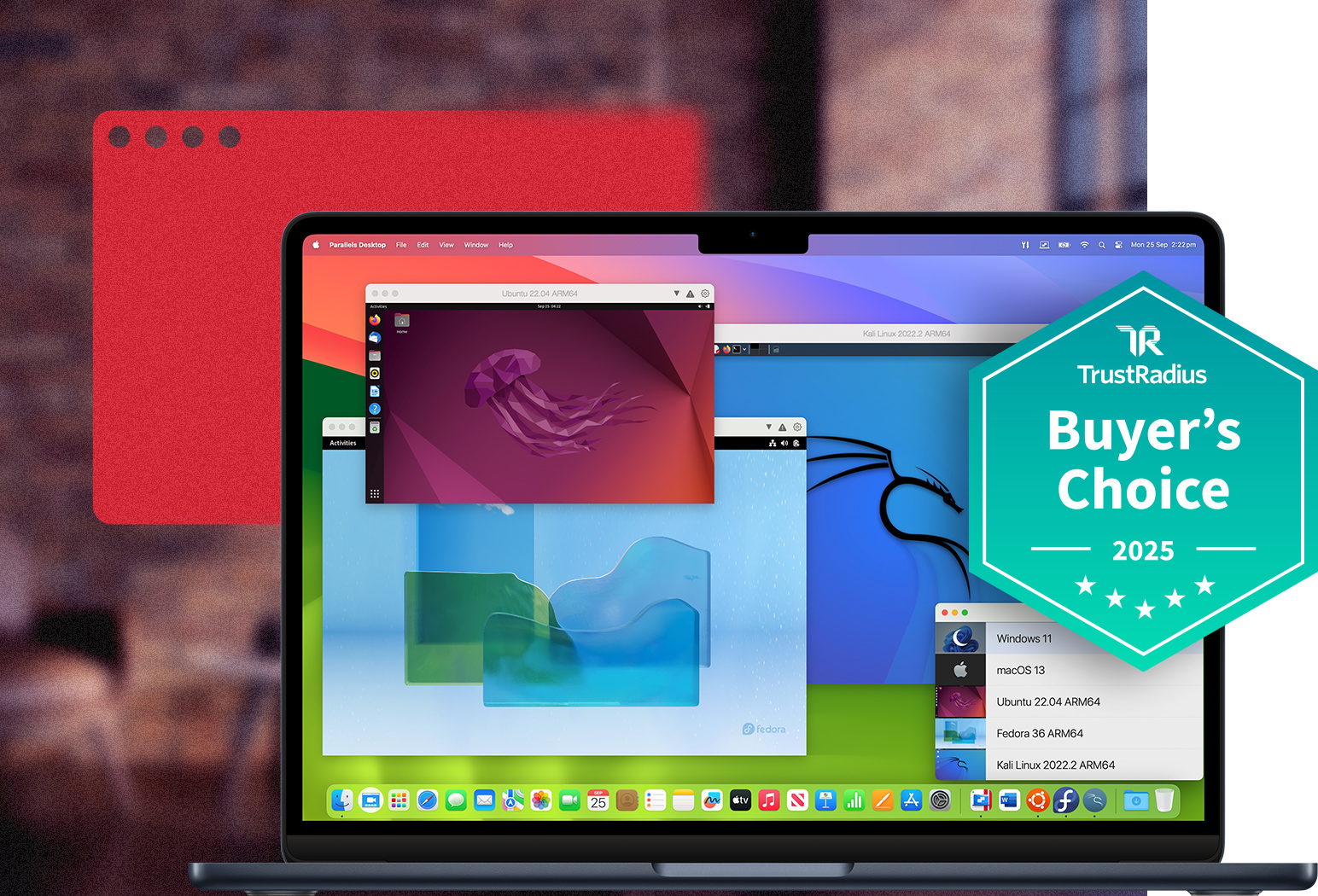
Parallels Desktop was the first virtualization tool fully optimized for M-series chips, including M5 and Neo, and the first Microsoft-authorized to run Windows 11 on them. VMware Fusion added M-series support later and still hasn’t caught up on Coherence Mode or shared folders.

Windows apps that feel like Mac apps
Coherence Mode lets Windows apps live right on your Mac desktop, next to your native apps. No separate Windows window, no mental gear-shift. VMware’s equivalent (Unity Mode) isn’t available on Apple Silicon.

The only Microsoft-authorized choice
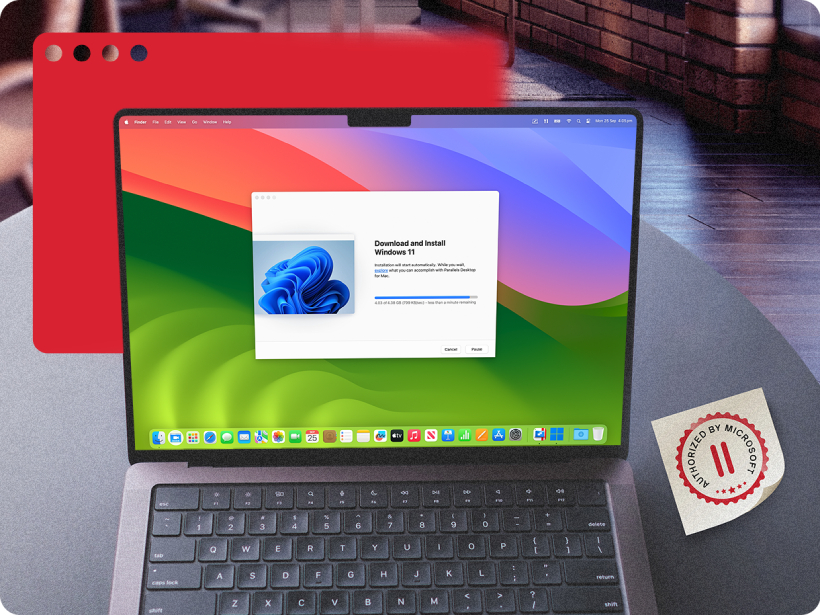
Parallels Desktop is the only virtualization tool Microsoft has authorized to run Windows 11 on Apple Silicon Macs, giving you full license compliance and reliable update access. VMware Fusion does not hold this authorization.
The Verdict: Parallels Desktop vs VMware Fusion
Choose Parallels Desktop if you need Windows to work every day
Compared to VMware Fusion, Parallels Desktop launches Windows in under 5 seconds, requires no manual configuration on Apple Silicon, and runs Windows apps natively on the Mac desktop via Coherence Mode (M1 through M5 and Neo). Microsoft-authorized and 24/7 supported. Best for everyday professionals, developers, creative freelancers, students, and anyone switching from a Windows PC.
Choose VMware Fusion if you need occasional access at zero cost
VMware Fusion Pro has been free since November 2024. And if you’re comfortable troubleshooting and only need Windows occasionally, it can absolutely get the job done. It’s a solid choice for IT professionals and developers running test environments. Just know that on Apple Silicon, Coherence Mode and shared folder sync are still limited, and support is primarily community-driven.
On Apple Silicon, Parallels Desktop is the faster and more capable option
On M1, M2, M3, M4, M5, and Neo Macs, Parallels Desktop launches Windows significantly faster than VMware Fusion and handles CPU-intensive tasks more efficiently in independent user testing. In practice, that means Windows feels responsive from the moment it opens. Not something you notice once, but every time you switch. Parallels Desktop also holds Microsoft’s authorization for Windows 11 ARM that VMware does not.
Get started with Parallels Desktop and start maximizing the potential of your Mac
How to convert VMware Fusion to Parallels Desktop
If you are using a Mac with Apple silicon, follow these steps to switch from VMware Fusion to Parallels Desktop.
Here’s how to migrate from VMware Fusion to Parallels Desktop on an Apple silicon Mac

1. Open Parallels Desktop
Open Parallels Desktop and click "File"> "New" to start the virtual machine creation process.

2. Import
Choose your OS (and select an ISO image—if necessary). Customize your settings here too. Copy the files you need and install any applications you’d like.

3. Start Windows
After you start Windows, select Actions > Install Parallels tools and follow the onscreen instructions.
Users love award-winning Parallels Desktop








Parallels Desktop is the solution of choice for a variety of use cases...

Developers
Your development environment is at your command with Parallels Desktop. Streamline workflows, effortlessly switch between OSs, and maintain exceptional performance and security with Parallels Desktop.

Education
Get on the fast track to academic success with Parallels Desktop. Enjoy seamless software compatibility in the classroom or on the go with a simple, intuitive solution that gives users the edge needed to excel in today’s classrooms.

Small and medium-sized businesses
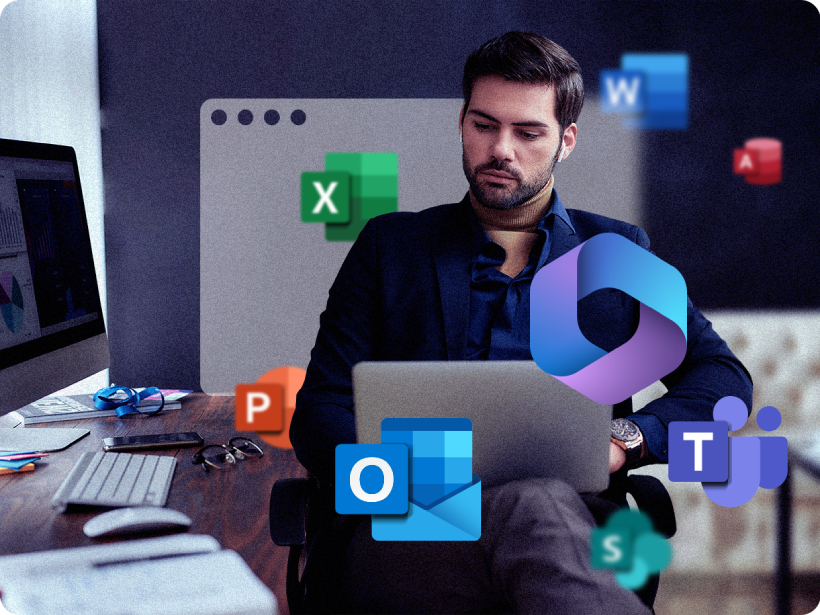
Focus on growth with a solution you can trust. Run business-critical Windows software like QuickBooks and the full-featured versions of Microsoft Office applications like Excel, PowerPoint, Outlook, and over 200,000 more apps on your Mac.
Find the right fit for you or your business
| Standard | |
| Best for Light home use | |
| Core components |
|
|
Maximum virtual RAM and CPUs
|
8 GB vRAM, 4 vCPUs |
|
Supports latest versions of macOS, Windows, and Linux
|
Subscription only |
|
Authorized by Microsoft and SOC 2-certified
|
|
|
3D acceleration—DirectX and OpenGL
|
|
|
Run thousands of Windows apps on your Mac
|
|
| Buy now | |
| Pro All the Standard features PLUS: |
|
| Best for Power users and developers | |
| Core components |
|
|
Maximum virtual RAM and CPUs
|
128 GB vRAM, 32 vCPUs |
|
Supports latest versions of macOS, Windows, and Linux
|
|
|
Authorized by Microsoft and SOC 2-certified
|
|
|
3D acceleration—DirectX and OpenGL
|
|
|
Run thousands of Windows apps on your Mac
|
|
| Advanced capabilities |
|
|
Run Windows apps with intensive graphics and processing needs
|
|
|
Command line interface
|
|
|
Built-in developer tools
|
|
| System tools |
|
|
Disk cleanup and memory cleaner
|
|
|
System and performance monitoring
|
|
|
Multimedia download and conversion
|
|
|
Productivity and privacy boosters
|
|
|
Screen capture and recording
|
|
| Buy nowTry now | |
| Business All the Standard and Pro features PLUS: |
|
| Best for Teams and small businesses | |
| Teams and small business |
|
|
Centralized administration and license management
|
|
|
Automation of CI/CD workflows
|
|
|
Advanced provisioning tools
|
|
|
Volume licensing
|
|
|
Jamf and Intune integration for automated deployment and updates
|
|
| Buy nowTry now | |
| Enterprise All the Standard, Pro and Business features PLUS: |
|
| Best for IT-managed deployments | |
| Enterprise |
|
|
Management portal for policy enforcement and compliance visibility
|
|
|
Golden image creation and deployment
|
|
|
Encrypted VMs locked to organizational control
|
|
|
Granular control of VM settings, network, USB, clipboard, and shared folders
|
|
|
SSO/SAML with SCIM provisioning and per-user/device licensing
|
|
| Contact salesTry now | |
Parallels Desktop vs. VMware Fusion FAQ
For most Mac users, especially on Apple Silicon (M1 through M5 and Neo), Parallels Desktop is the stronger choice in 2026. It runs CPU tasks 31–42% faster, launches Windows in under 5 seconds versus VMware’s 8.4, and is the only solution Microsoft has authorized for Windows 11 on M-series Macs. VMware Fusion Pro is free and works fine for occasional use, though on Apple Silicon, Coherence Mode and shared folders are still missing, and support is now community-driven.
Yes. VMware Fusion Pro has been free for personal, educational, and commercial use since November 2024. That said, That said, official support is no longer offered. Users rely on community forums. The update cadence has slowed, Coherence Mode is not yet supported on Apple Silicon, and Broadcom hasn’t committed to keeping it free long-term.
You pay for Parallels Desktop for measurably better performance, deeper macOS integration, and Microsoft authorization that VMware does not have. In independent user testing, Parallels Desktop launches Windows noticeably faster, uses less RAM per VM, and runs CPU-intensive tasks more efficiently than VMware Fusion on M-series Macs. In practice, that adds up to a noticeably faster, lighter experience on M-series Macs, plus up to 19% better battery life. Parallels Desktop also includes 24/7 support and Coherence Mode on Apple Silicon, neither of which VMware Fusion currently offers.
VMware Fusion still works after Broadcom’s acquisition. It’s not broken. But official support is gone, the update pace has slowed noticeably since 2023, and several known issues (including persistent background popups and display scaling problems on Apple Silicon) haven’t been fixed. If VMware reliability mattered to you before the acquisition, it’s a fair question to revisit. Parallels Desktop is under active development with a Mac-first roadmap.