




Play Steam Games on Your Mac with Parallels Desktop
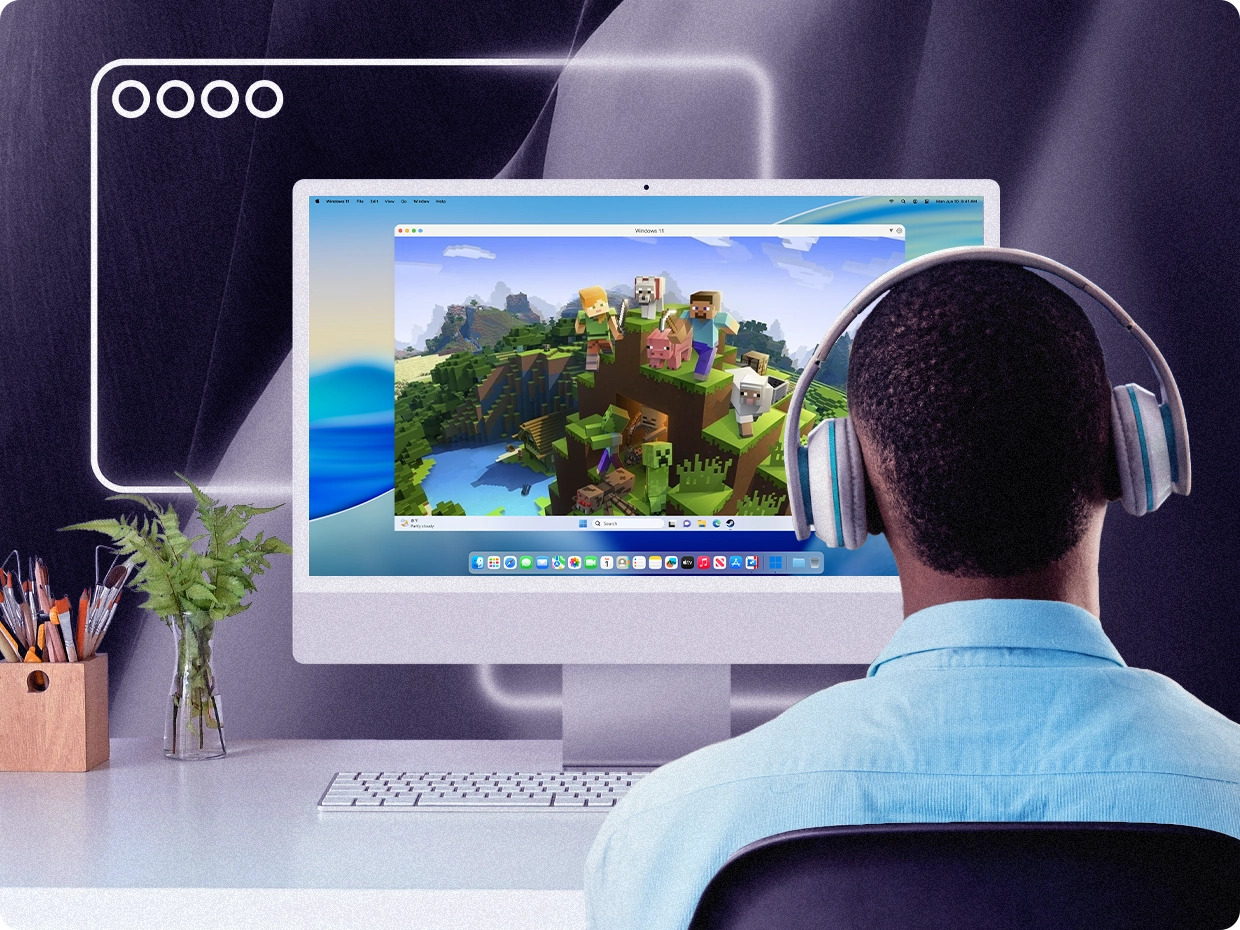
Run Minecraft Bedrock, Valheim, GTA V, Skyrim Special Edition, and hundreds of Windows-only Steam games on a Mac. Parallels Desktop is the Microsoft-authorized solution for running Windows 11 on Apple silicon Macs, with DirectX 11 graphics support and a built-in Gaming Profile that helps optimize CPU, RAM, and GPU resources for gaming.
Play hundreds of Windows-only Steam games on Mac
Many popular Steam games still don't offer a native macOS version. With Parallels Desktop, Mac users can access a wide range of Windows games—from Minecraft Bedrock and Valheim to GTA V, Skyrim Special Edition, Fallout 4, and Age of Empires II: Definitive Edition—without leaving macOS.
Whether you're trying to reconnect with a Steam library built on Windows or join friends on Windows-only multiplayer platforms, Parallels Desktop provides one of the most accessible ways to run Windows games on Apple silicon Macs.

-
![Game action-adventure icon]()
Minecraft Bedrock
![Link icon]()
-
![Game action-adventure icon]()
Valheim
-
![Game shooter icon]()
Grand Theft Auto V (GTA V)
-
![Game action icon]()
Skyrim Special Edition
-
![Game strategy icon]()
Civilization VI
-
![Game strategy icon]()
Age of Empires II: Definitive Edition
-
![Game icon]()
The Sims 4
-
![Game action-adventure icon]()
Hollow Knight
-
![Game action icon]()
Mass Effect Legendary Edition
-
![Game icon]()
Cuphead
-
![Game icon]()
RimWorld
-
![Game icon]()
Factorio
-
![Game icon]()
Fallout 4
-
![Game icon]()
Tekken 7
-
![Game icon]()
Other games
![Link icon]()


Minecraft on Mac with Parallels Desktop
Minecraft on Mac is really two different conversations: Java Edition and Bedrock Edition. Java Edition has native Apple silicon support and is generally the best choice for Mac users. Bedrock Edition is the version used for cross-play with Xbox, PlayStation, Nintendo Switch, iPhone, iPad, and Android.
Because Microsoft does not offer a native macOS version of Bedrock, many Mac users turn to Parallels Desktop to run the Windows edition. The key takeaway: Java runs best natively on Mac. Bedrock is the primary reason to consider Parallels Desktop.
Native on Mac — Recommended
Minecraft Java Edition supports both Intel Macs and Apple silicon Macs. Since version 1.19, Mojang has provided native Apple silicon support, allowing Java Edition to run directly on modern M-series hardware.
Java players benefit from:
- Native Apple silicon performance
- Support for Forge, Fabric, and Quilt
- Shader compatibility through OptiFine and Iris
- Native multiplayer support
- Better performance than running Java through a virtual machine
For most Java players, Parallels Desktop adds complexity without providing meaningful advantages.
Works with Caveats — Primary Parallels Desktop Use Case
Minecraft Bedrock Edition powers cross-play across Windows PCs, Xbox, PlayStation, Nintendo Switch, iPad, iPhone, and Android devices. There is currently no native macOS version. For Mac users who need Bedrock cross-play, running Windows 11 through Parallels Desktop is one of the most direct options available.
Many users successfully install and play Bedrock, but compatibility remains inconsistent depending on Windows ARM behavior, Microsoft Store updates, and game versions.
Known Minecraft Bedrock Issues on Parallels Desktop
What Causes Most Problems?
Minecraft Bedrock currently relies on Windows x64 code running through Windows 11 ARM emulation. That additional translation layer is responsible for many of the issues reported by users.
Commonly Reported Issues
- "This product isn't compatible with your processor" Microsoft Store error
- Xbox Live sign-in failures
- Authentication issues during multiplayer login
- Mouse capture problems
- Cursor escape behavior
- Camera sensitivity inconsistencies
- Controller input issues
Potential Workarounds
Some users report success after:
- Reinstalling Windows 11 ARM
- Updating Parallels Tools
- Adjusting Gaming Profile settings
- Switching mouse handling modes
- Installing Bedrock through alternative package methods
Results vary by system configuration and game version.
Recommendation
If your goal is Bedrock cross-play with console and mobile players, Parallels Desktop remains one of the most practical Mac solutions available. Just be aware that setup may require troubleshooting.
Mods on Mac: Native Java is the better modding platform
For modded Minecraft, the native macOS Java version is typically the superior experience.
This includes:
- Forge
- Fabric
- Quilt
- OptiFine
- Iris
- Shader packs
- Large modpacks
Running heavily modded Java through a Windows virtual machine introduces additional overhead and can significantly reduce performance compared to native macOS.
Minecraft Multiplayer and Anti-Cheat: Good News for Virtual Machine Users
Minecraft does not rely on the same kernel-level anti-cheat technologies used by games such as:
- Valorant
- Rainbow Six Siege
- Destiny 2
Java multiplayer primarily relies on server-side moderation and plugin-based anti-cheat systems. Bedrock relies on Microsoft account services rather than kernel drivers. As a result, Minecraft is generally a safer virtualization use case than many competitive shooters.
| Scenario | Recommendation | Why |
| Java Edition (1.19+) | Recommended natively | Best performance and stability natively on Mac |
| Bedrock Edition cross-play | Conditional recommendation | Works for many users, but known issues exist |
| Modded Java | Recommended natively | Better performance than a VM |
| Legacy Java versions | Depends on configuration | Older builds sometimes benefit from Windows compatibility |
| Windows-only launchers | Conditional recommendation | Useful when native Mac support is unavailable |
Browse the games library by genre
Steam's catalog spans everything from sandbox survival games and indie platformers to strategy classics and large-scale RPGs. The tables below highlight popular games frequently searched by Mac users, whether they offer a native macOS version, and where Parallels Desktop fits into the picture. Because game compatibility evolves over time, individual results can vary based on your Mac model, game version, Windows updates, and graphics requirements.
Sandbox and Survival
| Game | Mac Native Version | Compatibility Status | Notes |
| Minecraft Java Edition | Yes | Recommended native | Native Apple silicon support since Minecraft 1.19. Best performance and mod support on macOS. See the Minecraft section above. |
| Minecraft Bedrock Edition | No | Works with caveats | Most direct path to Bedrock cross-play on Mac, but users report Microsoft Store, Xbox login, and input-related issues. |
| Stardew Valley | Yes | Recommended native | Native Mac version is the preferred experience. Some players use Windows environments for specific mod configurations. |
| Project Zomboid | Yes | Recommended native | Native Java-based build works well on macOS. Windows version may be used for certain mod workflows. |
| Valheim | No | Works with Parallels Desktop | Frequently cited as one of the stronger Windows survival game use cases for Parallels Desktop. DirectX 11 era, no invasive anti-cheat. Runs at lower-to-medium settings on Apple silicon. |
| Don't Starve Together | Yes | Recommended native | Native Mac version available. Virtualization is generally unnecessary |
Indie and Platformers
| Game | Mac Native Version | Compatibility Status | Notes |
| Hollow Knight | Yes | Recommended native | Native Mac build delivers an excellent experience. |
| Celeste | Yes | Recommended native | Lightweight title that runs exceptionally well on Apple silicon. |
| Dead Cells | Yes | Recommended native | Native Mac support available. |
| Cuphead | Yes | Recommended native | Native Mac version available through Steam. |
| Undertale | Yes | Recommended native | Native Mac support available. |
Strategy and Simulation
| Game | Mac Native Version | Compatibility Status | Notes |
| Civilization VI | Yes | Recommended native | Native Mac version available. Some players use Windows for DLC or multiplayer parity. |
| RimWorld | Yes | Recommended native | Native version works well. Windows build may be useful for certain mod collections. |
| Factorio | Yes | Recommended native | Native Mac support available. Parallels Desktop can help with Windows-specific mod workflows. |
| Age of Empires II Definitive Edition | No | Works with Parallels Desktop | One of the most requested Windows-only strategy titles among Mac users. |
| The Sims 4 | Yes | Recommended native | Native Mac available. Windows build often used for specific mods and custom content. |
| Cities: Skylines | Yes | Recommended native | Original Cities: Skylines generally provides the strongest experience on Mac. |
Older AAA on DirectX 11
DirectX 11-era big-budget games are the strongest AAA category for Parallels Desktop because Parallels Desktop supports DirectX up to version 11. Most of these games shipped between 2013 and 2021 and have no anti-cheat blockers.
| Game | Mac Native Version | Compatibility Status | Notes |
| Grand Theft Auto V | No | Works with caveats | Frequently discussed as a viable Story Mode title. Online functionality may be affected by anti-cheat requirements. |
| The Elder Scrolls V: Skyrim Special Edition | No | Works with Parallels Desktop | Popular RPG with broad mod support through the Windows ecosystem. |
| Fallout 4 | No | Works with Parallels Desktop | Commonly cited alongside Skyrim as a practical Windows RPG use case. |
| Mass Effect Legendary Edition | No | Works with caveats | Performance depends on hardware configuration and graphics settings. |
| Tekken 7 | No | Works with caveats | DirectX 11 title that may require reduced graphics settings. |
| Dragon Age: Inquisition | No | Works with caveats | Older AAA RPG that may be playable depending on system configuration. |
Which Windows Games Can You Play on a Mac?
Parallels Desktop makes it easy to play many popular Windows games on your Mac without rebooting into a separate operating system. Simply install Windows in a virtual machine and launch your favorite PC games alongside your Mac apps.
Popular titles that Mac users run with Parallels Desktop include Grand Theft Auto V, Minecraft, Skyrim, Diablo IV, Age of Empires, Rocket League, Fallout 4, Assassin's Creed, and many other strategy, role-playing, racing, and action games.
Game compatibility varies based on graphics requirements, Windows on ARM support, and anti-cheat technologies. Before purchasing or installing a game, we recommend reviewing the game's system requirements and compatibility information.
How to Optimize Your Mac for Windows Gaming
Parallels Desktop includes built-in performance settings designed specifically for gaming workloads.
Use the Games Only Profile
For the best gaming experience, shut down your Windows virtual machine, open the virtual machine configuration, and select the Games profile. Designed specifically for gaming, this profile automatically optimizes your virtual machine for graphics-intensive workloads by prioritizing performance-related settings. It also tunes keyboard, mouse, and display behavior for a smoother gaming experience and launches Windows in full-screen mode by default.
Allocate Enough CPU and Memory
Many modern Windows games perform best when additional CPU cores and memory resources are assigned to the virtual machine. To learn more about gaming-optimized virtual machine settings and other workload-specific profiles, see our Virtual Machine Profiles in Parallels Desktop Knowledge Base article.
Keep Windows and Parallels Desktop Updated
Installing the latest Windows updates, Parallels Tools updates, and Parallels Desktop releases helps maintain compatibility and performance.
Close Unnecessary Applications
Before launching resource-intensive games, close unused Mac and Windows applications to free up memory and system resources.
How Gaming Profile works
Parallels Desktop has a Gaming Profile, called Games only in the virtual machine settings, that configures Windows for gaming. It assigns the virtual machine the maximum recommended memory, uses automatic video memory settings, adjusts mouse and keyboard behavior for games, and turns off most macOS integration features that aren’t needed while playing. Windows also opens in Full Screen view.
The profile gives games a Windows environment configured with gaming in mind, without requiring you to work through each setting individually. CPU, memory, and graphics settings can still be adjusted manually if a particular game or Mac needs a different configuration.
To enable the Gaming Profile, shut down Windows and open the configuration settings for your virtual machine. Under General, select Change, then choose Games only and restart Windows.
Games where Parallels Desktop is the safer choice
CrossOver takes a different approach to running Windows games on Mac. It doesn’t install Windows in a virtual machine. Instead, it uses a compatibility layer to translate Windows API calls so supported games can run in macOS. CodeWeavers maintains a compatibility database with ratings for individual Windows applications and games. If the game you want to play has a strong, recent compatibility rating, CrossOver may be a good option without installing Windows.
For games with little or no current compatibility data, there’s less information available about what to expect. The same applies when an older rating no longer reflects the current version of a frequently updated game. To see how other titles run with Parallels Desktop, explore our Windows games on Mac compatibility pages.
Parallels Desktop runs Windows 11 in a virtual machine, so games run inside Windows rather than through a compatibility layer. That can make Parallels Desktop worth considering when:
- The game is a newer release that CrossOver hasn't added to its compatibility database yet
- The game receives frequent updates and CrossOver's latest rating applies to an older version or patch
- The current CrossOver database entry reports limited compatibility
- The game comes from a smaller studio or publisher and hasn't been tested or rated in the CrossOver database
- You want to run the game, its Windows launcher, and related Windows software in the same Windows environment
Parallels Desktop runs a full Windows 11 virtual machine, but game compatibility can still vary depending on the title, its requirements, and your Mac. The best way to know how a particular game will run on your setup is to try it yourself with a free trial of Parallels Desktop.
If you’re deciding between Parallels Desktop and CrossOver, check the available compatibility information for the game first. CodeWeavers publishes ratings and test results for individual titles in its compatibility database. If a game has little recent CrossOver data or a limited compatibility rating, you can use the free trial of Parallels Desktop to test the game in a Windows virtual machine on your Mac.
Turn your Mac into a Windows gaming machine
Many of today's most popular Steam games still require Windows. Parallels Desktop lets you run Windows 11 alongside macOS, giving you access to Windows-only games without giving up the Mac you already use every day. Switch between work, school, and gaming on the same machine—no reboot required.
Use the power of your Mac hardware for Windows games
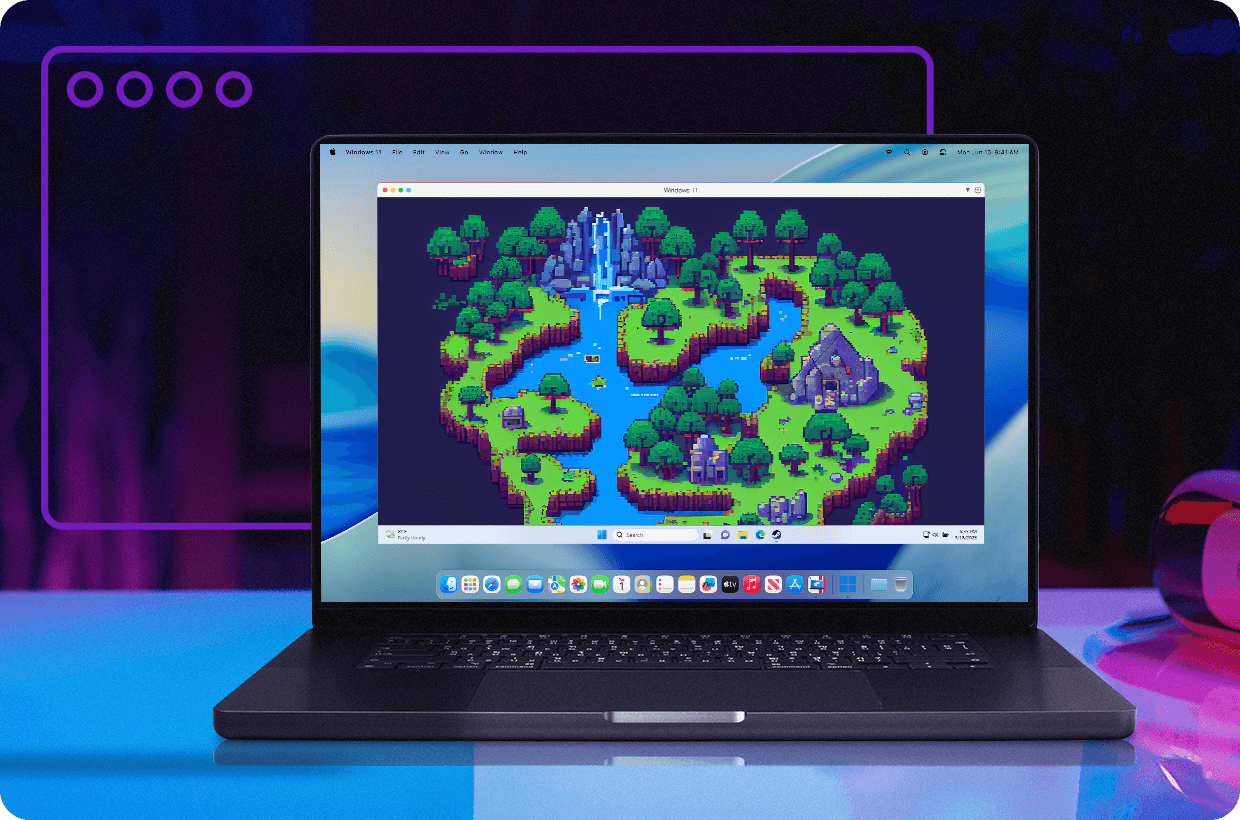
Parallels Desktop is designed to take advantage of modern Mac hardware, including Apple silicon processors. Allocate CPU cores, memory, and graphics resources to your Windows virtual machine so you can play supported Windows games while continuing to use macOS applications side by side.
Play more, wait less
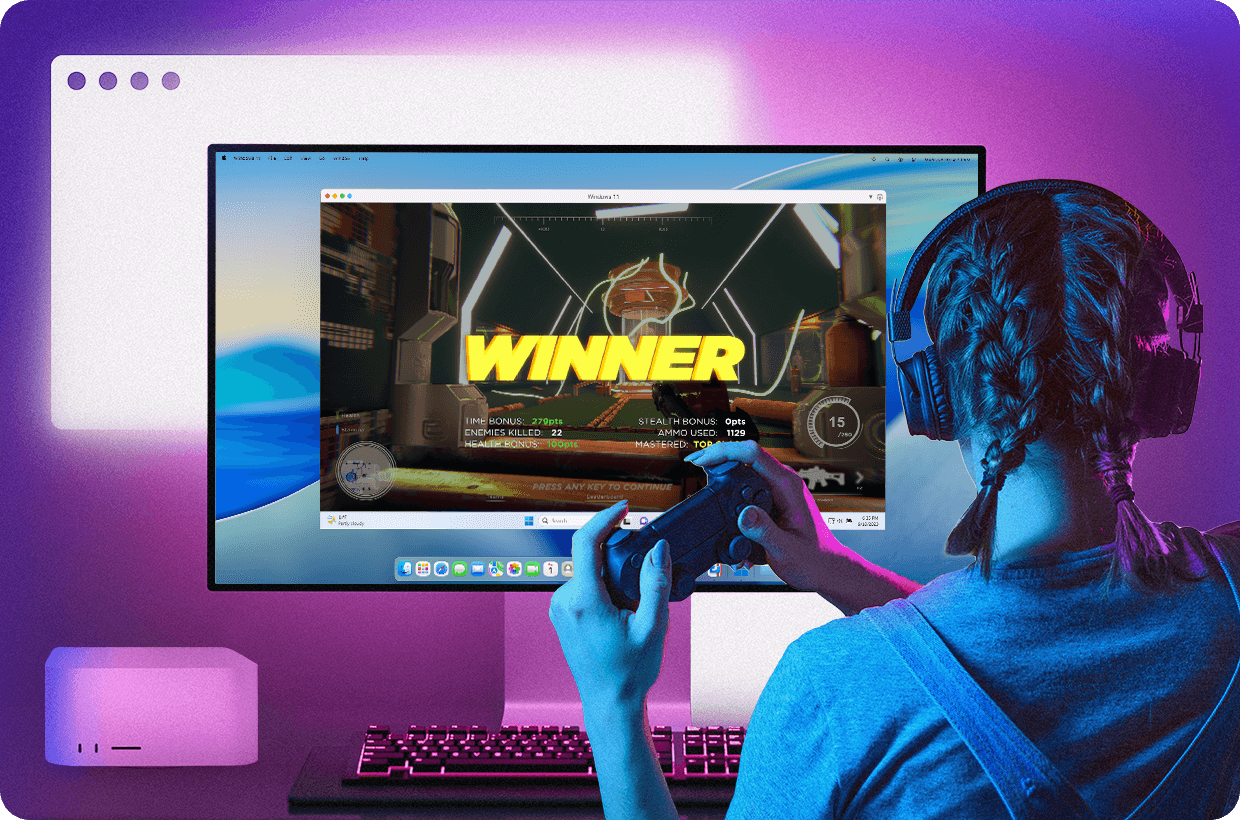
Optimize your gaming setup with configurable performance settings and the built-in Gaming Profile. Adjust CPU allocation, RAM, graphics memory, and display settings to match your game and hardware. Whether you're exploring Skyrim, building in Minecraft Bedrock, or managing a city in Cities: Skylines, you stay in control of how Windows uses your Mac's resources.
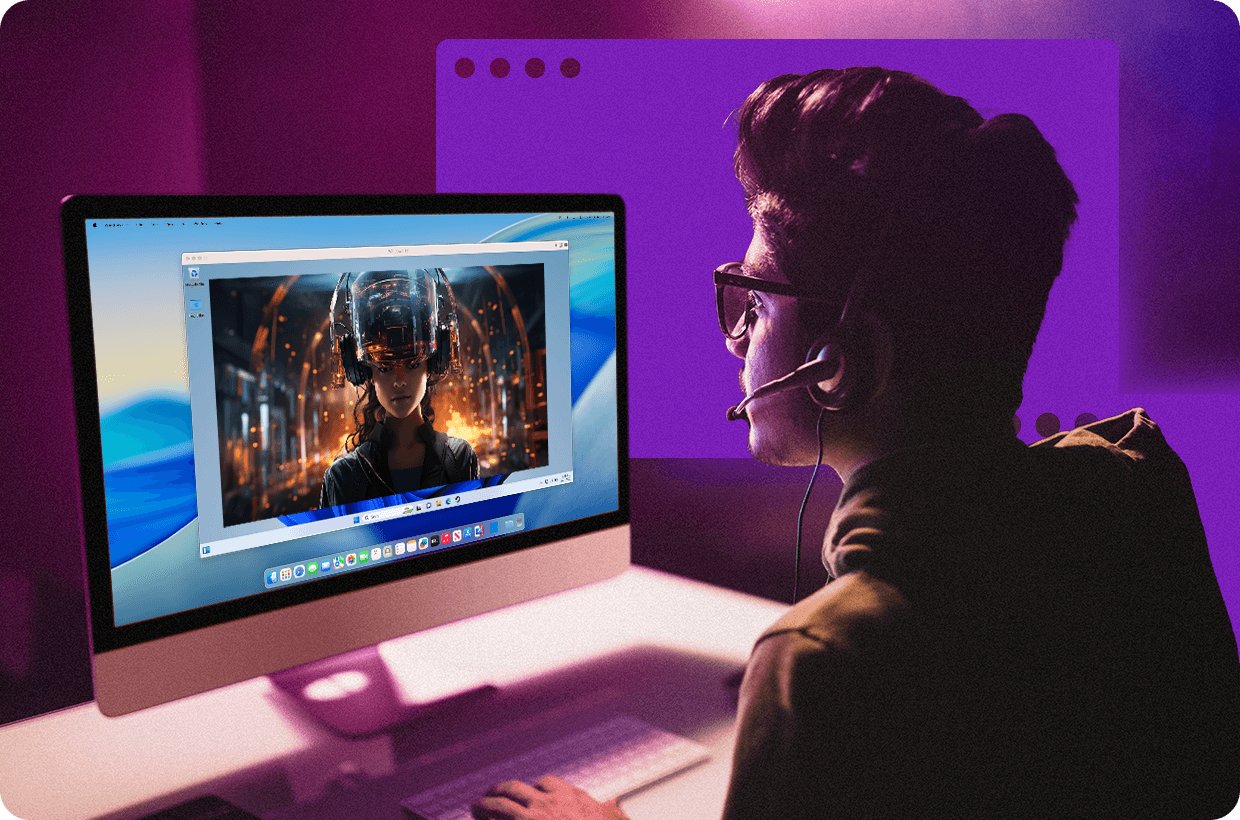
Parallels Desktop for Mac Pro Edition
 Authorized by Microsoft
 Optimized for Mac M-series
- Play hundreds of Windows-only Steam games on your Mac.
- Built-in Gaming Profile for CPU, RAM, and graphics allocation.
- DirectX 11 and OpenGL 4.1 graphics support inside Windows 11.
- Configure up to eight CPUs and allocate up to half of your Mac‘s available memory to Windows.
How to play Windows Steam games on your Mac

Download and install Parallels Desktop
Download Parallels Desktop and complete the guided installation process. Setup typically takes a few minutes on supported Intel and Apple silicon Macs running a current version of macOS.

Install Windows 11
Parallels Desktop can download and install Windows 11 automatically on Apple silicon Macs, eliminating the need to locate installation media or configure drivers manually. Once Windows is installed, complete the standard setup process and activate your license when ready.

Enable the Gaming Profile
Before installing games, switch your virtual machine to the Gaming Profile. This preset is designed to prioritize gaming workloads by allocating additional CPU and memory resources, enabling full-screen gaming workflows, and optimizing input settings for better compatibility. Advanced users can further customize CPU, RAM, and graphics settings under the Hardware configuration menu.

Install Steam and launch your game
Open Windows, download Steam from store.steampowered.com, and sign in using your existing Steam account. Your purchased games, cloud saves, achievements, and friends list remain tied to your Steam account, allowing you to install supported Windows titles and start playing immediately.
Why choose Parallels Desktop for gaming on Mac

Optimized gaming performance
Parallels Desktop includes configurable performance settings designed for gaming workloads. Adjust CPU allocation, memory usage, graphics resources, and display settings to match your Mac hardware and the games you play. The built-in Gaming Profile helps simplify setup while still giving advanced users room to fine-tune performance.

No additional hardware required
Keep using the Mac you already own. Instead of purchasing and maintaining a separate Windows gaming PC, run Windows and macOS on the same machine and access many Windows-only games from a single device.

Faster setup and launch times
Install Windows, download Steam, and start playing without building a dedicated gaming system. Suspend and resume your Windows virtual machine when supported, making it easy to jump back into games without repeating the full startup process.

Smoother gameplay for supported titles
Many DirectX 11-era games perform well on modern Apple silicon Macs through Parallels Desktop. Performance varies by game, graphics settings, and Mac model, but supported titles can deliver a responsive and enjoyable experience without leaving macOS.

Access to Windows-only games
Some of the most popular PC games still do not offer a native macOS version. Parallels Desktop lets you install Windows 11 and access many Windows-only Steam titles, helping you get more value from the game library you already own.

Switch between macOS and Windows instantly
Run Windows and macOS side by side instead of rebooting between operating systems. Chat in macOS apps, browse the web, work on school projects, and launch Windows games from the same Mac session.
Parallels Desktop vs. UTM vs. VMware Fusion for Steam gaming
Running Windows games on a Mac requires more than simply installing Windows. Graphics acceleration, controller support, Windows compatibility, and setup complexity all play a major role in determining whether a game is actually playable. Here's how Parallels Desktop, UTM, and VMware Fusion compare for Steam gaming on Apple silicon Macs.
Why UTM is difficult for Steam gaming
UTM is a capable virtualization tool for developers, hobbyists, and operating system experimentation. It is also free and open source. For gaming, however, it faces a significant limitation: modern Windows games depend on hardware-accelerated graphics technologies such as DirectX and OpenGL. UTM is not designed to provide the level of graphics acceleration required by most modern Steam titles on Apple silicon Macs.
As a result, while Windows itself can run inside UTM, many Steam games either fail to launch, experience severe graphical limitations, or perform at levels that are not practical for gameplay. Users must also manually configure virtual machines, source Windows installation media, and manage system settings themselves. For users who primarily want to play Windows games rather than experiment with virtualization, UTM is generally not the preferred choice.
VMware Fusion on Apple silicon: Better for productivity than gaming
VMware Fusion remains a respected virtualization platform and became free for personal use. However, its gaming story on Apple silicon differs significantly from its traditional Intel Mac experience.
While VMware Fusion can run Windows 11 ARM on Apple silicon Macs, graphics capabilities for Windows gaming remain limited compared with Parallels Desktop. Features commonly used by gamers—including advanced graphics acceleration, desktop integration tools, gaming presets, and seamless Windows-to-macOS workflows—are not as comprehensive on Apple silicon systems.
Users may also encounter limitations involving:
- Desktop integration features
- Shared folders and file workflows
- Multi-monitor configurations
- Controller support
- Graphics-intensive Windows applications
For productivity software, testing environments, and general Windows usage, VMware Fusion can be a viable option. For Steam gaming specifically, most Mac gamers looking to play Windows titles will typically find Parallels Desktop better aligned with gaming workloads.
Coherence Mode and the Boot Camp replacement for gaming
Play Steam games and use Mac apps side by side with Coherence Mode
Coherence Mode blends Windows and macOS into a single desktop experience. Instead of switching between operating systems, you can launch your Steam games alongside Safari, Messages, Discord, Spotify, Finder, and other Mac apps from the same workspace. For gamers, that means you can check a walkthrough, respond to Discord messages, manage downloads, or browse the web without leaving your Mac environment. Steam shortcuts can be launched directly from the Dock, and Windows applications behave much like native Mac apps. For users coming from traditional virtual machines, Coherence Mode helps make Windows feel integrated rather than separate. UTM does not offer an equivalent experience, and VMware Fusion's Unity functionality is not available on Apple silicon Macs.
No Boot Camp for Apple silicon: Parallels Desktop is the alternative
Boot Camp allowed Intel Mac owners to install Windows on a separate partition and reboot directly into Windows. That option is no longer available on Apple silicon Macs, including M1, M2, M3, M4, and future M-series systems. For Mac users who previously relied on Boot Camp for gaming, Parallels Desktop provides a different approach: Windows runs alongside macOS instead of replacing it.
That means you can:
- Run Windows and macOS at the same time
- Pause or suspend a Windows gaming session
- Return to macOS without rebooting
- Access Windows-only games from the same machine you use for work or school
While virtualization is not identical to native dual-boot performance, it offers significantly more flexibility for everyday use and remains one of the most practical ways to run Windows games on Apple silicon Macs.
Yes. Parallels Desktop lets you run Windows 11 on your Mac and install the Windows version of Steam inside of a virtual machine. Many Windows-only Steam games can run successfully, particularly titles built around DirectX 11 and OpenGL 4.1. Compatibility varies by game, graphics requirements, anti-cheat software, and Mac hardware.
Some DirectX 12 games may launch with limited functionality, but Parallels Desktop is optimized for DirectX 11 and OpenGL workloads. If a game's Steam requirements list DirectX 12 as the only supported graphics API, compatibility may be limited or unavailable. Always check the game's requirements before purchasing.
Yes, with caveats. Minecraft Bedrock Edition does not have a native macOS version, so many Mac users install it through Windows 11 running in Parallels Desktop. When it launches successfully, Bedrock supports cross-play with Xbox, PlayStation, Nintendo Switch, iPhone, iPad, Android, and Windows players. However, installation, authentication, and input-related issues have been reported on some configurations.
No. Minecraft Java Edition runs natively on macOS and is generally the recommended option for Mac users. Since version 1.19, Mojang has provided native Apple silicon support, making Java Edition the best-performing Minecraft experience on most Macs.
Java Edition runs natively on macOS and supports Forge, Fabric, and Quilt mod ecosystems. Bedrock Edition supports cross-play with consoles and mobile devices but does not have a native Mac version. Most Mac users choose Java for performance and modding, while Bedrock is chosen primarily for cross-platform multiplayer.
This error is reported by some users when installing Bedrock through the Microsoft Store on Windows 11 ARM. Community reports suggest the issue is related to Windows ARM compatibility and Microsoft Store validation rather than Parallels Desktop itself. Workarounds have been reported, but results vary by configuration.
Start by enabling the Parallels Desktop Gaming Profile and running Bedrock in full-screen mode. Some users also report improvements by adjusting mouse settings, changing input modes, or using a controller instead of mouse and keyboard. Results vary depending on the system and game version.
The Gaming Profile is a virtual machine preset designed to optimize Windows for gaming workloads. It adjusts resource allocation, input settings, and display preferences to better support games running inside the Windows virtual machine.
Yes. Your Steam purchases are tied to your Steam account, not a specific computer. Once you sign in to the Steam client inside Windows, your existing library, friends list, achievements, and eligible cloud saves become available.
Yes, for games whose multiplayer systems do not depend on unsupported kernel-level anti-cheat software. Multiplayer games that rely on standard networking generally work the same way they do on a Windows PC.
Yes. Steam Workshop content downloads and installs through the Windows Steam client just as it does on a native Windows PC. Compatibility depends on the individual game and mod.
Yes. Games that support Steam Cloud can sync saves between a Steam Deck, Windows PC, and Windows running in Parallels Desktop using the same Steam account.
Yes. Xbox controllers, PlayStation controllers, and many third-party USB or Bluetooth controllers can be used with supported games inside Windows. Steam Input functions similarly to a standard Windows PC setup.
Generally no. Valorant relies on Riot Vanguard, a kernel-level anti-cheat system that is incompatible with virtual machines.
Fortnite is generally not considered compatible with virtualized Windows gaming because of anti-cheat requirements. Users interested in Fortnite on Mac often explore cloud gaming alternatives instead.
Games commonly associated with anti-cheat compatibility issues include Valorant (Vanguard), Fortnite (Easy Anti-Cheat), Apex Legends (Easy Anti-Cheat), Rainbow Six Siege (BattlEye), Destiny 2 (BattlEye), PUBG (BattlEye), Escape from Tarkov (BattlEye), Rust (Easy Anti-Cheat), and Sea of Thieves (Easy Anti-Cheat). Compatibility policies can change over time, so always verify current game requirements.
Many users report successful gameplay in GTA V Story Mode through Parallels Desktop. Online functionality may be affected by anti-cheat requirements or Rockstar platform changes.
Skyrim Special Edition is one of the most commonly discussed RPGs among Parallels Desktop users. Performance and settings vary by Mac model, but many players report successful gameplay and mod support.
Valheim is generally considered one of the stronger survival-game candidates for Parallels Desktop because it uses DirectX 11 and does not depend on restrictive kernel-level anti-cheat systems.
Many users report successful gameplay with Age of Empires II: Definitive Edition through Parallels Desktop. As with all Windows games, performance depends on hardware configuration and available system resources.
Yes, although most players can use the native Mac version. Some users choose the Windows version for access to specific mods, custom content, or Windows-focused workflows.
Yes, but Civilization VI also has a native macOS version. Parallels Desktop is typically used when players need Windows-specific mods, multiplayer parity, or content that arrives first on Windows.
Yes, though most Mac users will prefer the native version. Parallels Desktop is generally only needed for Windows-specific testing, modding scenarios, or library-management preferences.
Running Windows inside a virtual machine requires additional system resources. Performance depends on the game, graphics settings, RAM allocation, and your Mac's hardware. DirectX 11-era games generally provide the best experience.
The ideal allocation depends on both your Mac and the game you're playing. Lightweight games often perform well with 4–6 GB assigned to Windows, while larger games may benefit from additional memory and CPU resources.
Yes. Steam Family Sharing functions through your Steam account and generally works the same way inside Windows running in Parallels Desktop as it does on a physical Windows PC.
Yes. Games that support Steam Cloud can synchronize saves, settings, and progress between compatible devices using the same Steam account.
Yes. Parallels Desktop supports Apple silicon Macs, including current M-series hardware. Performance depends on the individual game and system configuration.
Yes. Parallels Desktop is Microsoft's authorized solution for running Windows 11 on Apple silicon Macs, providing a supported Windows environment for compatible applications and games.