



Parallels Desktop
Pro Edition
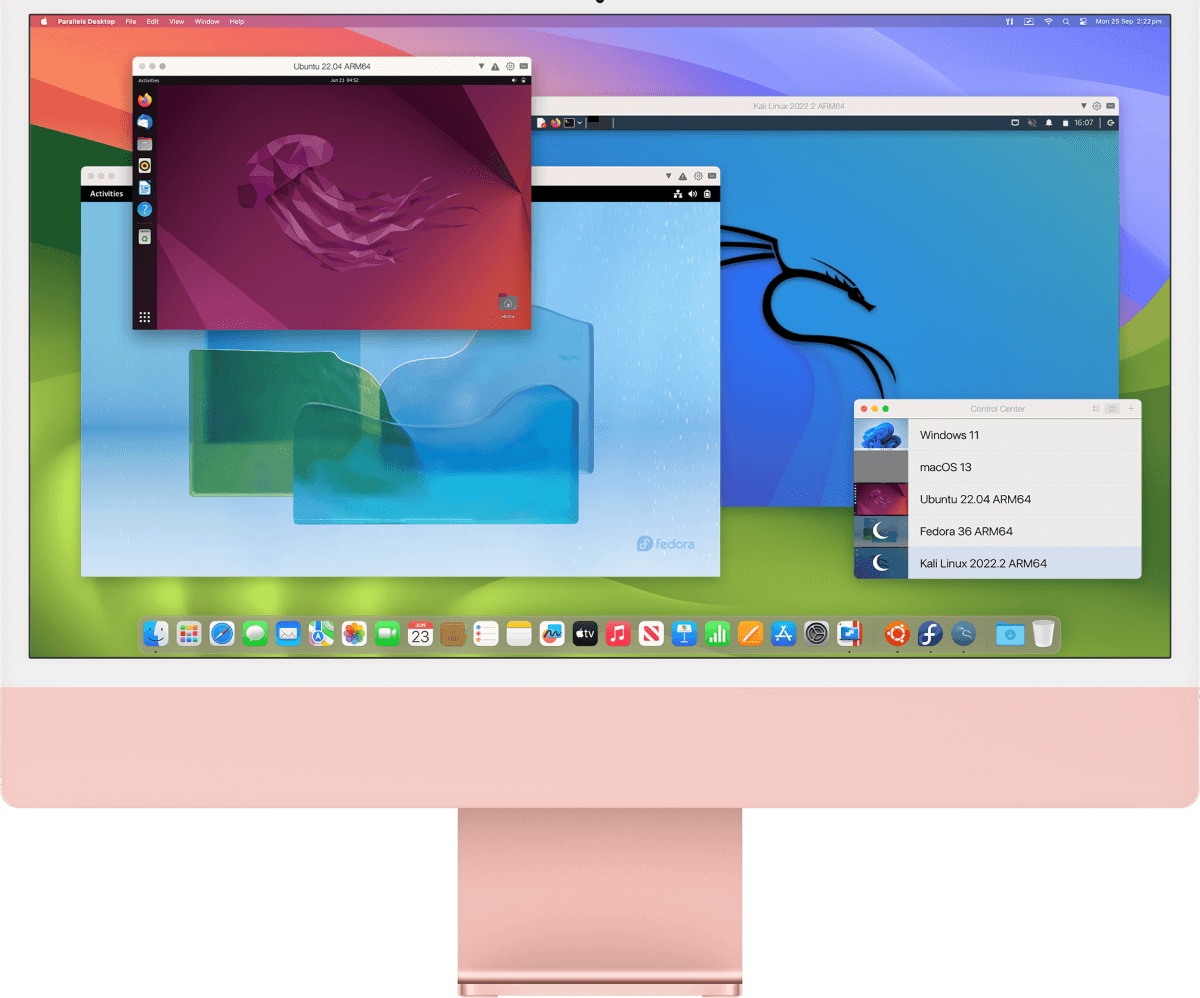
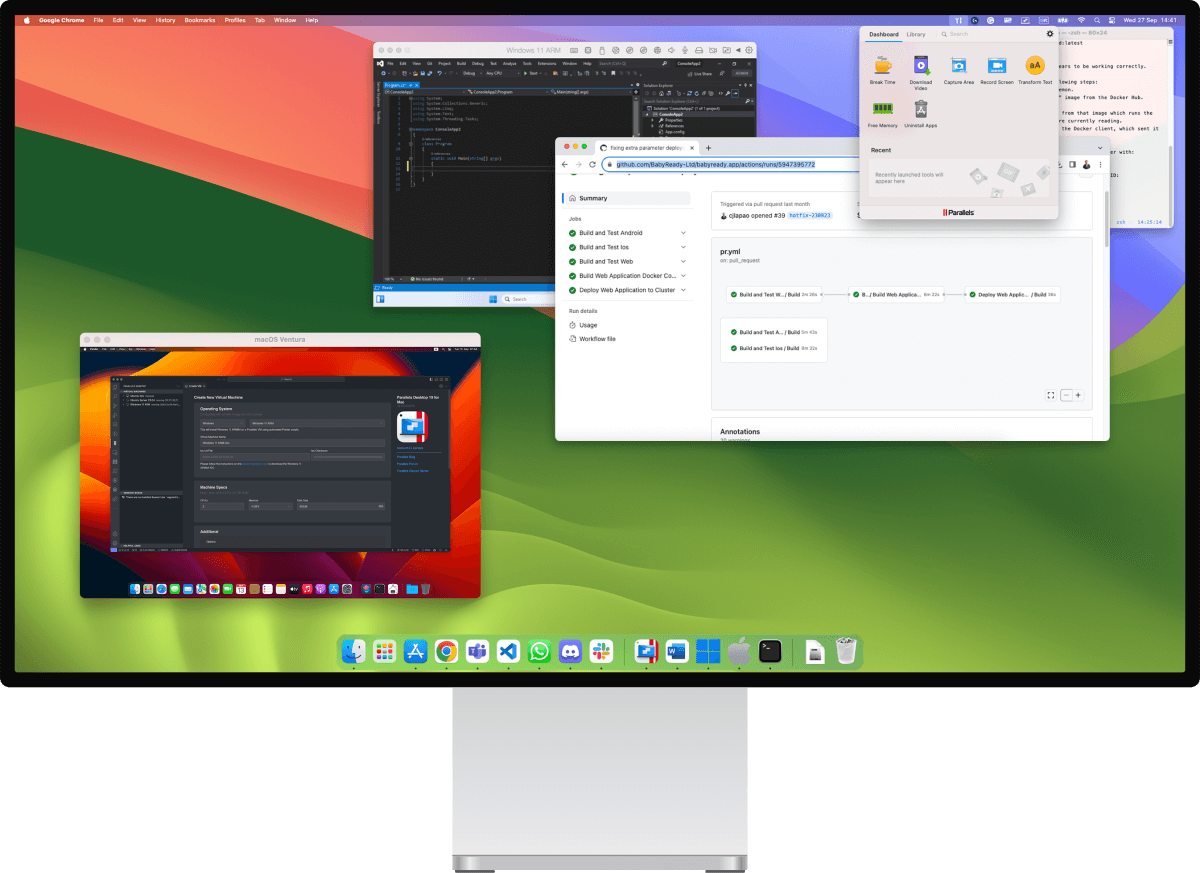
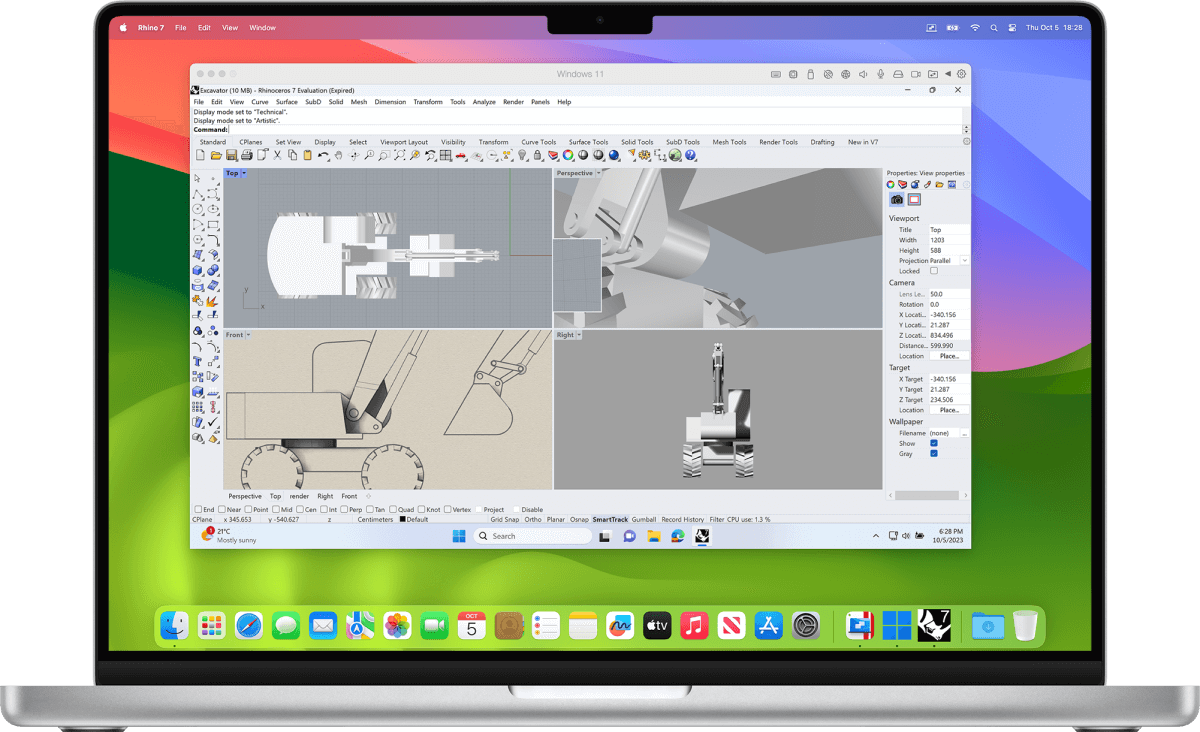
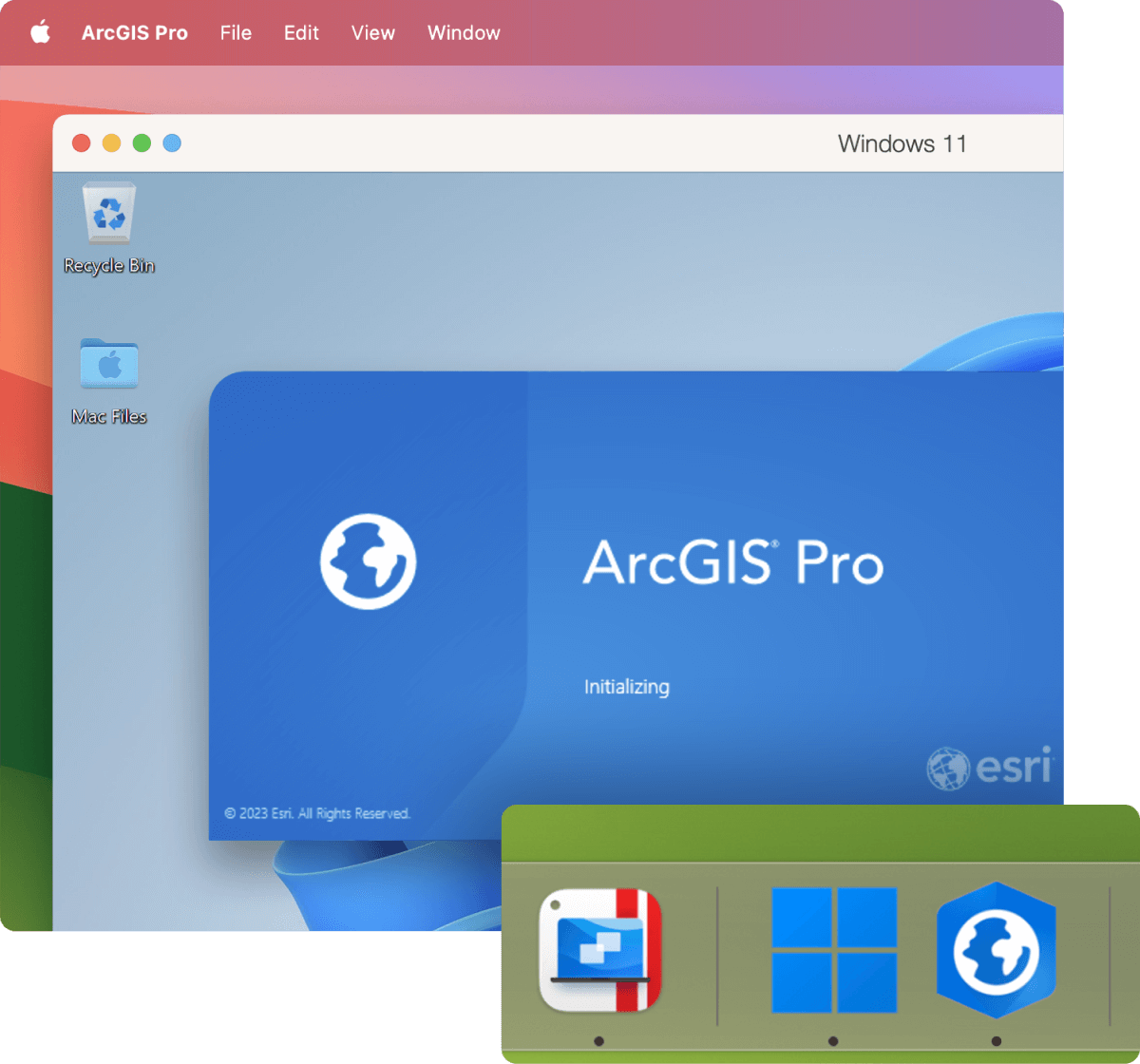
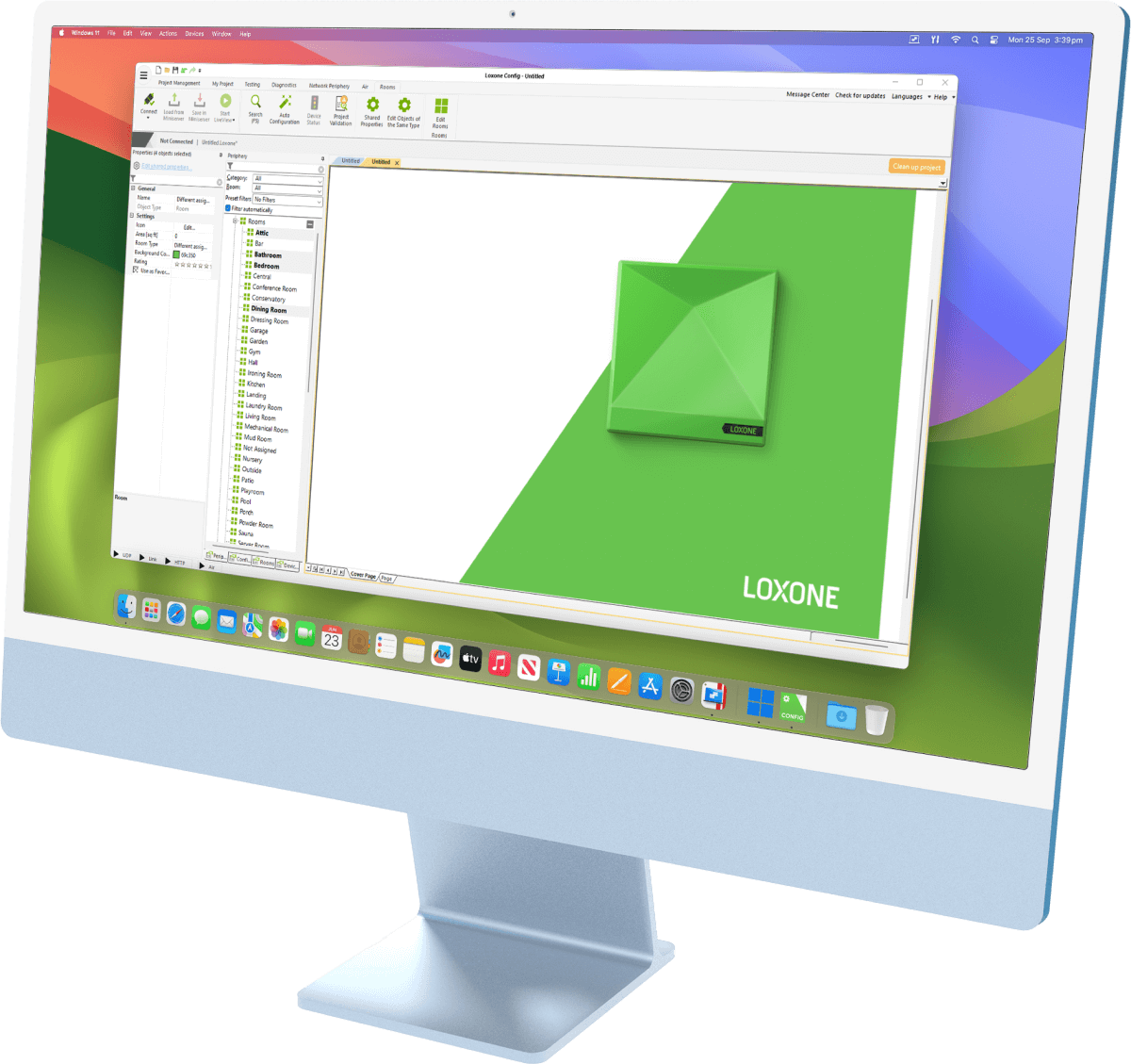
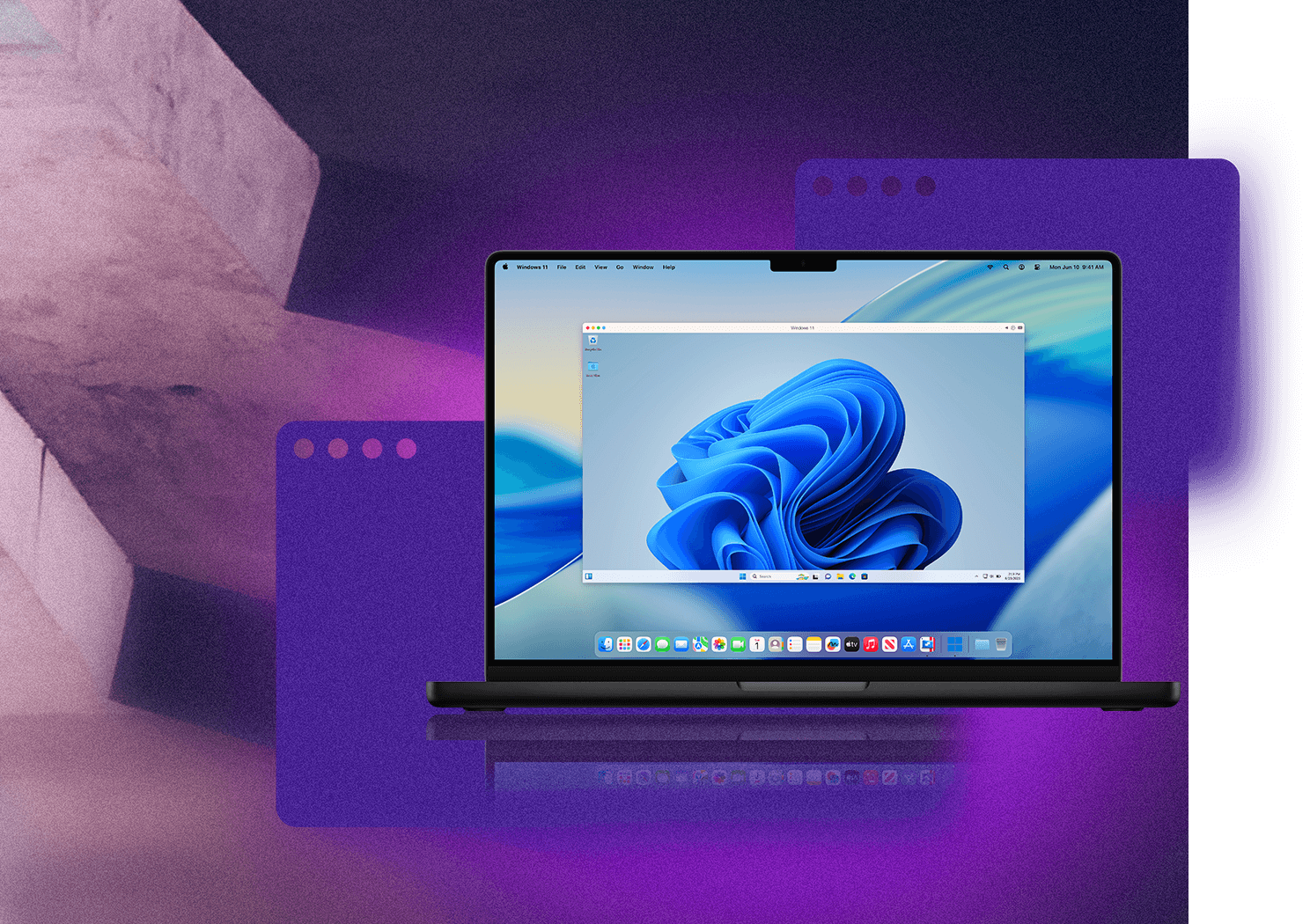
Run Windows and macOS® simultaneously on a Mac®.
- Run multiple operating systems without rebooting.
- Use different versions of Linux.
- Test in multiple browsers, including Internet Explorer versions.
- Validate web apps in any browser on any OS.
- Test software in an isolated environment.
Design, develop, and test on your Mac.
No need for a separate development machine.
More Power!
Designed with developers, power users, and other demanding professionals in mind. Parallels Desktop® for Mac Pro Edition gives you more processing power, with up to 128 GB of virtual RAM allocated to your VM and up to 32 virtual CPUs.
Multiple Browsers
Have Internet Explorer 9, 10, 11, and Microsoft® Edge right on your dev machine—and all running at the same time. Run incompatible browsers in separate installations of Windows in separate VMs. Plus, test in all of them simultaneously using your favorite web development tool (Dreamweaver®, WordPress, Microsoft® Expression, and more) to make changes to your site. If you regularly use multiple IE versions, try out the Launch tool in Parallels® Toolbox to launch them all at once and save time. (Parallels Toolbox is included with your purchase of Parallels Desktop Pro Edition.)
Network Conditioning
How does your site behave when the server’s bandwidth is constrained or noisy, or the client’s network is slow? With the network conditioning feature of Parallels Desktop Pro Edition, you can easily throttle down the speed of the server or the client, as long as they are in a VM. You can even artificially introduce noise in the network by dropping a percentage of packets.
Develop Menu
Access the Develop menu by selecting “Software Development” as your VM profile, or by enabling “Show Developer Tools” in your VM configuration. From the menu bar, select Develop> and choose from the following tools.
Start SSH Session
Quickly start an SSH session with your VM. This command requires an SSH server running on your VM; calls 'ssh <vm_ip>' command in Terminal.
Open in Browser
Test and open your website in one click.
Start Debugging Session
Start a debugging session directly from Parallels Desktop. Note: Parallels Desktop supports lldb as a debugging front end. It should be installed with the XCode command line tools or XCode.
Generate a Core Dump
Generate the VM memory dump.
Visual Studio Plugin
Debug in a safe, isolated environment. The Parallels plugin for Visual Studio allows you to develop software in one virtual machine and test it in others with just one click. To start remote debugging of your project, build the project and test it locally. Then click Parallels > Start Debugging in the VM and select the virtual machine you need.
- In the virtual machine with Visual Studio, navigate to the directory where Parallels Tools are installed. In most cases, it is C:\Application Files (x86)\Parallels\Parallels Tools\DevTools.
- Double-click the VMDebugHelper.vsix file. The plugin for Visual Studio will be installed automatically.
| Standard Edition | |
|---|---|
| Download and Install Windows 10 in one click | |
| Ready for macOS Catalina (10.15) | |
| Premium 24/7 phone and email support | 30-Days |
| Virtual RAM for each VM | 8GB vRAM |
| Virtual CPUs for each VM | 4 vCPUs |
| Buy NowUpgrade | |
| Pro Edition | |
|---|---|
| All the Standard Edition features PLUS: | |
| Customize Touch Bar for Windows applications | |
| Integration With Chef/Ohai/Docker/Vagrant | |
| Network conditioner to simulate speeds and test | |
| Microsoft Visual Studio plug-In | |
| Debug, dump VM, or start an SSH session from menu | |
| Premium 24/7 phone and email support | |
| Virtual RAM for each VM | 128GB vRAM |
| Virtual CPUs for each VM | 32 vCPUs |
| Buy NowUpgrade | |
Developer Tool Integration
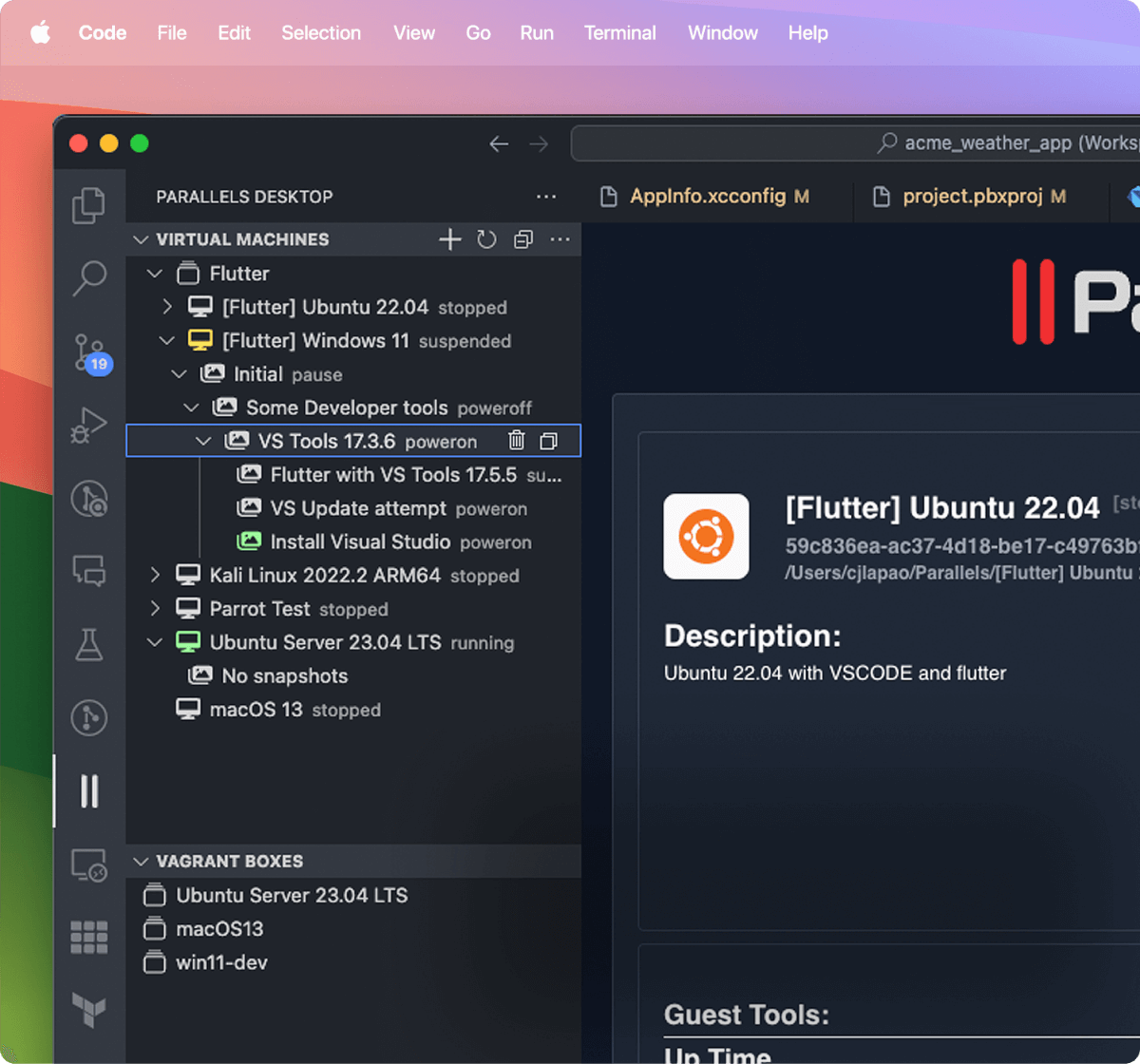
Vagrant Provider
Download the ready-to-use environment in seconds. Save time with one command: Vagrant Up. If you use Vagrant Share by Hashicorp, grant access to your VM via SSH or HTTP.
Command Line Interface
Use (prlctl, prlsrvctl), to control Parallels Desktop for Mac and virtual machines, their settings, and configuration. Autocompletion for prlctl and prlsrvctl commands in bash.* Allow passing arguments to VM applications.
*bash completion should be installed on Mac.
Jenkins
Run your builds in VMs by initiating and managing with Jenkins. Build OS X and iOS apps with Jenkins and continuous integration (CI). With the Jenkins plugin, Parallels Desktop VMs are launched dynamically whenever they are needed to build jobs, and then suspended during idle time for high-density usage of resources.
Nested Hyper-V Support
Parallels Desktop provides nested virtualization support (VT-X technology) that allows you to run Hyper-V and other types of virtual machines and emulators inside.
Docker
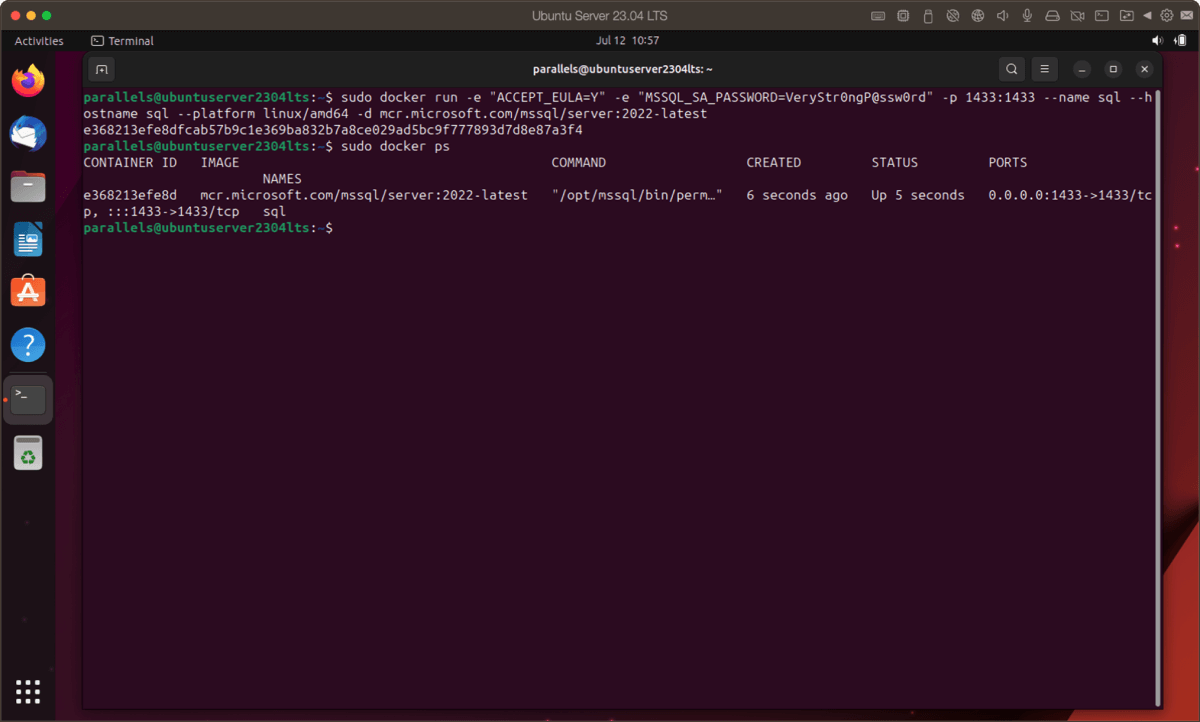
Docker Machine Parallels Driver allows you to create Docker hosts locally on Parallels Desktop.
Chef
Quick identification for recipes created from within Parallels VMs.
Test a Beta OS or Update
Take advantage of future public beta OSes from Apple and Microsoft without risking your data. Install a beta macOS or beta Windows release in a virtual machine safely on your Mac.
New update or upgrade released? First test it out in a VM. Save snapshots of a virtual machine. If something goes wrong, you can revert the changes back to any of your snapshots and continue working with the guest OS. Plus, the SmartGuard functionality in Parallells Desktop allows you to automate snapshots’ creation.
Download Pre-Built VMs
If you don't have enough time to create a new virtual machine with the required configuration, you can download a ready-to-use one with a predefined configuration.
Simply choose File > New and select from the “Free Systems” section. Pre-built VMs include a full Windows 10 Development Environment with Visual Studio and other tools pre-installed, a wide variety of Windows versions with different IE and Edge browsers pre-installed, Ubuntu Linux, Fedora Linux, CentOS Linux, Debian GNU/Linux, Mint Linux, and Android virtual machines.
See All Parallels Desktop Pro Features
“Parallels allows me to run a full development environment on Windows, including SQL Server, Analysis Services Server, Visual Studio, and SQL Management console simultaneously…”
Tim Goldstein, Senior Business Intelligence, Data Warehouse, OLTP, ETL Architect & Developer
Parallels Desktop
The most trusted desktop virtualization software for over 13 years!
The Parallels Desktop 30-day money-back guarantee ensures your satisfaction.