





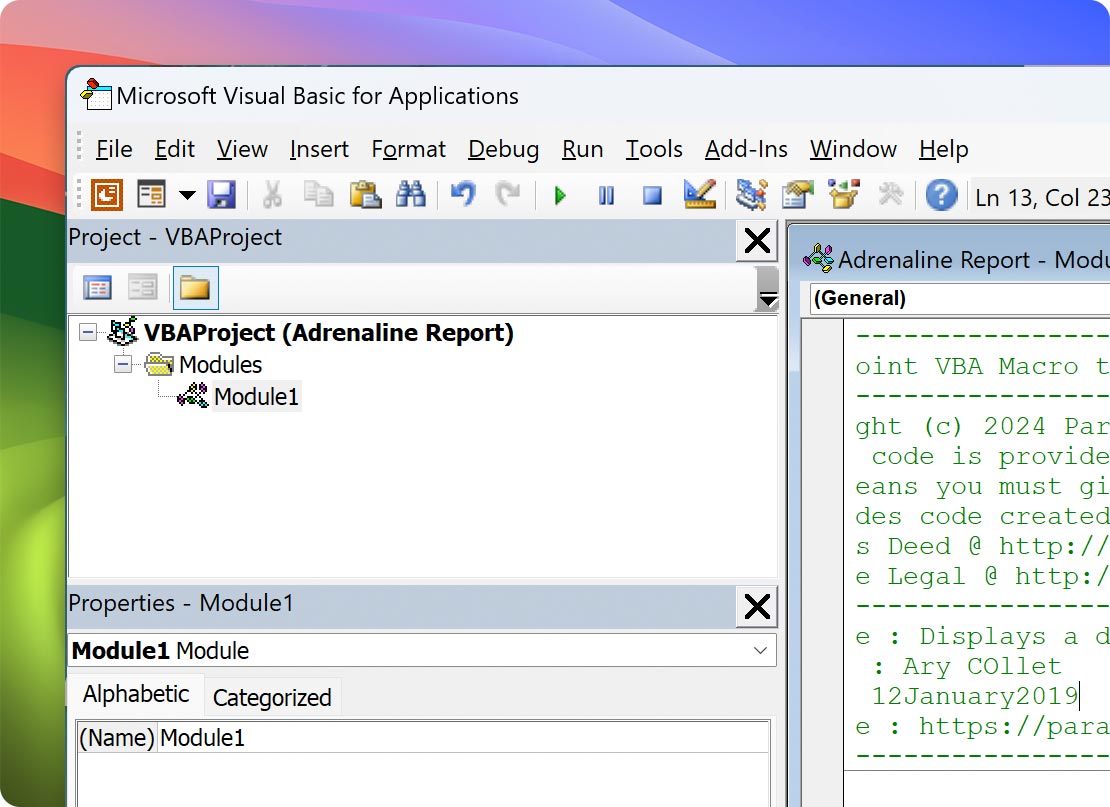

Run the full Windows version of PowerPoint on Mac

Run the full Windows version of PowerPoint on Mac

PowerPoint for Mac doesn’t include Windows-only features like Morph transition, Copilot Agent Mode, full VBA automation, and add-ons like Think-Cell and ClassPoint.

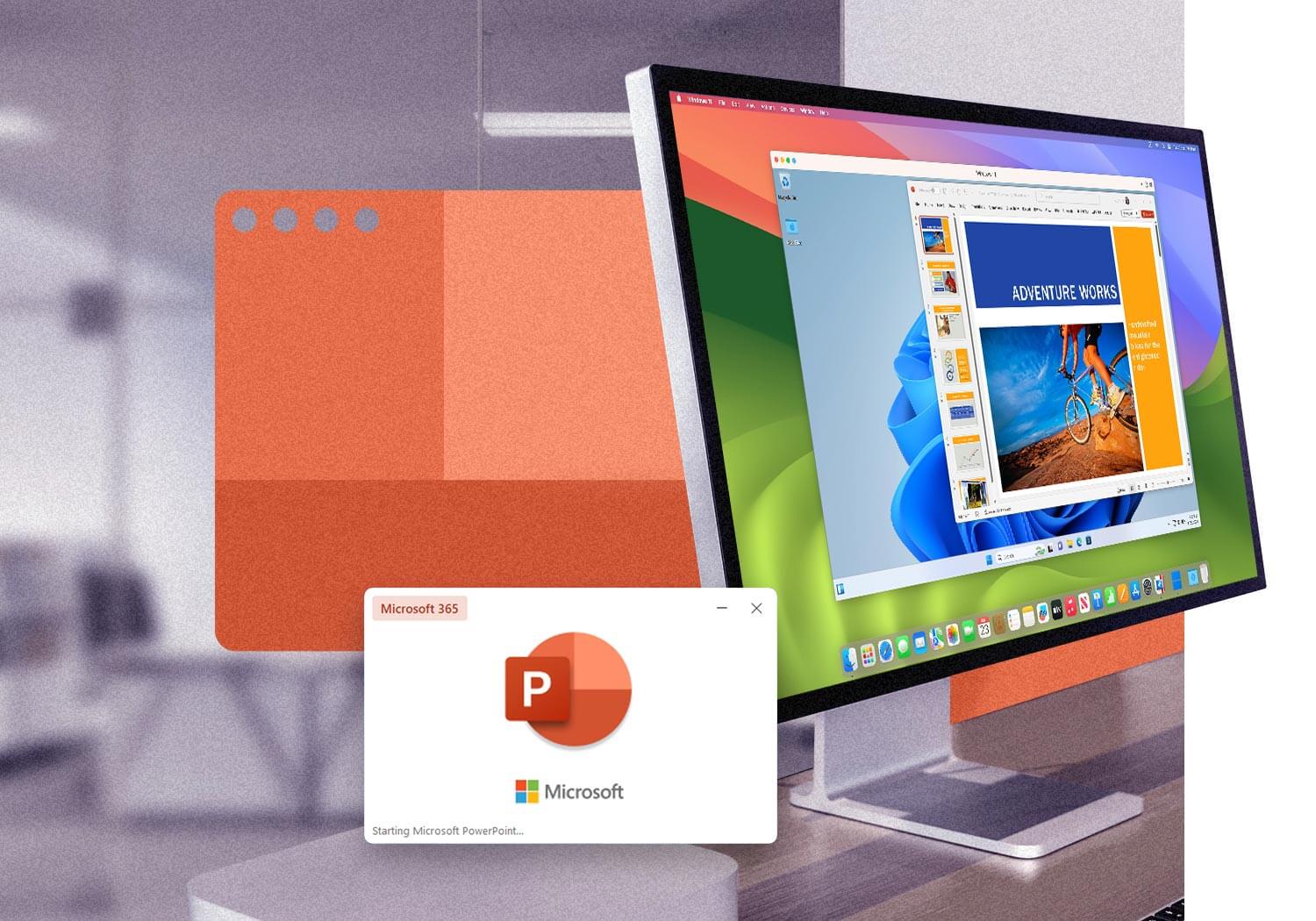
Parallels Desktop runs the full Windows version of PowerPoint on Mac, with Microsoft authorization for Windows 11 on Apple silicon.

Trusted by over 7 million Mac users worldwide

"My Mac Pro Retina 2015 wouldn’t run the newest Office by Microsoft. Parallels Desktop fixed the problem without having to buy a new Mac Pro just to run Microsoft Office, and the follow-up was phenomenal. I'm a professor. I build comprehensive lesson plans that require Word, Excel, and PowerPoint."

Professor

"I have a Mac from my employer, but I need Windows software. Parallels Desktop is stable and allows me to use ClassPoint which is an add-on for PowerPoint along with other windows software for education e.g., Eclipse."

Parallels Desktop Customer

"I use a MacBook for 80% of the things that I do on a computer. However, there are a couple of critical programs that I use, like PowerPoint, and I like the Windows version better. For the first time in 10 years, it's very nice to only need one computer."

Learning & Development / Content Developer

Why PowerPoint for Mac isn’t the same

Copilot ships to Windows first, Mac later

Microsoft's Copilot features for PowerPoint, including Edit with Copilot, Agent Mode, and Explain This, roll out on Windows and web first, with Mac versions rolling out weeks or months later—and sometimes facing delays. If you rely on Copilot for slide generation or deck editing, the Windows version gives you each feature first. Parallels Desktop runs the full Windows version of PowerPoint with day-one Copilot feature access.

Morph, animation paths, and triggers are Windows only

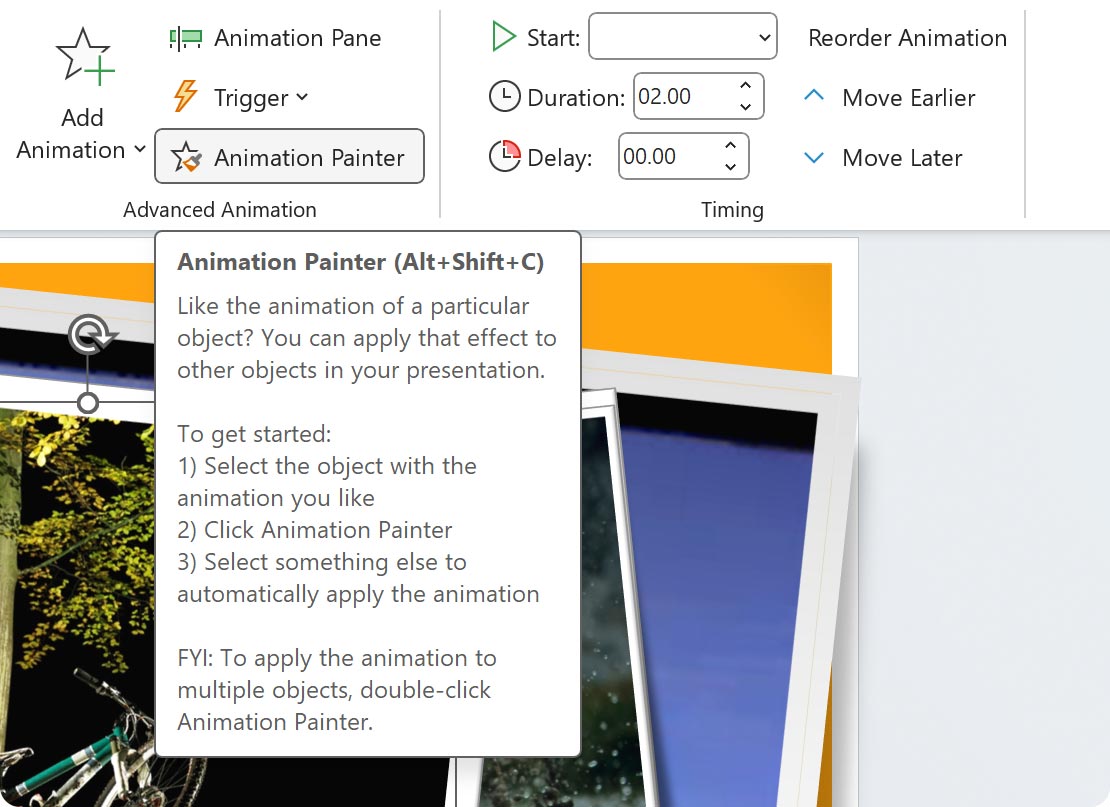
PowerPoint for Mac supports basic entrance, emphasis, and exit animations, but features like the full Morph transition feature set, custom animation paths, trigger-based animations, and a full keyframe-style animation timeline are only available on Windows. If you build animation-heavy decks for sales, marketing, or product demos, those features are absent on Mac. Running Windows PowerPoint through Parallels Desktop gives you the full animation toolset.

VBA macros are limited on Mac

PowerPoint for Mac supports a smaller VBA object model than Windows. COM add-ons do not run on Mac at all. Macros that work on a colleague's Windows machine may fail or behave differently on Mac, breaking cross-platform workflows for finance teams, investment banking analysts, and anyone using Office automation. Parallels Desktop runs the full Windows VBA object model and supports COM add-ons so existing macros continue to work as written.

Most professional add-ons are only for Windows

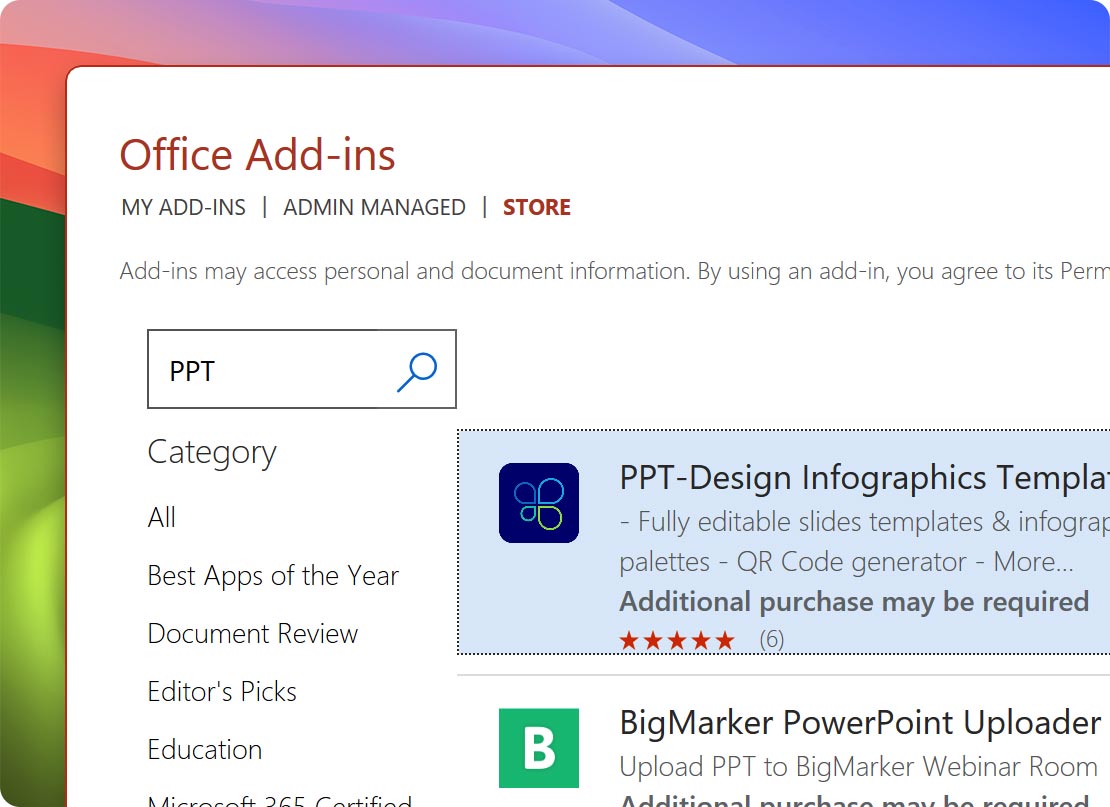
The PowerPoint add-ons used by sales teams, consulting firms, finance teams, and educators are largely built for Windows. Think-Cell, ClassPoint, iSpring, Office Timeline, SlideProof, and DataPoint are not available and will not run on Mac.

Decks built on Mac can break when opened on Windows

Mac PowerPoint and Windows PowerPoint render differently, so when working across operating systems, Morph transitions may not play, custom fonts may shift layouts, advanced animations may not survive the round trip, and embedded media may fail. If you build decks on Mac and present from a Windows machine or send decks to Windows-using clients, these differences become a real risk. Building decks in the Windows version through Parallels Desktop removes the cross-platform compatibility question entirely.

Windows-only PowerPoint add-ons and how to run them on Mac

Add-on What it does Who needs it
Think-Cell Think-Cell is a chart automation tool for management consulting and investment banking. It builds waterfall charts, Marimekko charts, and Gantt charts directly in PowerPoint. Users can run Windows PowerPoint through Parallels Desktop to use it on a Mac. Consultants, investment bankers, finance analysts
ClassPoint ClassPoint is an interactive teaching add-on that turns PowerPoint slides into live quizzes, polls, whiteboards, and student response sessions. Educators who need ClassPoint for in-class engagement may need to run Windows PowerPoint through Parallels Desktop on their Macs. Teachers, professors, training facilitators
iSpring Suite iSpring Suite turns PowerPoint into an authoring tool for SCORM-compliant e-learning content, including quizzes, simulations, screencasts, and interactive scenarios. L&D teams and course creators run Windows PowerPoint through Parallels Desktop to use it. Corporate L&D, course creators, instructional designers
Office Timeline Office Timeline simplifies the creation of professional-looking timelines and Gantt charts directly in PowerPoint. The Pro and Plus editions are Windows only. Project managers, program managers, account managers
SlideProof SlideProof is a productivity suite for PowerPoint that automates slide alignment, formatting consistency checks, brand compliance, and cleanup. Brand managers, large sales teams, deck production teams
DataPoint DataPoint connects PowerPoint slides to live data sources databases, Excel files, SQL and updates charts, tables, and text dynamically during a presentation. Operations dashboards, digital signage, executive presentations
MagPointer MagPointer adds live annotation, spotlight effects, zoom, and highlight tools during a presentation. Trainers, presenters, demo-heavy roles

Unlock Advanced PowerPoint Tools on Mac

Many of the most popular PowerPoint features are available in the Mac and Windows versions. For power users, however, certain features and functionalities may be lacking in the Mac version, including...

Animation and design capabilities
Integration with Windows-only services
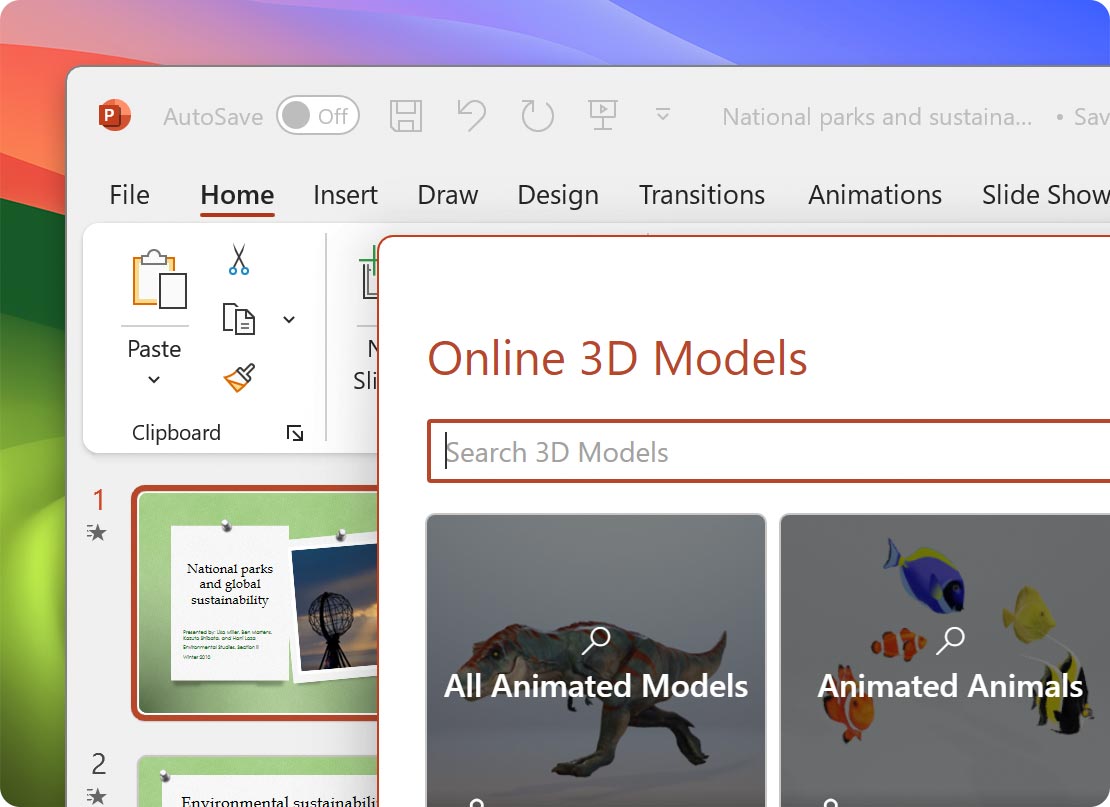
Graphic and multimedia features
Add-ins and extensibility
Integration with VBA

PowerPoint for Mac vs PowerPoint for Windows: Feature comparison

Feature PowerPoint for Mac PowerPoint for Windows
Certain animations Some animation capabilities Yes
Keyboard access to the Ribbon No Yes
AI tools Delayed rollout Yes
VBA capabilities No Yes
Remote presentation support No Yes
Closed captioning No Yes
Voice recording No Yes
Support for file formats like Windows Media and QuickTime No Yes
Morph transition Limited Yes
COM add-ons (Think-Cell, ClassPoint, etc.) Not supported Supported
Animation Painter No Yes
Designer (AI layouts) Limited or delayed rollout Yes
Edit with Copilot and Agent Mode Rolling out Yes

The verdict: PowerPoint for Mac vs PowerPoint for Windows

Use PowerPoint for Mac if you only need the basics and your audience is also on Mac

PowerPoint for Mac handles standard slide-building well: Text, shapes, basic animations, and presenter view all work properly. If you only build simple decks, never use Windows-only add-ons, and your audience views your slides on a Mac or in PowerPoint for Web, the native Mac version is sufficient. You won’t be able to get Morph, Agent Mode, full VBA, or add-ons like Think-Cell or ClassPoint.

Run Windows PowerPoint through Parallels Desktop if you need the full feature set

Run Windows PowerPoint through Parallels Desktop if you need Morph, full Copilot, the complete VBA object model, or any Windows-only add-on like Think-Cell, ClassPoint, iSpring, Office Timeline, SlideProof, DataPoint, or MagPointer. You also get cross-platform deck compatibility, so what you build will render the same way for any Windows-using audience. Great for sales, consulting, finance, education, and anyone moving to Mac from a Windows-centric workflow.

Learn more

On Apple silicon, Parallels Desktop is the only Microsoft-authorized option

Parallels Desktop is the only solution Microsoft has authorized to run Windows 11 on Apple silicon Macs. That authorization covers license compliance and Windows update access on M-series hardware. If you’re running PowerPoint on a recent Mac (M1 through M5, MacBook Neo) and need the Windows version, Parallels Desktop is the only authorized way to do it.

Learn more
Parallels Desktop icon

Parallels Desktop for Mac

Authorized by Microsoft icon Authorized by Microsoft

Optimized for Mac M-series icon Optimized for Mac M-series

/year
Billed annually
  • Use 200,000+ Windows apps
  • Access the full range of PowerPoint features
  • No need for a second Windows machine
  • Switch between macOS and Windows effortlessly

How to Set Up Microsoft PowerPoint on your Mac with Parallels Desktop

Download Parallels Desktop icon

Download and install Parallels Desktop

Download Parallels Desktop and run the installer. Installation takes under five minutes on Apple silicon and Intel Macs. No configuration is required before moving to step 2.

Install Windows icon

Install Windows 11 automatically

Parallels Desktop downloads and installs Windows 11 automatically on Apple silicon Macs. There is no ISO to find and no manual driver setup. You’ll need a Windows license to activate it, but it isn’t required to start using Windows in trial mode.

*Windows license required

Launch Microsoft Outlook

Install Microsoft 365 and PowerPoint inside Windows

Open the Edge browser inside your new Windows VM, sign in with the Microsoft 365 account that holds your PowerPoint license, and download the Microsoft 365 installer. Run the installer, sign into PowerPoint, and your existing license will activate automatically. If you don't have a Microsoft 365 subscription, you can also install standalone PowerPoint from microsoft.com.

Turn on Coherence mode

Turn on Coherence mode so PowerPoint behaves like a native Mac app

In your Parallels Desktop settings, switch your VM to Coherence mode. Windows PowerPoint will appear in your Mac dock, in your Cmd-Tab switcher, and in Mission Control like any other Mac app. The Windows desktop disappears, so only PowerPoint is visible. You can pin it to your dock for one-click access.

Install your Windows-only PowerPoint add-ons

Install your Windows-only PowerPoint add-ons

Inside Windows, open PowerPoint and install any add-ons you need: Think-Cell, ClassPoint, iSpring, Office Timeline, SlideProof, DataPoint, or MagPointer. Each one installs the same way it would on a native Windows machine. Your add-on licenses follow standard vendor activation.

Who runs PowerPoint on Mac with Parallels Desktop

Sales and consulting professionals

Sales engineers, consultants, and account executives who build client-facing decks daily need consistent rendering, full animation support, and Windows-only add-ons like SlideProof and Office Timeline. Building decks in Windows PowerPoint via Parallels Desktop also removes the cross-platform compatibility risk: What you build on your Mac will render the same way on the Windows machine in the conference room.

Educators, professors, and trainers

Teachers and professors using ClassPoint, iSpring, or MagPointer for live in-class engagement and e-learning content can run those Windows-only add-ons on their Macs through Parallels Desktop. Education licensing for Parallels Desktop is also available, so students and faculty can save up to 50%.

Finance, investment banking, and management consulting

Analysts and associates in finance and consulting use Think-Cell for chart automation and the full Windows VBA object model for macro-driven deck production. Both are Windows only. Running PowerPoint via Parallels Desktop on a Mac gives finance and consulting teams access without leaving their company-issued Mac hardware.

Using Microsoft PowerPoint on Mac FAQs

See what Parallels enables you to accomplish

Outlook icon

200,000+ apps and integrations

Run all your favorite Windows apps on Mac.

See all the apps
Excel icon

Excel

Use Windows Excel on your Mac.

Learn more about Excel
Office icon

Office365

Unlock the full-featured versions of Microsoft Office apps on your Mac.

Learn more about Office365

Learn more about using Parallels Desktop to run Microsoft PowerPoint on Mac

What’s the difference between Microsoft PowerPoint on Mac vs. Windows?

Learn more

How to copy and paste between Windows and Mac applications with Parallels Desktop

Learn more

How to control a PowerPoint presentation on your Mac using the trackpad

Learn more

Access the full power and capability of Microsoft PowerPoint on your Mac starting at a year with Parallels Desktop

Enjoy Microsoft PowerPoint on Mac, plus other key Windows applications without the need for a PC.