




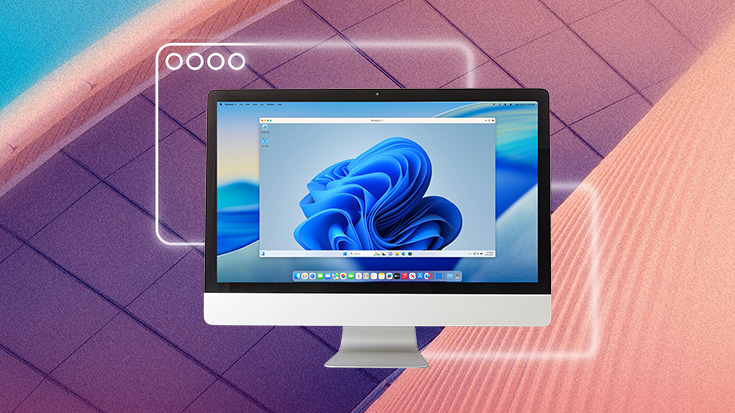
Desktop virtualization software is useful for anyone who needs a single computer to act like multiple computers. It lets you run another operating system inside the one you already use by creating a virtual machine (VM), which works like a separate computer on your desktop.
This allows you to open Windows, Linux, or another macOS environment without switching devices or rebooting. In practice, the best virtual desktop software makes this feel like using another computer inside a window, with shared files, clipboard access, and app integration across operating systems.
This glossary-style guide is for IT pros evaluating virtualization tools, Mac users wondering how to run Windows apps, and developers who need reliable cross-platform test setups. You’ll learn the main types of desktop virtualization software, how VMs work, what to compare in 2026, and how to choose the right tool for your workflow.
Desktop virtualization software creates a simulated computer environment inside your existing OS, letting you run Windows on a Mac, Linux on Windows, or multiple operating systems side by side, without buying separate hardware. Common virtual machine software and desktop virtualization tools include Parallels Desktop, VMware Fusion, and Oracle VirtualBox.
How desktop virtualization works
Desktop virtualization software is user-friendly, straightforward, and widely used: research shows the market is expected to grow by billions in the next few years.
How does it work?
Desktop virtualization software, including local virtual machine software, uses a hypervisor, which is the layer that enables a computer to share its processor, memory, storage, and graphics with a virtual machine. Simply put, the hypervisor helps your Mac or PC act like two computers at once: your main operating system keeps running, while the VM gets the resources it needs to run another operating system.
There are two main types of hypervisors. Type 1 hypervisors, also called bare-metal hypervisors, run directly on hardware and are common in servers and data centers. Type 2 hypervisors, also called hosted hypervisors, run as an app on top of your existing operating system.
Most desktop virtualization tools fall into the Type 2 category because they are designed for everyday laptops and desktops.
In reality, the workflow is simple: you install the virtualization software, create a new virtual machine, choose the operating system you want to run, and launch it in a window.
From there, the second OS behaves like its own computer, but it still lives on your current machine. For example, a Mac user can open a Windows VM, run Windows apps, and move between macOS and Windows without rebooting.
How local virtual machines work
Desktop virtualization can mean a few different things depending on where the desktop runs: on your own computer, on company-managed servers, or in the cloud. Local virtual machine software runs directly on your computer’s hardware through an app installed on your current operating system. Tools like Parallels Desktop and VMware Fusion use this model: you install the app, create a VM, and run another operating system locally on your Mac or PC.
This is usually the best fit for individual users, Mac users who need Windows apps, and developers who want fast, low-latency test environments. Because the VM runs on your own machine, it can work offline and does not depend on a remote server or a constant internet connection.
Common use cases
There are plenty of reasons why people turn to desktop virtualization software.
Here are the most common:
- Running Windows apps on a Mac: One of the most common reasons people turn to desktop virtualization is simply needing a Windows-only app on a Mac, no second device, no reboot. Data shows that more and more Macs are being used in business environments, but in many cases, professionals want to use both Apple and Windows tools on a single device. A finance team on MacBooks can run QuickBooks Desktop or a Windows-only ERP client in a Parallels Desktop VM, with copy-paste and shared folders working across both operating systems.
- Software testing across OS versions: Developers and QA teams use VMs to spin up clean, isolated environments for each OS version they need to test against, without maintaining a rack of physical machines. A developer can run macOS Sequoia, Windows 11, and an older Linux build simultaneously on one Mac, take a snapshot before each test, and roll back in seconds if something breaks.
- Secure sandboxing: A VM functions as an isolated environment, so anything that happens inside it stays inside it. IT admins and security researchers use sandboxed VMs to safely open suspicious files, test new software installs, or evaluate third-party tools without putting the host machine at risk. Snapshot and rollback mean the environment resets to a known-clean state in seconds.
As these use cases show, desktop virtualization is a flexible solution that allows a single machine to meet diverse needs, from individual cross-platform productivity to large-scale enterprise security.
Top desktop virtualization tools in 2026
There are many desktop virtualization solutions available, from local virtual desktop software for individual users to enterprise platforms for large IT teams. The right tool depends on your hardware, your OS, and whether you're managing a single Mac or a fleet of 1,000 devices.
Here's how the major options compare.
-
Parallels Desktop
Best for: Mac users who need to run Windows or Linux locally, without rebooting or buying a second machine.
Parallels Desktop runs full operating systems directly on your Mac, whether Intel-based or Apple Silicon, using the chip's built-in virtualization engine. Setup takes minutes: install, provision Windows 11, and launch.
The platform supports more than 200,000 Windows applications on Apple Silicon, including productivity apps, financial programs, engineering software, and developer environments.
Parallels Desktop is the practical choice for anyone who needs Windows apps to feel native on a Mac, fast, offline-capable, and tightly integrated with macOS. Pro and Business editions add higher resource limits, centralized licensing, and policy controls for IT-managed deployments.
-
VMware Fusion/Workstation
VMware Workstation Pro runs on Windows and Linux; Fusion Pro is the Mac counterpart. The latest releases continue VMware's move toward calendar-based versioning and focus on modern architecture, better visibility, and expanded support for the latest hardware and operating systems. The trade-off: free means no official support, and the Mac experience is less polished than other top options (such as Parallels).
-
Oracle VirtualBox
VirtualBox runs on Windows, macOS, and Linux, making it useful for cross-platform lab environments and education. It handles most standard VM tasks well and supports a wide range of guest operating systems. Performance and integration with the host OS tend to lag behind commercial alternatives, and Apple silicon support has historically been limited.
-
Citrix
Citrix is a server-side solution: virtual desktops and applications live in a data center or cloud, and users access them from any device. Citrix's HDX protocol handles high-latency links better than most alternatives, though licensing complexity persists and typically requires additional budget for monitoring tools and consulting. Because of this, Citrix can often be too much for individual Mac users.
-
Microsoft Azure Virtual Desktop
Best for: Organizations already in the Microsoft ecosystem that want scalable cloud-hosted Windows desktops.
AVD delivers Windows desktops and apps from Microsoft's cloud, with tight integration across Microsoft 365. AVD is a natural fit for IT teams that want to standardize Windows delivery without buying server hardware, though costs can scale quickly with active session volume and data egress.
Which desktop virtualization software is right for you?
Desktop virtualization software lets one computer act like more than one, running Windows, Linux, or another macOS environment alongside your existing OS, without extra hardware or a reboot.
The right tool comes down to where your workload lives and who manages it. For most individual users, local virtual machine software is the simplest option; for larger teams, cloud or server-based desktop virtualization solutions may be a better fit.
If you're a Mac user who needs Windows apps to run fast and reliably, whether that's Excel macros, a legacy ERP tool, AutoCAD, or Windows-only dev environments, a local VM on your Mac is the most practical path. Parallels Desktop sets up in minutes, supports tons of Windows apps on Apple Silicon, and keeps everything on your machine (meaning no latency).
Ready to get started?
Try Parallels Desktop Pro for 14 days.FAQs
Is desktop virtualization the same as a virtual machine?
Not exactly. A virtual machine is one specific method of desktop virtualization. Desktop virtualization also includes server-hosted models such as VDI, where the desktop environment runs on centralized infrastructure rather than locally on your device. Think of virtual machines as one tool in a broader toolkit.
Can I run Windows on a Mac with virtualization software?
Yes. Parallels Desktop lets you install and run Windows 11 directly on your Mac, including Apple Silicon M-series models, without rebooting or buying separate hardware. You get full Windows functionality alongside macOS, with shared clipboard, shared folders, and near-native performance.
What are the limitations of VirtualBox for desktop virtualization?
VirtualBox works for basic VM tasks and is genuinely useful for light testing or learning, but it trades performance, macOS integration, and driver quality for its free price tag.
Features like shared clipboard, folder sharing, and display scaling require more manual configuration than Parallels Desktop, and Apple Silicon support has lagged behind other top alternatives.
Do I need a powerful computer to run virtualization software?
It depends on your workload. Typically, a basic Windows environment requires at least 4 GB of RAM and 600 MB of storage, but for best performance, 16 GB of RAM or more and an SSD drive are recommended.