




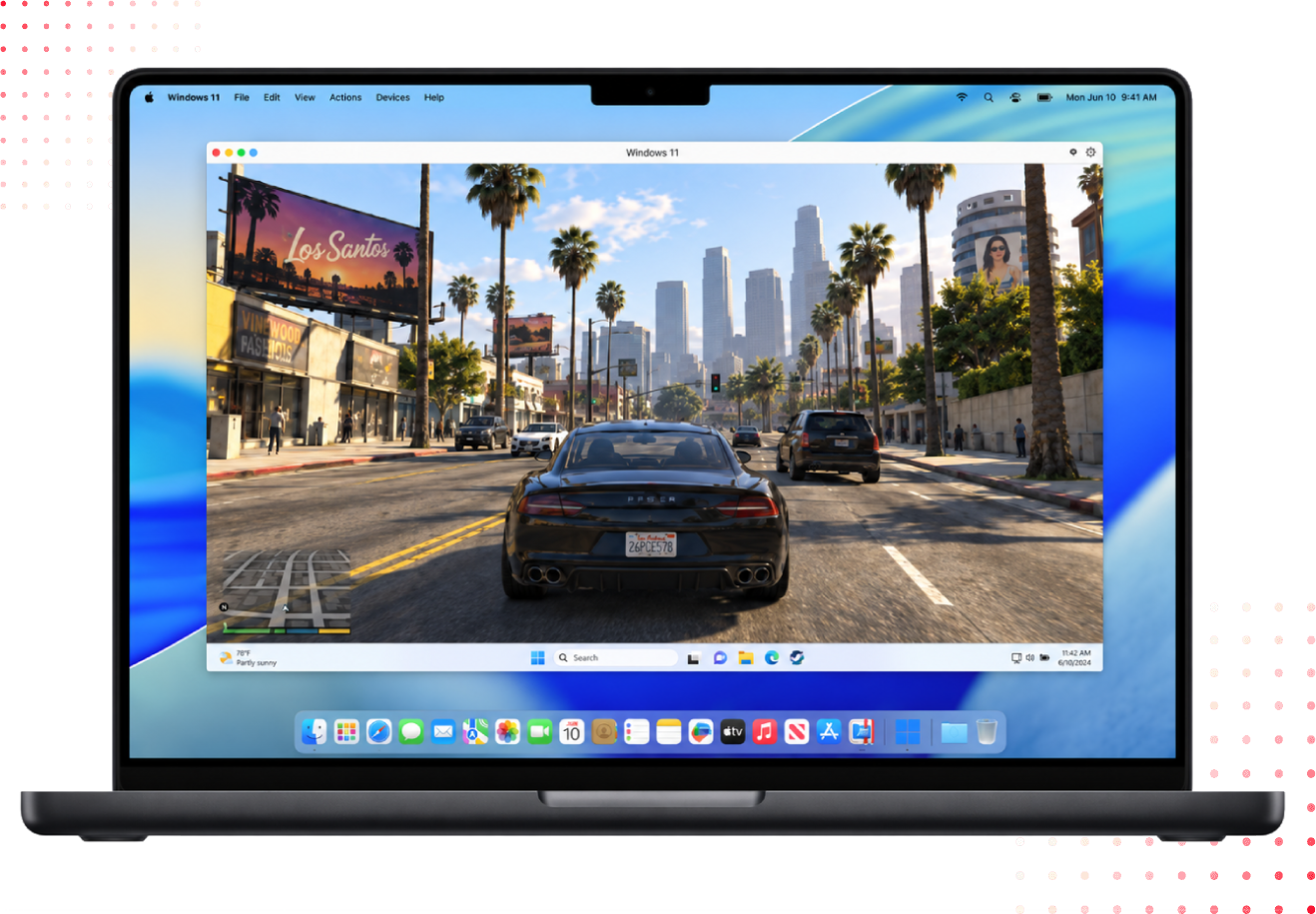
Run over 1,000 Windows game titles on Mac
- Age of Empires
- Rocket League
- Minecraft
- GTA V
- Assassin's Creed
- Roblox
- League of Legends
Game support and performance can vary by title and Mac model. Check compatibility before installing a game.
Which Windows games do you want to play on Mac?
What gamers are saying
"Allows me to play Windows-only games on my Mac... I love Macs but hate their limitations when it comes to gaming."
"It revived my interest in gaming. I use it to run Steam games that I couldn't normally run on Mac."
"Running games in Windows 11 — Battlefield 4 runs like greased lightning."
Play Windows games on your Mac in two steps

Download Parallels Desktop
Download Parallels Desktop and install it on your Mac.

Launch your games
Install your favorite compatible Windows games and start playing on your Mac.
Optimize Windows gaming on Mac in a few quick steps
Start with the settings recommended by Parallels Desktop, then adjust your game settings if you need to improve performance.
Use the Games Only profile
Shut down Windows, then switch to the built-in Games Only profile. This profile is tuned for gaming performance and full-screen play.
Config > General > Games OnlyStart with Automatic CPU & Memory
Let Parallels choose your CPU and memory settings automatically before making manual changes.
Hardware > CPU & Memory > AutomaticKeep Graphics on Automatic
Start with automatic graphics settings. If a game needs more performance, try lowering its in-game resolution or graphics quality.
Hardware > Graphics > AutomaticStart gaming on your Mac with Parallels Desktop
Run compatible Windows games on your Mac with Parallels Desktop. Set up Windows, check your game's compatibility, and use the recommended gaming settings to get started.
Before you install a Windows gaming on Mac
Compatibility and performance can vary between games. Before installing a Windows game, check its requirements and consider graphics support, your Mac hardware, and any anti-cheat technology the game uses.
DirectX 11 and OpenGL support
Parallels Desktop supports many DirectX 11 and OpenGL games on Mac. Performance varies depending on the game and your Mac model.
Windows gaming on Apple silicon
Run Windows 11 on M-series Macs with Parallels Desktop and play many compatible Windows games. Support varies by title.
Anti-cheat can affect gameplay
Some games may not launch or connect to online services because of anti-cheat systems such as Riot Vanguard, Easy Anti-Cheat, or BattlEye.
Check the game’s requirements and compatibility before you install.
Which Windows Games Can You Play on a Mac?
Parallels Desktop makes it easy to play many popular Windows games on your Mac without rebooting into a separate operating system. Simply install Windows in a virtual machine and launch your favorite PC games alongside your Mac apps.
Popular titles that Mac users run with Parallels Desktop include Grand Theft Auto V, Minecraft, Skyrim, Diablo IV, Age of Empires, Rocket League, Fallout 4, Assassin's Creed, and many other strategy, role-playing, racing, and action games.
Game compatibility varies based on graphics requirements, Windows on ARM support, and anti-cheat technologies. Before purchasing or installing a game, we recommend reviewing the game's system requirements and compatibility information.
Transform your Mac into a Windows dynamic gaming device
No longer do we have to accept “Macs aren’t made for gaming” as a fact; Parallels Desktop has changed everything by transforming our machines into high-powered gaming devices.
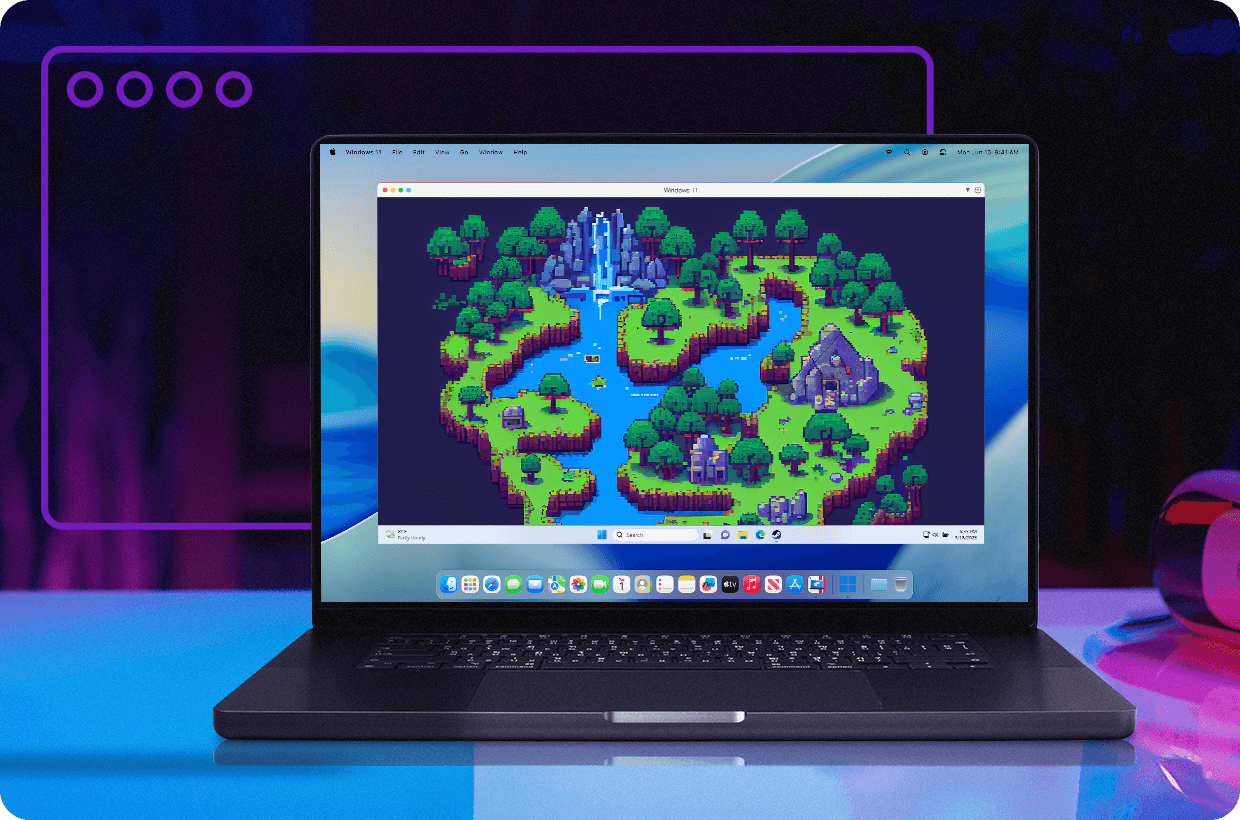
The power of your Mac’s hardware to play Windows-only games seamlessly
Parallels Desktop leverages the power of your Mac's hardware within your Mac that can play Windows-only games seamlessly.
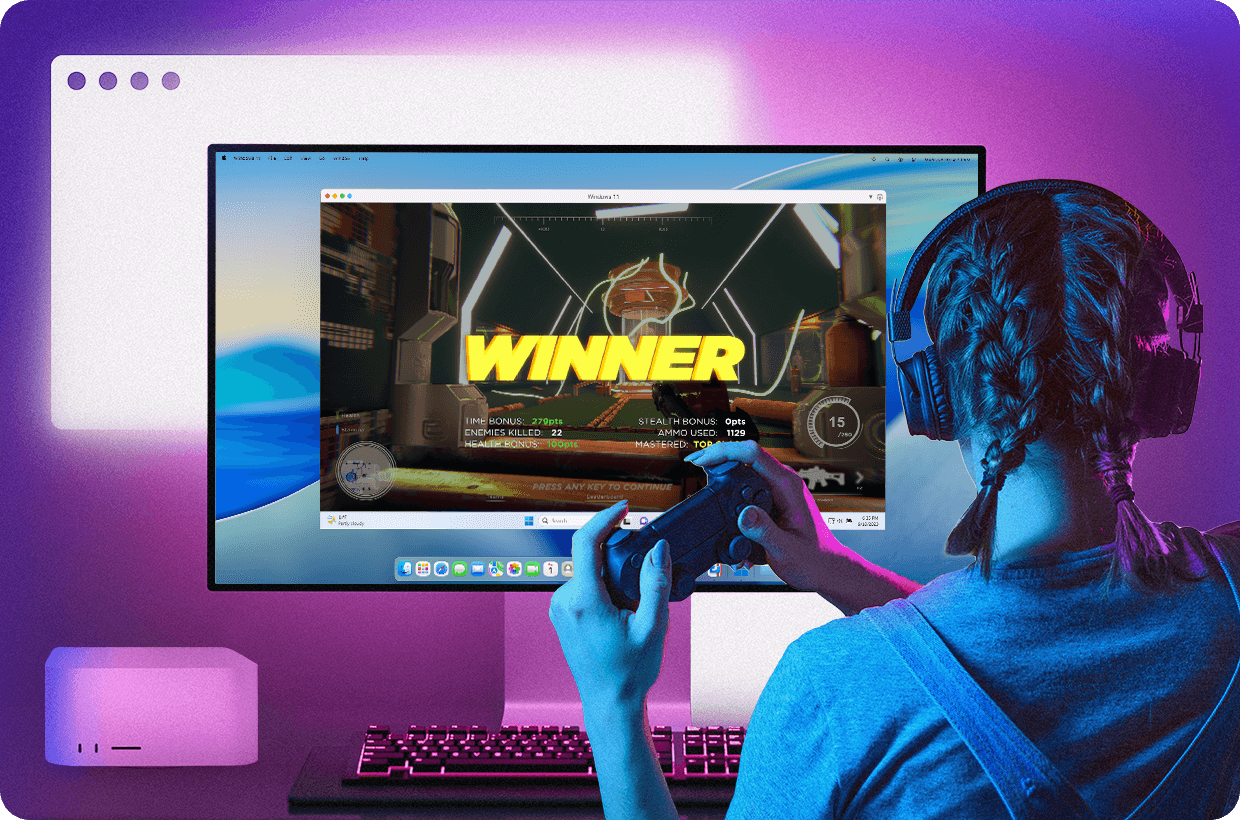
Play more, wait less with enhanced performance capabilities
Whether it's allocating specific resources such as CPU cores or RAM or fine-tuning graphics memory settings - you have control over every aspect so you can get the most out of your machine while playing those favorite PC games!
Why choose Parallels Desktop to play PC games on Mac

Seamless experience
Optimize your gaming performance based on individual preferences and game requirements.

No hardware purchase required
Upgrade and personalize your gaming spaces without needing to purchase a separate PC.

Faster load times
Don’t sacrifice performance. Allocate CPU cores or RAM – you have control over every aspect.

Steadier gameplay with next-gen framerate
Instantly get unparalleled load times, heightened visuals, and steadier framerates*.
*Framerates vary by game

Windows-only games compatibility
Create a Windows OS environment on your Mac with a virtual machine.

Flexibility between two operating systems
Switch between two operating systems and enjoy all the Windows-compatible games and other favorite apps without rebooting.
With Parallels Desktop, you can level up your Mac game and enjoy a variety of PC titles. Exceptions may exist due to certain hardware requirements and differences in the software ecosystems; still, it is possible to play many PC games on a MacBook Pro or Air with Parallels Desktop (with some potential challenges due to architectural differences if you have a newer Mac with Apple silicon).
Parallels Desktop currently supports DirectX graphics up to version 11 and OpenGL up to version 4.1, which expands the possibilities for playing PC games on a Mac.
Note that anti-cheat software functionality may be limited in Parallels Desktop’s virtualized environment.
While Parallels Desktop has expanded the possibilities for playing Windows games on a Mac, some incompatibilities still exist. Continuous improvements and updates are being made to further bridge the gap between Mac and Windows.
If there's a specific game that demands components not supported by Apple devices, it won't be playable — no matter how great your setup is! It's always wise to double-check system specs before launching any title on your machine and ensure both Parallels Desktop and macOS are running their latest updates for optimal compatibility and performance.
Parallels Desktop serves as a compatibility layer that bridges the gap between Mac and Windows, enabling Mac users to enjoy PC games seamlessly.
It translates Windows commands into something understandable and executable within the Mac system. You can launch those high-end titles with all their demanding graphics and gameplay features.
That way, gamers can enjoy their favorite titles without dealing with sluggish performance issues or compatibility problems. Parallels Desktop takes care of everything in the background — like a sidekick for your gaming adventures.
Mac computers are compatible with Windows through virtualization software like Parallels Desktop. Parallels Desktop allows you to create a virtual machine on your Mac, enabling you to install and run the Windows operating system alongside macOS. This allows you to access all of those cool PC games plus any other applications that only work in Windows environments.
Before diving in, though, double-check that your Mac meets the requirements of Parallels Desktop — you’ve got the necessary amount of RAM, storage space available, and one of the recommended versions of macOS. If all looks good, enjoy a whole new world of Windows from your Mac.
Yes, you can run many Windows games on a Mac using virtualization software like Parallels Desktop.
Parallels Desktop allows Mac users to install and run Windows alongside macOS in a virtual machine. Once Windows is installed, you can download and play many Windows games just like you would on a PC. Parallels supports DirectX graphics acceleration and Apple silicon optimization, which enables a wide range of popular games to run on modern Mac devices.
Performance will depend on the Mac’s hardware, the version of Windows installed, and the game’s system requirements.
Yes, it is possible to play PC games on a Mac with the help of virtualization software.
With Parallels Desktop, Mac users can run Windows applications and games without rebooting their computer. After installing Windows in a virtual machine, you can access PC gaming platforms like Steam, Epic Games Store, or Battle.net and play compatible titles directly on your Mac.
While not every high-end game is optimized for macOS or virtualization, many popular PC games run smoothly on modern Macs, especially those with Apple silicon processors and sufficient RAM and graphics resources.
Many popular Windows games run successfully on Macs using Parallels Desktop, including GTA V, Rocket League, Age of Empires II: Definitive Edition, Age of Empires III: Definitive Edition, Minecraft, and others. Compatibility depends on graphics requirements, anti-cheat software, and Windows on ARM support.
No. Parallels Desktop allows you to run Windows alongside macOS, so you can launch and play supported Windows games without rebooting your Mac. You can switch between Mac applications and Windows games seamlessly, making it easy to game and work on the same device.
Yes. After installing Windows with Parallels Desktop, you can download and install Steam just as you would on a Windows PC. Many popular Steam games run on Mac through Parallels Desktop, including strategy, simulation, RPG, and action titles. Compatibility and performance vary by game, graphics requirements, Windows on Arm support, and anti-cheat technologies, so we recommend reviewing each game's system requirements before installation.
Some multiplayer games use anti-cheat technologies that are not compatible with virtual machines. This may prevent the game from launching or connecting to online services.
Parallels Desktop currently supports DirectX 11. Some DirectX 12 games may not run or may have limited functionality depending on the game's requirements.
Use the Games Only Profile, allocate sufficient CPU and memory resources, keep Windows and Parallels Desktop updated, and review game-specific requirements before installation.