




Windows 11 Is Ready
You can now run Windows apps you missed on Mac
Next step: Activate Windows 11.
Some Windows applications and features may not work in Windows 11 on Apple M-series Mac computers. Learn more
Install Your
Windows
Applications
What app do you want to run?
Or install an app another way:
- Install Microsoft Office.
- Download an installer from the web.
- Install from a USB drive.
Use Spotlight to quickly open Windows apps.
Use Your
Mac Keyboard
in Windows 11
A few keys work differently in Windows. Here are the shortcuts you’ll use most often.
| Action | Shortcut |
| Copy and paste – including between macOS and Windows 11 |

|
| Open the Windows 11 Start menu |

|
| Switch between Windows 11 apps |

|
| Switch between Windows 11 and macOS apps |

|
| Ctrl + Alt + Delete |

|
Choose How Windows 11
Appears on Your Mac
Choose the view that works best for you:
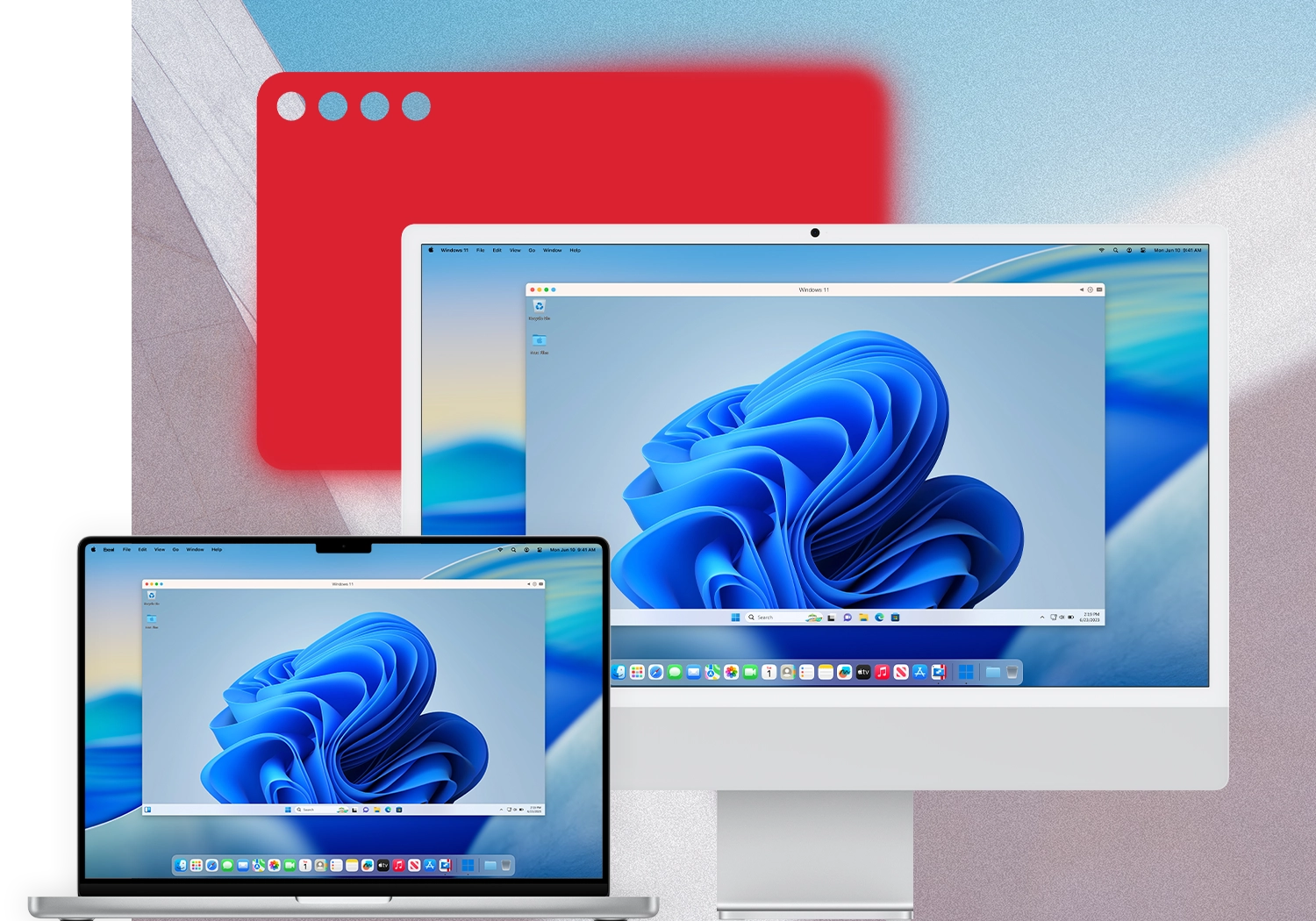
- Window mode: Run Windows 11 in a window on your Mac, like any other app. Your Mac desktop stays visible.
- Full Screen mode: Use Windows 11 across the entire display. Swipe left or right with three fingers to move between Windows 11 and macOS.
- Coherence mode: Run Windows and macOS applications side by side without keeping the Windows desktop visible.
Open Mac Files
in Windows 11
Your Mac files may already be available in Windows 11.
Your Mac Desktop, Documents, and Downloads folders can appear in Windows under the same names. Open and save files from either operating system without creating duplicate copies.
See how to configure folder sharing
Using the Mac App Store version?
Turn on folder sharing →

Files in your Mac Desktop, Documents, and Downloads folders appear in the corresponding Windows folders.